Assigning colors individually to schedules with a large number of weeks can be tedious. Fortunately, COMPASS has two features to ease the color assignment process. From any week of the schedule, right-click the Week color box to display a pop-up menu:
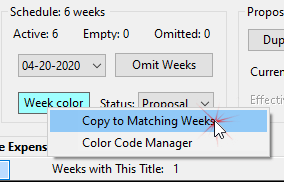
Copy Color Options
•Copy to Matching Weeks: Select this menu option to copy the color of the currently displayed week to all other identical weeks of the schedule. "Identical" is defined as being the same in all respects including week titles, line descriptions, ad assignments, rates, week notes, week comments, etc. Any weeks differing in any area will not receive a color assignment via this feature.
•Color Code Manager: This menu option displays a new window with details of each week of the schedule.
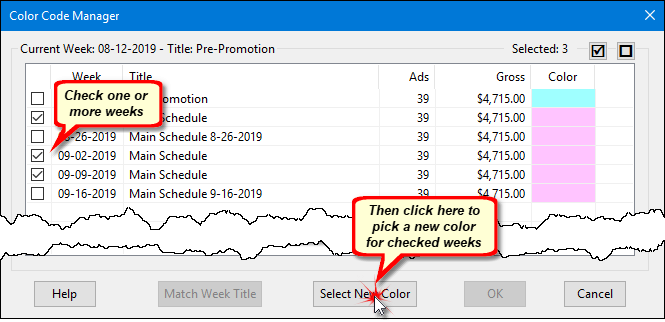
Color Code Manager
The current week date and title (if any) are displayed at the top of the window. Each active week of the schedule (including the current week) is displayed in the list. To aid in identifying the weeks, the number of ads and gross total for the week are also listed, along with any colors currently assigned.
Use the left mouse button to check the weeks to receive a new color. The small buttons at the top right of the window check all weeks or remove the check mark from all weeks, respectively. Once one or more weeks have been selected, click the Select New Color button to display the Choose Color window where a color for the checked weeks can be selected. Using this method, the color selected is applied to all selected weeks regardless of whether weeks are identical or not.
Alternately, left click any week title to highlight it, then click Match Week Title to have COMPASS place a check mark next to all weeks with the same title as the highlighted week. This feature is cumulative, so multiple week titles can be selected in this manner. Note that color assignments using this feature are based on week titles exclusively.
This procedure can be repeated as needed until color assignments are satisfactory. Those assignments are not actually applied until OK is clicked on the Color Code Manager window. Clicking Cancel will abandon all assignments made and return to the Schedule Detail window.