COMPASS supports copying selected portions of a week's schedule to other weeks in the same media schedule. With the week to be copied as the active week in the Schedule Detail window, click the Copy Parts of This Week button on the tool bar.
Copy Parts of This Week
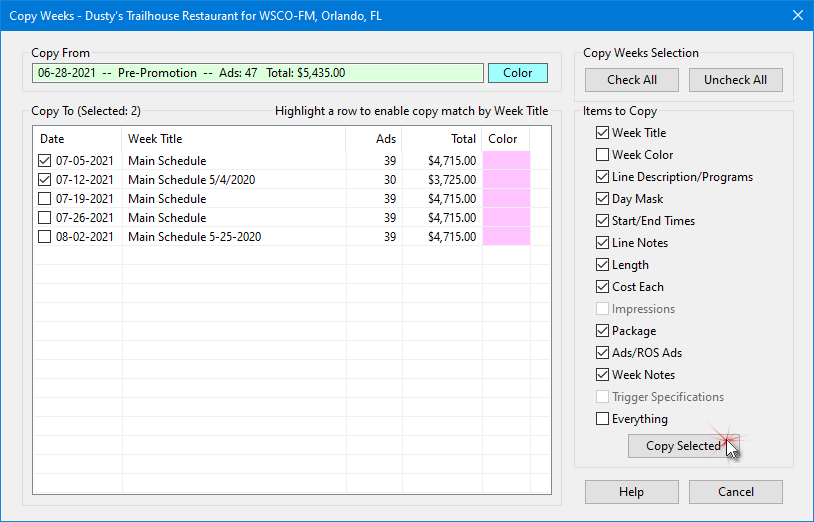
•Copy From: The active schedule week being copied (source week) is displayed at the top of the window. The currently assigned week color (if any) is also indicated.
•Copy To: The list of active schedule weeks available to receive a copy of the source week. Individual weeks are selected by checking the box next to the week date. A second click removes the check. At least one week must be checked for the copy to proceed.
•Copy Weeks Selection: These buttons allow Select All weeks or Unselect All weeks.
•Items to Copy: Another series of check boxes to allow copying only those items desired. The final check box, Everything, checks all available item boxes.
Some elements in the Items to Copy might be disabled if they do not apply to the current schedule.
Only those schedule lines in the Copy From week with a designated start and end time will be copied. Lines missing this information are considered incomplete and will not be copied.
Click Copy Selected to copy the selected schedule items to the weeks checked. Click Cancel to close the window without copying anything.
 Pro Tip
Highlight any week on the Copy To list by left clicking it with the mouse. This changes the Select All button to Select Matching. Clicking the Select Matching button will now place a check mark next to each week in the list that has a Week Title that matches the highlighted week.