The process of canceling an order is similar to Revising an Order. However, instead of using the default REVISE this order button, click the CANCEL this order button.
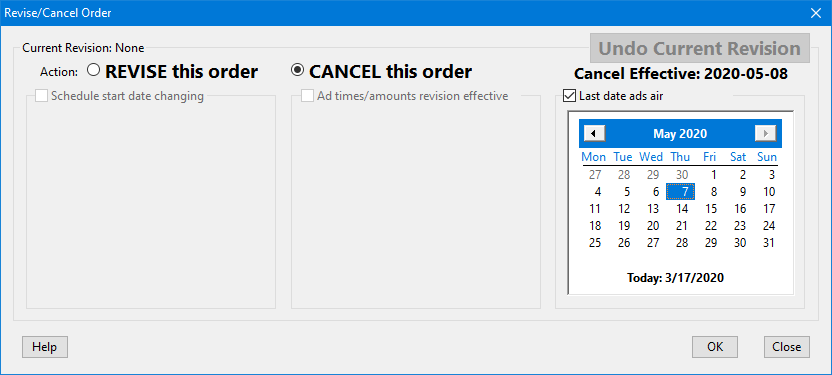
Canceling an Order
When canceling, the start date and ad distribution calendars and check boxes are hidden as they are not used. Only the end date calendar is available and it is pre-checked with the legend Last date ads air. The date selected should be the final date ads will be broadcast. COMPASS will mark the following day as the date the cancellation becomes effective.
In the above example, May 7 (a Thursday) is selected as the Last date ads air. Above the calendar in bold text is Cancel Effective 2020-05-08, one day later. Selecting a different date causes the bold text to be updated with the effective date of the cancellation.
If a cancellation occurs mid-week, and the canceled weeks includes ROS scheduling or includes a Multi-Week Span schedule, COMPASS will display an alert message. The message is a reminder to check with the affected media to determine the actual number of ads that have aired/will air due to the cancellation. See ROS Revisions and Cancellations.
Once the date is satisfactory, click OK to complete the cancellation. As with revisions, a cancellation can be rolled back by returning to this window and clicking the button that will now read Undo This Cancellation. However, once a cancellation has been issued to media, the option to undo the cancellation is no longer available.