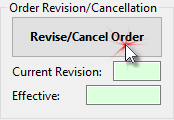
Once a proposed schedule has been approved, it becomes an order and can be disseminated to the media. Any modifications or revisions to that schedule after it has been send to the media can then be issued by clicking the Revise/Cancel Order button. While a schedule remains a proposal, this button (with a different designation) allows the currently displayed proposal to be duplicated.
Revising an Order
Modification Types
Modifications to an order can involve altering the start date and/or end date, or could be the result of a schedule change where more or fewer ads will be broadcast following a date certain. Revising the order is also recommended when a media has to air additional ("bonus") ads because of a scheduling error on their part.
When a revision is initiated, COMPASS makes a copy of the original schedule and any changes would then be applied to the copy, which becomes the active order. The previous schedule is archived and, if the need arises, can be restored, in effect "undoing" the revision.
When a Revision is Required
COMPASS has a safeguard to prevent the inadvertent issuing of duplicate revisions. Once a proposal is converted to order status, a revision to that order is not possible until after it has been issued to media. Once the order has been emailed or otherwise transmitted to media and COMPASS has been "informed" of this, the Revise/Cancel Order button again becomes available.
If the order is emailed to media via COMPASS Mail, the program will ask you to confirm the order has affirmatively been issued. Otherwise, once the order has been definitely issued, click the Issued button  on the Schedule Detail tool bar. This signals COMPASS that an additional revision or cancellation is now possible.
This condition persists any time an order is revised but not yet issued to media.
In addition, once an order has been issued to media, any attempt to edit or modify that order will cause COMPASS to display a warning that an order revision must first be made. This prevents any accidental modification that could later be confusing to the media involved.
Revision -- Step by Step
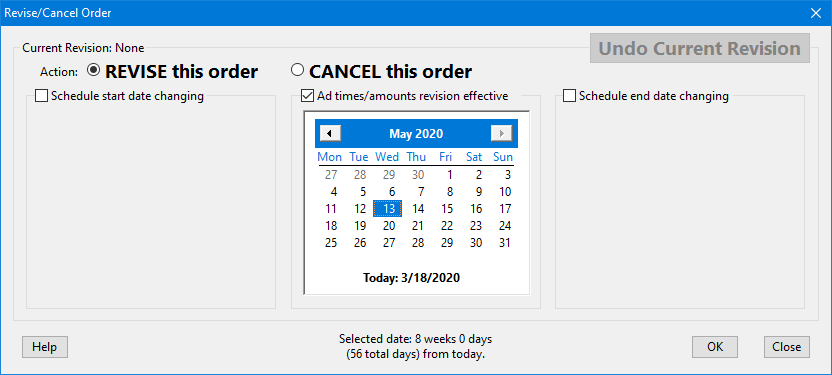
The top of the Revise/Cancel Order window contains the text Current Revision followed by None (if this is the first revision) or the number of the most recent revision. Revision numbers are assigned internally by COMPASS and cannot be user edited.
Revising an Order
The REVISE this order button is selected by default. There are three check boxes that activate each of the available options. These can be selected individually, or in any combination. Initially, the calendars associated with each of these options are hidden.
•Schedule start date changing — Check this box if the start date of the order is being modified. Once checked, The start date calendar is displayed. Select the new start date of the schedule. The start date is limited to the dates of the parent campaign and cannot be set later than the schedule end date. If the Schedule start date changing box is not checked, the start date calendar is hidden and a new start date cannot be selected nor will the current start date be changed as part of the revision.
•Ad times/amounts revision effective — Check this box if the ad assignment for the schedule (number of ads and/or days ads will air) is changing at a particular point in the schedule. This will display the revision date calendar. Select the date the change becomes effective. If the ad distribution is not changing, leave this box unchecked and the revision date calendar will not be displayed.
•Schedule end date changing — Check this box if the last day of the schedule will be altered. The limitations are similar to the start date. If the end date is not changing, leave this box unchecked. Note that this option does not cancel the order but only shortens or lengthens the schedule end date. The end date of a schedule is limited to the end date of the campaign. If a schedule is to run past the end date of the campaign, the Campaign Dates must be altered. Note that campaigns are limited to 53 weeks in length.
The text at the bottom of the window shows the weeks/days and total days from the current date to the modification date. This is to assist in meeting any media notification requirements for revisions.
Changes to the schedule itself are made in the Schedule Detail window after the OK button on this window is clicked. The purpose of this window is to generate additional information regarding the amount of ads changed and to signify the date the change occurs via special graphics on the printed order.
Note that if a revision occurs in the middle of a week that contains ROS schedule lines, a decision must be taken as to how to handle the disruption of a schedule where the exact placement of ads is unclear. See the section on ROS Revisions and Cancellations.
Once all settings are correct, click OK to complete the revision, or click Close to close the window without making a revision.
Documenting a Revision
It is good practice to always document the reasons for revising an order. Not only does media often require this, it can also assist agency personnel in accurately tracking the reasons for the revision. If you are working with multiple clients/campaigns/media, recalling the reason why a revision was issued can be difficult.
If the Program Option Force me to document order revisions in End Text is enabled, COMPASS will display the following window when attempting to save after a revision has been made and if the End Text has not yet been updated:

Reminder to Document a Revision
This option is enabled by default. The options are:
•Yes, Do it Now which will take you to the End Text section where the reasons for the revision can be specified;
•No, Not Yet which will allow you to make additional changes to the order before saving;
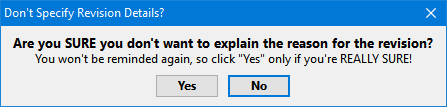
•Stop Reminding me which will cause the following window to be displayed:
Disable Revision Documentation Reminder
Click Yes to disable further reminders for this order. Click No to continue reminders.
The order revisions cannot be saved until a) the End Text has been updated; or, b) you turn off the revision update reminder. If no reminder whatsoever is desired, remove the check from the box labeled Force me to document order revisions in End Text on the Schedule Options tab of Program Options.
Undoing a Revision
To reverse a revision, use the mouse to right click the Undo Revision button on the Schedule Detail window. Confirmation is required to roll back the order to its prior state (either a previous revision or back to the original order). When a roll back occurs, the revision being dropped is permanently removed and cannot be recovered. If new traffic instructions were created as part of the revision, those instructions will also be rolled back to whatever traffic was associated with the previous order state.
Once a revision has been issued to media, the Undo Revision button returns to Revise/Cancel Order . An issued revision cannot be "rolled back". If modifications to the order are required, a new revision will required.