In some markets, media might choose to provide only printed invoices instead of furnishing an electronic file suitable for reconciliation. In such cases, COMPASS's Reconcile File Generator provides a method to convert the printed information into an electronic file.
Using the Reconcile File Generator (RFG) requires due diligence on the part of whomever is keyboarding the invoice data. While RFG does most of the heavy lifting, entering the wrong date, wrong time, or wrong Ad ID Code, or choosing the wrong Event to which that information is applied can result in problems. This is why careful attention must be applied when entering invoice information into RFG.
The Reconcile File Generator Window
Open the Reconcile File Generator by navigating the COMPASS main menu: Tools > Reconcile File Generator. The Reconcile File Generator window operates on a "cascading" basis, choosing, in the following order:
•Client
•Campaign
•Media
•Period
As each selection is taken, the subsequent drop down list is populated with information relevant to the preceding choice. Only clients with active orders will appear in the client list. Campaigns and media with only proposals will not be included in their respective lists.
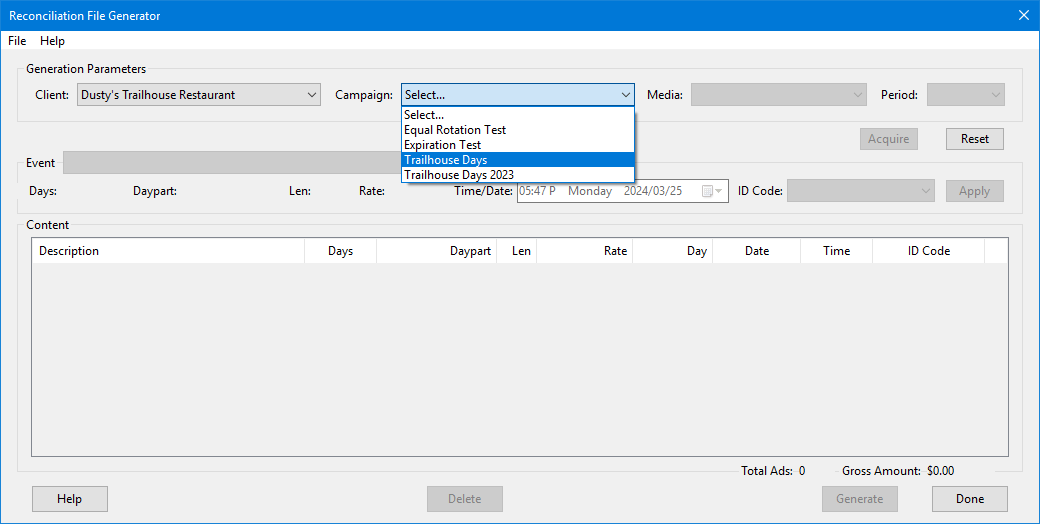
Reconcile File Generator Window
In the example above, "Dusty's Trailhouse Restaurant" was selected as the Client. This caused the Campaign drop down to be populated with all of the campaigns for that client that include orders. When "Trailhouse Days" is selected as the Campaign, the Media drop down will be populated with all the media with orders under that campaign. The final selection would be the Period, which encompasses all the broadcast months for the combination of the selected Client, Campaign, and Media.
Once all four selections are complete, click the Acquire button to collect all the order and traffic information matching the selected parameters.
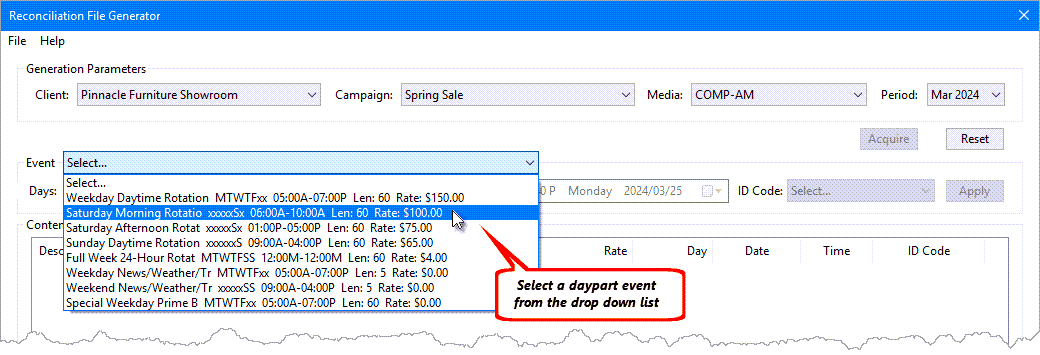
Selecting a Daypart to Enter
After the Acquire button is clicked, the Event list will contain all the broadcast order lines for that client, campaign, media, and broadcast month. Referring to the printed invoice from the media, select via the drop down the daypart, length, and rate corresponding to each line of the invoice in turn.
Next, select the day and time indicated on the invoice for that category of ad. Click the small button to the right of the date to display a calendar for the period to select the date, or the date can be entered manually. For the time, use the right arrow button on your keyboard to move from the hour, to the minute, and finally the A/P designation. The last step is to select the ID Code that corresponds to that line of the invoice, and click Apply or Ctrl + A to add that line's information to the Content list.
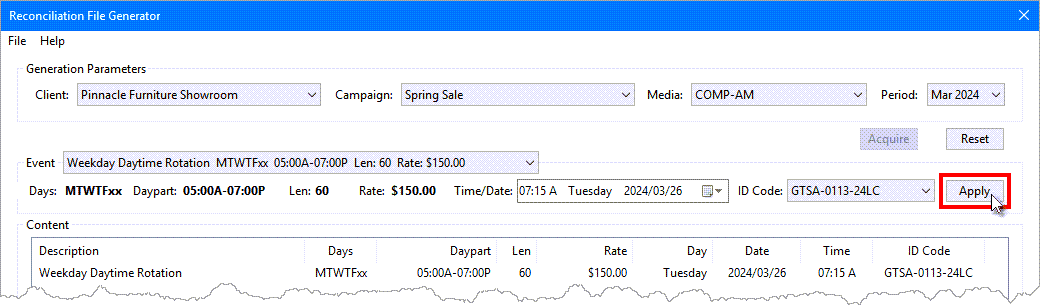
Adding an Ad to the List
Repeat this process, line by line, for the full invoice. It is necessary to change only those items that differ from line to line on the invoice. In other words, if ten ads all with the same daypart/rate are broadcast on the same day, only the time and ID Code will need to be altered on each of the ten. Pay close attention to invoice lines where the daypart/rate change, as those can be easy to overlook.
Invoice lines can be added in any order and do not need to be chronological. If a line is entered with an error (wrong daypart event, wrong time, wrong day, wrong ID Code), left click the line to select it, then click the Delete button or the Delete key on your keyboard. The line can then be re-entered correctly. COMPASS will alert you if a line is duplicated (same day and time). As each line is entered, the total number of ads and the gross amount are totaled at the bottom of the window.
Saving Your Work
Very long invoices might require multiple sessions to complete, or other tasks can interrupt the process of assembling the information for file generation. Your work can be saved at any time by going to the File menu at the top of the window and choosing Save or Save As or pressing Ctrl + S on the keyboard. In the Save File dialog that opens, select a folder and file name to save your work. It is highly recommended to periodically save your work. This will allow you to correct a generated file if an entry error is discovered during reconciliation.
To open a saved work file, follow the procedure to select the client, campaign, media, and period, then click Acquire but do not enter any lines of information. Instead, go to the File menu and choose Open or press Ctrl + O. Select the file you previously saved and open it to restore all data. COMPASS will alert you if the selected file does not match any of the parameters (client, campaign, media, or period).
Generating the File
Once all invoice lines have been entered, click the Generate button to create the file COMPASS will use for electronic reconciliation. Select the location where the file is to be saved, supply an appropriate name, and click Save to complete the process. The generated file can now be used to Reconcile Schedules.