Schedule reconciliation is performed from COMPASS's Schedule Detail window. On the tool bar, click the Reconcile button  to open the Reconcile Schedules window. Note that the button is not available for proposals or when the selected schedule is opened in Read Only mode which means the schedule is being edited by another user.
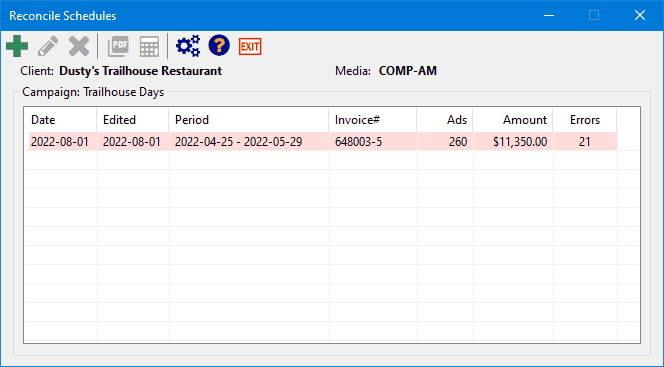
Reconcile Schedules Window
The Reconcile Schedules tool bar includes the following:
|
|
New Reconcile — Select a media-supplied reconciliation file for processing. |
|
|
Edit — Open the selected existing reconciliation for editing (or use the mouse to double click it). |
|
|
Delete — Delete the selected reconciliation, permanently losing any edits and notes. |
|
|
Print — Print the selected reconciliation as a PDF document. |
|
|
Discrepancy Report — Generate and view the discrepancy report as a PDF document. |
|
|
Program Options — Set percentage of rotation error alert when reconciling traffic. |
|
|
Help — Open the reconciliation help file (this topic). |
|
|
Exit — Close the Reconcile Schedules window |


The top section of the window below the tool bar identifies the client, campaign, and media. Any existing reconciliations are listed, showing the creation date, date last edited, the period covered by that specific file, the media invoice number, number of ads and value, and any errors noted. Any line in the list with errors is highlighted in pink.
New Reconciliation
Click the New Reconcile button  on the tool bar to open the Reconcile File Selection window.
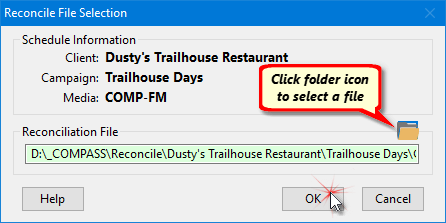
Reconcile File Selection
Click the folder icon to open Windows standard file selection dialog. Select the desired file and click OK, then click OK on the Reconcile File Selection window to begin the reconciliation process.
Selecting the File
The reconciliation file from media can be placed in any folder desired on your PC. However, we recommend placing the files in an organized manner so they are easier to access. Arranging that organization is left to your personal preference.
The first time a reconciliation file is selected for processing, COMPASS will start in the base directory specified in Program Options > Reconcile Options. Using Windows' standard file dialog, navigate to the directory containing the files for the selected campaign and media. Once a selection has been taken, COMPASS will "remember" that location and return there the next time you conduct a reconciliation for the same campaign and media. As the campaign and media changes, this process will have to be repeated.
If you would prefer to always navigate to the downloaded media reconciliation on your own, remove the check from the box Use intelligent directory file access in Reconcile Options.
Verifying the File
When a new reconciliation is generated, COMPASS will validate that the file selected matches the client, campaign, and media. It also checks that the file provided by the media is for a period contained within the schedule. If any issues are present, such as the media not matching, COMPASS will alert you and ask if you want to continue. For example, if the media is identified in COMPASS as "WHUV" and the reconcile file is internally identified as being from "WHUV-AM", the program will alert you to this discrepancy. A more critical discrepancy would be if the reconcile file was from "WUJT-FM" (a completely different station). Always pay close attention to such alerts in order to maintain reconciliation integrity.
The verification warning also alerts you if the invoice number of the reconcile file selected is already present in the reconciliation list. This is designed to prevent the accidental overwriting of an existing reconciliation with the possible loss of any corrected errors and notes.
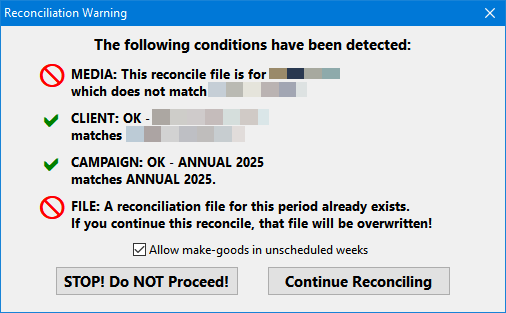
Reconcile Discrepancy Warning
The check box Allow make-goods in unscheduled weeks is optional. Checking the box allows COMPASS to intelligently handle situations where the media has broadcast ads in weeks where no ads were scheduled. This setting defaults to the setting specified in Program Options under the Reconcile Options section. For more information on why you might want to enable this option, see Avoid Reconciliation Problems.
If any of the conditions are of concern, click the STOP! Do NOT Proceed! button to cancel the reconciliation. Otherwise, click Continue Reconciling to proceed with the process.
Once the reconciliation is complete, the Reconcile Schedules list will be updated. The reconciliation results can now be selected for opening in Reconcile Explorer.
Reconciliation File Issues
While the warning window covered above will indicate if the selected reconciliation file does not match the campaign, it can be easy to overlook this warning and proceed using a file for a different campaign. Should COMPASS detect a reconciliation error that is due to selecting a wrong file, it will alert you and terminate the reconciliation.
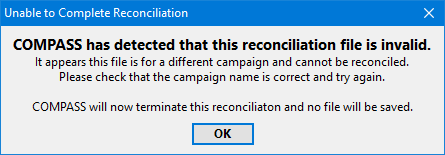
Wrong Reconciliation File Alert
If you encounter this error, check to ensure that the selected file matches the campaign for which it is being reconciled.
Reconciliation Errors
Each record in the media-provided reconciliation file is required to have an Ad ID code that identifies that record so COMPASS can link to it. In some (hopefully rare) cases, the media will ad one or more non-broadcast lines to the reconciliation file. This can occur when a charge for technical expenses such as a live broadcast or similar instances are included. Typically, such non-broadcast records do not contain an Ad ID code.
Each time COMPASS encounters a record in the file that has a blank Ad ID code, the reconciliation process will pause and you will be asked for instructions.
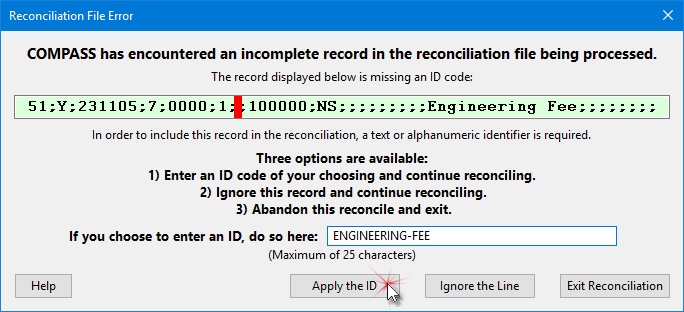
Resolving a Reconciliation File Error
The full record in question is displayed in the sizable window, which can be expanded if the record is too large to view when first displayed. In the example above, the media has included the text "Engineering Fee" in the record. However, because the Ad ID code portion highlighted in red contains no text, COMPASS cannot include the record in its reconcile process. (Note: the red highlighting is for illustration purposes only. It does not appear on the actual Reconciliation File Error window.)
To resolve this issue, you have two options:
1.Enter an ID Code: This can be any alphanumeric text desired (spaces are not permitted). If there is an indication elsewhere in the record as to the purpose of the record, that text can be used as has been done in the image above. It is HIGHLY recommended you do NOT enter any ID that matches an existing legitimate ID from the media's traffic instructions, as such an action would confuse the reconciliation process.
2.Ignore the Record: The record will be omitted from the generated reconcile file used by COMPASS. It will be as if the record never existed.
3. Abandon the Reconcile: This option immediately terminates the reconciliation process and deletes any existing reconciliation for that media for the period. You have the option to contact the media and determine the best course of action, returning at a later time to complete the reconciliation.
The Apply the ID button is not available until an ID is entered into the available field. The ID is limited to 25 characters in length and always appears in upper case letters.
Once you have taken a decision and depending on that decision. the reconciliation will continue, or will be terminated.
Linking to an Inserted Ad ID
When a line in the media reconciliation file is missing the Ad ID as described above, it can be linked in the Traffic Detail tab of Reconcile Explorer, but not in the Order Detail tab, even though the entry appears there. Why is this?
While the line has been inserted, it does not appear in the original order sent to the media. Because it does not have an original "anchor" in the order list, it is unavailable for linking in Order Summary. There is not enough information to know in which week the newly inserted item should appear. However, the Traffic Detail is different. There, we have inserted it and because the Traffic Summary is a simple list (no switching between weeks), we have created an "anchor" to which the inserted item can be linked.
The key to handling this issue is to first go to the Traffic Detail tab and link the former error item. Once linked, double-click the item in the list to open the Reconcile Editor and indicate if the item is "OK" or "NOT OK" and optionally enter a note. That note will also appear in the Order Detail list.
Next, go to the Order Detail list and verify the note is present. If the item is marked as "NOT OK" and you want to change that status, you can't link it to do so. Instead, highlight the line by first left-clicking and then right-click it. Click "OK" on the pop-up list that appears to switch the designation.
If possible, the linking to inserted ad ID's will be improved in future updates.