There are two types of reconciliation reports that can be generated as a PDF document and either printed and/or archived as desired.
Reconcile Report
This report creates a copy of the content of the selected reconciliation as it appears in Reconcile Explorer. The Reconcile Report may be printed from either the Reconcile Schedules window or from the Reconcile Explorer itself.
Reconcile Report
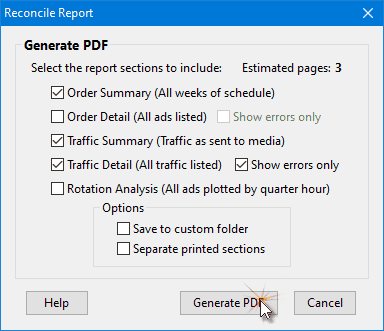
Place a check mark in the box next to any of the five categories that make up the report. The number of estimated pages is updated as each category is selected or unselected.
When either the Order Detail or Traffic Detail box is checked an additional option, Show errors only, becomes available. Check the appropriate box to only list unresolved errors. This can be of value when explaining such errors to the effected media.
There are two general options to consider:
•Save to custom folder: If this box is checked, the program will display the location on your PC where the generated PDF will be stored. You have the option to change that location, retain the indicated location, or cancel creating the PDF. If you select a new destination, that will be the default storage locations in future PDF generations when the Save to custom folder option is checked. If the option is not selected, all reports are stored in the folder C:\Program Data\COMPASS\PDF.
•Separate printed sections: If more than one category is selected, this option will become available. The default is to print as much content on each page as possible, causing the next category to appear on the same page as the previous category. Check this box to have each category begin on a separate page.
Click Generate PDF to create the report. The resulting document will be immediately opened in your default PDF viewer.
Discrepancy Report
COMPASS's Discrepancy Report details the number of ads ordered/delivered week by week for every reconciliation period to date for the campaign and selected media. Additionally, a final page indicates the ordered/delivered discrepancies by month for the length of the campaign to date.
The report is generated by clicking the Discrepancy Report button  on the Reconcile Schedules window tool bar.
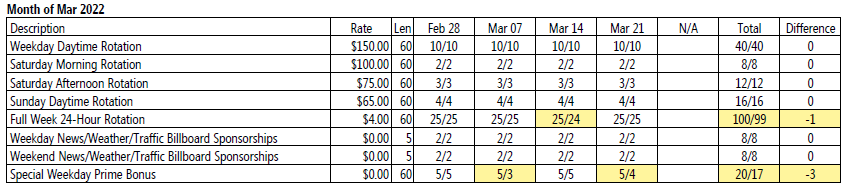
Monthly Discrepancy Table
All of the schedule lines for the month are listed, along with the rate and length. Then, each week of the schedule indicates the number of ads ordered/number of ads delivered. For four week months, the fifth week is indicated as "N/A". The final two columns total the number ordered/delivered followed by the difference (over or under delivered). Any discrepancy is highlighted in yellow.
Each month has its own separate table. The final (always separate) page of the report shows the over/under amounts by month for the campaign and media to date.
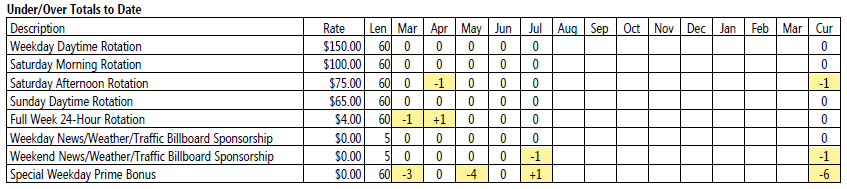
Over/Under Totals
The final column on the right shows the current number of over/under ads as of the last time this report was generated. Calling this report after each new month is added to the list of reconciles will update these totals.