Unfortunately, no software program can be 100% error free. COMPASS has been subjected to hundreds of hours of testing and debugging. However, when the application is in the hands of users across the country, it's not unusual for previously undiscovered errors to pop up.
In order to address these errors, our programmers often need access to the actual files that contributed to the problem. The Service Report feature automatically gathers all the necessary information we need to diagnose a problem. These files are placed in a single zip file which can then be transmitted to us via email.
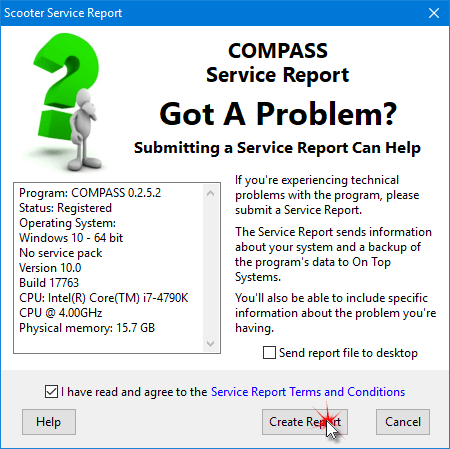
Service Report
To generate a Service Report, go to the main menu and click Help > Service Report. Read the Service Report Terms and Conditions by clicking on the blue text. Check the box indicating the terms have been read, then click Create Report. The system's email client will be opened with a message addressed to On Top Systems and the zip file will be attached. In the text of the email, explain as clearly as possible the problem that was experienced. Provide as much detail as possible including any steps required to duplicate the problem. Be sure to specify the client, campaign, and schedule where the problem occurs. Then click Send to send the Service Report to us. We respond to each service report as quickly as possible.
If you are using a web-based email service, such as GMail or Yahoo, place a check mark in the box Send report file to desktop. This will place the zip file on your Windows desktop where it can easily be attached to your email to us. Address the email to sysmail@ontopsystems.com.
When operating in remote (server) mode, the Service Report feature is only available on the computer designated as the server. It is not available on any client machines.