We've tried to make COMPASS as easy to use as possible, given the complexity of creating campaigns and schedules for consumption by clients and media. This section of the help file outlines several tips and shortcuts to get the most out of the program.
Control Focus
Each program window is populated with controls. A control can be a text box, a drop-down list, a button, or other object that can accept data entry or that can normally be clicked with the mouse. Standard Windows behavior is to press the Tab key to advance from one control to the next.
In most windows in COMPASS, pressing the Enter key is the same as pressing the Tab key. This is a more natural movement (pressing Enter when finished with a line). Pressing Enter will advance to the next control, even when Enter is pressed on a button control. Hold down the Shift key and press Enter to back up to the previous field or control. In most cases when a text control has the focus, the text background will turn a light blue to indicate the active position in the entry process.
When the keyboard focus is on a button, left-click the button with the mouse (the normal behavior) to activate it, or just press the Space bar to achieve the same action.
Keyboard vs. Mouse
Many Windows users find it troublesome to switch back and forth between the keyboard and the mouse. With COMPASS, we've worked to minimize the need to use the mouse as much as possible.
When entering data or schedule information, pressing the Enter key will move the focus forward to the next entry field. If that field is a text entry, the background will turn blue (in most cases) to visually indicate which field is ready to accept input.
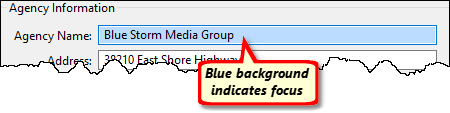
Blue Background Show Focus (Where You Are)
Holding down the Shift key and pressing Enter will back up one field.
The Enter key works on drop-down lists, buttons, and check boxes, too, so it is possible to quickly move through the fields of any window.
To click (activate) a control such as a button or check box, press the Space Bar. This performs the same action as if the control was clicked with the mouse.
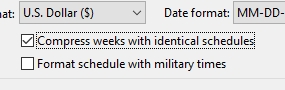
Pressing Space Bar Same as Mouse Click
For example, with the focus (faint outline box) on the check box Compress weeks with identical schedules, pressing the Space Bar would remove the check mark (or add it if it wasn't already checked).
When the focus is on a drop-down list (such as the Currency format box in the graphic above), pressing a key corresponding to the first letter of the desired choice will make that selection without actually "opening" the drop-down list. In the Currency format box for example, press "U" to select U.S. Dollar ($).
See the topic Grid Tips for additional shortcuts that pertain to entering media schedules.
Shift and Control
In COMPASS, many lists support multiple selections. This requires the use of the mouse and the Shift and/or Ctrl keys on the keyboard.
Using Shift
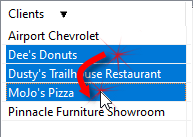
Selecting with Shift
Using Shift with the mouse allows the selection of contiguous rows in the list. Left click on the first row to be selected, then hold down Shift while left clicking the last row desired. The two rows selected and all rows in between will be highlighted (selected).
Using Ctrl (Control)
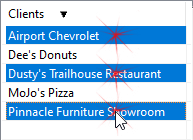
Selecting with Ctrl
The Ctrl (Control) key allows the selection of discreet rows in the list. Left click on the first row to be selected, then hold down Ctrl while left clicking additional individual rows. As long as Ctrl is pressed, each row clicked will be added to the selection; clicking a selected row a second time deselects it.
Using Both in Combination
When selecting a complex pattern of rows, one approach is to start with Shift and select the initial block of rows, then switch to Ctrl and make additional, individual selections and/or remove some rows initially selected with Shift.