There can be occasions where it becomes necessary to copy individual lines of a schedule from one week to another. This can happen when all or most of the weeks are different with regard to number of lines, time of day, or number of ads. Very complex schedules can make using the Copy Weeks feature awkward.
As an example, we have a schedule that includes the line "Mid-Day" only in the first week of the schedule. We need to duplicate that line to weeks three, four, and five of the schedule, but not to week two, or week six and beyond. Because weeks 3 through 5 contain other lines not present on week one, we can't simply use Copy Weeks, as those extra lines would be lost. This is where COMPASS's Copy Lines feature comes to the rescue.
Navigate to the week that contains the line(s) to be copied. Use the left mouse button to click and drag so those full schedule line(s) are highlighted. Then, click on the Copy Weeks button on the Schedule Detail window's tool bar. This will display the following window, which is a modified version of Copy Weeks:
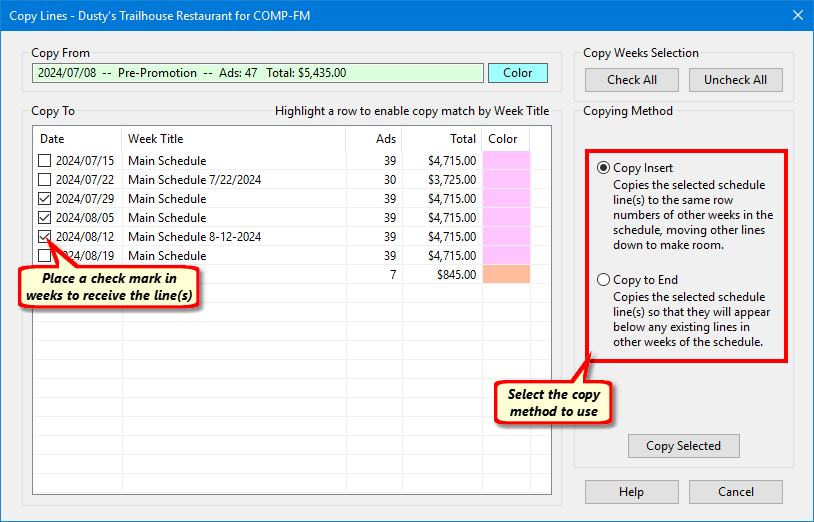
Copy Lines Dialog
Note: Make sure the full line(s) from Description to Gross are highlighted. If only a portion of the full line(s) are highlighted, the regular Copy Weeks window will be displayed.
Place a check mark next to the weeks of the schedule that are to receive the highlighted lines. On the right, choose the Copying Method desired.
Copy Insert: This is the default selection. This method inserts the highlighted lines on the same line numbers where they appeared on the source week. Any existing lines will be moved down to make room.
Copy to End: Places the copied lines at the end of that week's schedule, below any existing lines.
Click the Copy Selected button to complete the copy, or Cancel to exit without copying. The copying process can be reversed by clicking the Undo button on the tool bar, which will remove all copied lines from all weeks that were affected by this action, returning the schedule to the state it was in before Copy Lines was executed.
Once lines have been copied, they can be rearranged on any week as needed.
Line Note Numbers When Copying Lines
If one or more lines being copied have Line Note numbers assigned, both the number and the actual Line Note Detail text will also be copied. The following conditions apply:
If the Line Note Detail text is already present on the week receiving the line copy, the number associated with that text on the receiving week will replace the original line note number in the schedule line. This prevents the detail text from being unnecessarily duplicated.
If the Line Note number in the schedule line is already being used, the next logical number will be assigned both to the schedule line and the Line Note Detail.
If the week receiving the line copy has no Line Note, the original Line Note number will be preserved. This can lead to a situation where there is a Line Note number "3", but no numbers "1" or "2".