The COMPASS Database Manager is available from the main menu under Tools > Database Manager.
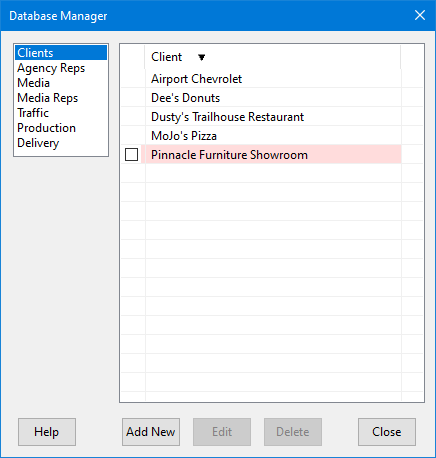
Database Manager
The Database Manager has selections for Clients, Agency Reps, Media, Media Reps, Traffic, Production, and Delivery. Click any of these items in the list on the left to view the database contents of that category. The operation is essentially identical for each category, and for this example we'll focus on Clients.
•Double click any client in the list to open the Edit Client window where the client information can be modified. (Selecting from the Media section opens the Media Information window.)
•Click the Add New button to add a new item. The entry window that appears might have a different layout from section to section.
•A client or media with no campaigns, or reps with no campaigns or schedules, appear with a pink background to indicate they are inactive. They may be permanently removed from the database by placing a check mark in the box next to their name, then clicking the Delete button. Confirmation is required before the selection(s) will be deleted. Active database items do not have a check box and cannot be deleted.
Production and Delivery
These sections are used with COMPASS's Traffic module. They allow "standard" descriptions for production and delivery of commercials to be stored in the database for recall. Double click any item in the list to edit.
Reassigning Reps
In the case of the tabs for Agency Reps and Media Reps, there is an additional option that allows selective reassignment of reps to other campaigns/schedules within the system. To activate this option, use the left mouse button to select the rep that has elements that need to be reassigned.
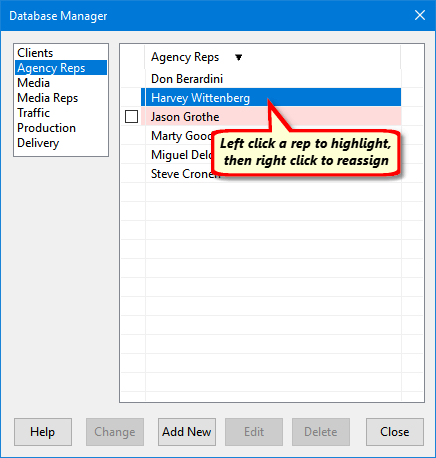
Selecting a Rep to Reassign
Find Representative Links
This feature allows reps who have departed employment of the agency, or in the case of Media Reps, those who have left the media for other pursuits, to have their existing assignments reassigned to other representatives in bulk. In the case of Agency Reps, selected campaigns will be reassigned to the rep you select. In the case of Media Reps, selected schedules will be assigned to a new Media Rep you select.
In this example, we'll look at reassigning Agency Reps, although both options work in an identical manner.
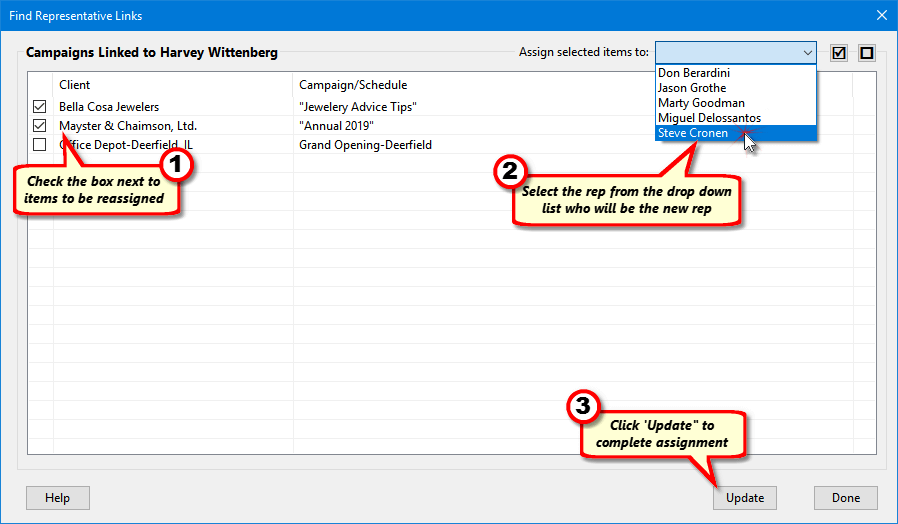
Reassigning Reps
In this example, we are assigning two clients to a new rep. At least one client must be checked and a new rep selected, in order to be able to click the Update button. COMPASS will ask if you want to take a backup before proceeding with the update. Regardless of your answer, the selected new rep will replace the original rep's assignment.
These steps can be repeated as necessary, allowing selective reassignments, as needed.