The Media Information window holds each individual media's information and details about how some schedule elements will be formatted. It is also where the media sales rep information is stored. Each of the window's sections is covered below.
Media Detail
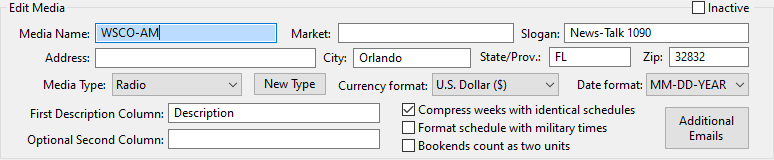
Media Detail
•Media Name: This is the only required field of information other than the Media Type. However, it is strongly recommended that information about the market also be specified, as it will assist in further identifying the media in other parts of the program.
COMPASS prohibits the editing of a media name if that media has orders on file in the database. This is because changing a name affects ALL orders and traffic on file throughout the system, even orders from years or decades in the past. If a media changes names, the solution is to leave the existing media alone and create a new media with the new name. This will preserve all historical records and allow the new media to be assigned to campaigns without conflicts.
•Market: The market served by this media. This would typically be the geographical designation or DMA. This field will be used to identify media throughout the program.
•Slogan: Optional field where the station's slogan can be entered (e.g., "Hot 100.1", "CBS 12", etc.)
•Inactive: Check this box to mark the media as Inactive. Inactive media can optionally be hidden in the Select Media window. Inactive media cannot be added to a campaign unless the Inactive status is removed.
•Address: The physical address of the media (optional).
•City: The actual city where the media is located. This value can be (and often is) different from the Market.
•State/Province: Also optional, but can be used to filter media in other parts of the program.
•Zip: Another field that can be used for filtering.
•Media Type: Identifies the type of media being entered. Select from the drop down list to chose one of the predefined media (cable, radio, satellite, television).
•New Type: Clicking this button allows the definition of a new media type beyond the default types. See the topic Manage Media Types for more information.
•Currency Format: Specifies the type of currency that will be used with this media. The default is the currency type selected in General Preferences.
•Date Format: Determines the way dates will be formatted for this media. Choices include U.S. formatting (MM-DD-YEAR), European formatting (DD-MM-YEAR), and universal formatting (YEAR-MM-DD). The default is the date format selected in General Preferences.
•First Description Column: Designates the title for the required first column of the schedule information grid. This value defaults to the matching value designated for the selected media. Media information cannot be saved if this field is blank. See Manage Media Types for more information. Right-click on this field to set the displayed text as the default for all future media of the selected type.
•Optional Column: Specifies an optional, additional column for entering schedule information in the Schedule Detail window. This column, if present, is added to the generated schedule for this media. Specifying an optional column decreases the space allotted to the initial description column provided by the program. Right-click on this field to set the displayed text as the default for all future media of the selected type.
•Compress weeks with identical schedules: Sets the default for new schedules created for this media. This setting can be changed individually on each schedule.
•Format schedule with military times: Sets the time format to military time (24 hour) for all schedules for this media. Changing this setting affects all existing schedules for the selected media. Uncheck this box to use civilian (AM/PM) time designations.
•Bookends count as two units: Determines individually by media how "bookend" schedule lines are computed. The default is each "bookend" pair is counted as one unit. Place a check mark in this box to calculate "bookend" pairs as two units. See the section on Bookends for more details. This option is applied to all schedules for the individual media across all campaigns.
Additional Emails
In some cases, additional individuals need to be on the distribution list for traffic. Click this button to open a separate window where additional emails associated with this media can be added/edited. Note: This feature is disabled if COMPASS Mail is not enabled.
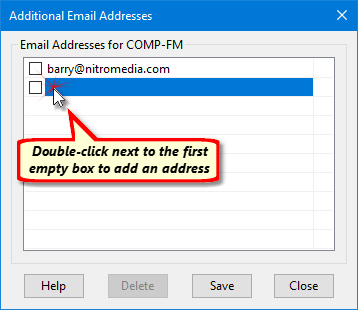
Creating Additional Media Emails
To add a new email address, double click with the mouse next to the box on the first empty row. Add the new address, then press Enter on the keyboard.
Edit any existing email by double clicking it. An existing email can be deleted from the list by first selecting (highlighting) it with the mouse, then clicking the Delete button.
These additional emails can be optionally included when emailing traffic when using COMPASS Mail. Place a check mark next to those emails you desire to be automatically checked for inclusion when sending Traffic Instructions. You have the option of selecting/deselecting any of these additional emails prior to sending traffic.
Sales Department Information
This section allows for specifying contact details and other settings for the selected media's sales department.

Sales Department Information
•Main Sales Email: The optional email address for the sales department. If included, this address will be used as the primary address when emailing schedules to the media. If left blank, only the address of the selected sales representative will be used.
•Email Template: This feature is disabled if COMPASS Mail is not enabled. Optional default text template that will be used as the contents when an email is sent to the media's sales contacts. Click the drop down list to select a template or choose "None" for no default. Right click the drop down to open the Template Editor.
•Rep Name: This is a required field; all other fields are optional. Names must be unique, as a duplicated name will produce an error. Note that the Enter or Tab key MUST be pressed after each entry in order for that information to be accepted.
•Def: Indicates the default representative for that media. The default rep is the one that is automatically assigned to a client when a new campaign that includes this media is created. Only one default representative can be selected.
•Hide: Removes the representative from the drop down selection list on the Schedule Detail window. This can be useful if a sales representative is absent for a prolonged period or has departed the media and is therefore no longer available.
•Phone/Ext/Mobile/Fax: Enter the appropriate numbers as desired. All of these fields are optional.
•Email: The direct email address for the representative. Multiple addresses may be entered separated by semicolons.
Traffic Department Information
Contact details for the media's traffic department. This information is used by the Traffic section of COMPASS when creating traffic instructions.

Traffic Department Information
•Main Traffic Email: The optional email address for the media's traffic department. If included, this address will be used as the primary address when emailing traffic instructions to the media. If left blank, only the address of the selected traffic contact will be used (if any).
•Email Template: This feature is disabled if COMPASS Mail is not enabled. Optional default text template that will be used as the contents when traffic instructions are sent to the media's traffic department. Click the drop down list to select a template or choose "None" for no default. Right click the drop down to open the Template Editor.
•Name: Enter the name and contact information of traffic managers for this media. All fields other than the name are optional. If the Traffic module of COMPASS is available, the default or other selected traffic person will be inserted as part of any schedule for this media.
•Def: The Def column signifies the default traffic person that will be selected when a new schedule for this media is created. Only one traffic person can have the default designation. Setting a default is optional. The defaults set here can be overridden at the schedule level by choosing a different individual from the Traffic Contacts within the Schedule Detail window.
 Pro Tip
If none of the traffic persons are selected as the default, the Traffic Contact on the Schedule Detail window will be blank. In this case, when traffic instructions are emailed, only the Main Traffic Email will be used. If a default is selected, both email addresses will be used (if present).
•Hide: Placing a check in the Hide column prevents that individual's name from appearing in drop down lists on the Schedule Detail window. This enables accounting for contacts on vacation, maternity leave, etc. where the individual is temporarily absent but will eventually return or who has permanently departed the organization.
Click OK when all information/changes are complete. Click Cancel to close the window without saving.