One of COMPASS's many options is the ability to print a broadcast calendar for each schedule in a campaign. This calendar displays the days and weeks the campaign schedule is active on the selected media. In addition, designated holidays or retail events may be indicated, with an option to highlight holidays in red.
The Holiday Manager allows additional dates beyond the default events included with COMPASS to be added, edited, and or deleted as desired.
Open the Holiday Manager from the main menu by selecting Tools > Holiday Manager. The Holiday Manager window displays a list of holidays/events currently on file.
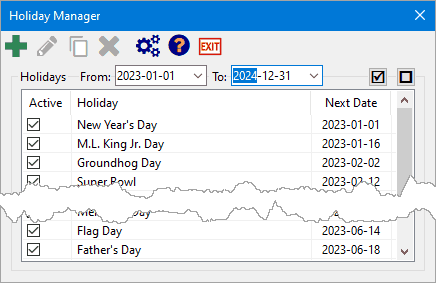
Holiday Manager
The range of holidays displayed is adjusted by selecting the From and To dates at the top of the window. Because of the time required to execute the calculations necessary to generate the list, it is recommended to limit the display to the current year or two.
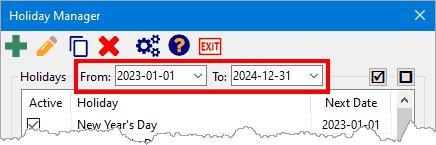
Adjusting Holiday Display Range
The tool bar buttons at the top of the window are, from left to right, Add, Edit, Copy, Delete, Options, Help, and Exit. Some buttons, such as Edit, Copy, and Delete, are only available when one (or more) holidays in the list have been selected.
How Holidays Work
When a holiday/event is added to the list, it is stored as a record in the database. That single record can spawn many instances of the holiday. For example, if Christmas (December 25) has been added to the list, that single entry will show up every December 25th (assuming the entry is set to Run forever). This is important to understand, as editing an existing holiday/event will change that entry for all instances of the event.
If there is a need to differentiate between instances of a holiday/event — that is, having the ability to delete one or more instances while leaving others intact — each one should be entered as a separate event, running only once.
Add/Edit Holidays
While most of the U.S. "standard" holidays have been added to the holiday list, new holidays can be added and existing holidays can be edited or removed.
To add a new holiday/event, click the Add button  on the tool bar. This opens the Add Event dialog. To edit an existing event, select it and click the Edit button
  on the tool bar, or just double click it in the list.
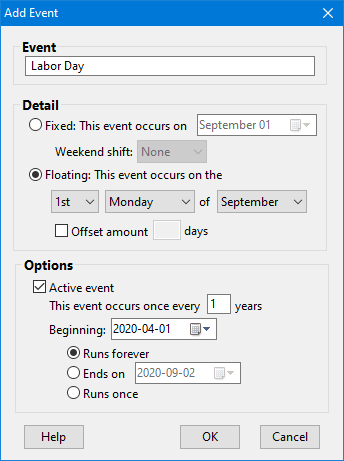
Adding a Holiday Event
Event: The name of the holiday/event as it is to appear on the calendar. Each name must be unique. The program will complain if a name is entered that already exists in the holiday database.
Detail: Describes how the holiday/event is to be calculated. One of the two following options is available:
•Fixed: The holiday/event occurs on the same month and day each year (examples: Christmas 12/25; New Year 1/1). The Weekend shift drop down list provides intelligent adjustment of events that fall on a weekend. Choices are:
▪None: The event will display on the calendar on the actual date of occurrence. This is the default.
▪Friday: The event will be moved to the prior weekday (Friday).
▪Monday: The event will be moved to the following weekday (Monday).
▪Closest: The event will be moved to Friday if it falls on Saturday; Monday if it falls on Sunday.
•Floating: The holiday/event occurs on a specific day of the week, regardless of date (examples: Thanksgiving, fourth Thursday in November; President's day, third Monday in February). Select each of the appropriate values from the drop-down boxes when this option is selected.
The Offset amount option allows the holiday to be shifted n number of days prior to or after the calculated date. For example Election day in the U.S. falls on the Tuesday after the first Monday in November every even numbered year. This arrangement can be achieved by selecting the 1st Monday in November and then specifying an Offset amount of 1, which will select the following day, Tuesday. Using the offset prevents Tuesday being selected when it is the first day of November (as happened in 2016); the event will occur only after the first Monday.
Options:
•Active event: Uncheck this box to temporarily disable the selected holiday/event. This will disable all instances of the event but will not remove the event from the database. Disabled events do not appear on printed calendars.
•Event occurs: Specify the sequence of years the holiday/event occurs. A value of 1 indicates the event occurs annually, 2 for every other year, 4 for every fourth year, etc.
•Beginning: The starting date from which all future occurrences will be calculated. This value can be a date in the future so the holiday/event will not appear until that date is reached.
•Runs forever: Choose this option to allow the holiday/event to continue in perpetuity.
•Ends on: Choose this option and specify a future date after which this holiday/event will no longer be included in printed holiday lists. (The holiday will still be on file, just ignored.)
•Runs once: Choose this option to observe the holiday/event for a single occurrence, after which it will be ignored. This option is suitable for events which occur on varying dates each year, but do not repeat on the same date in future years. For dealing with events such as Easter or Passover, see Holiday Options.
Once all options have been set, click OK to save the holiday/event or Cancel to close the window without saving.
If the window is in Add mode, it will remain open so additional holidays/events can be created. Click Close once all entries are complete. If the window is in Edit mode, it will close when OK or Cancel is clicked.
Disable/Delete Holidays
Any existing holiday in the list can be temporarily disabled by removing the check mark next to that holiday. Restoring the check mark returns the event to active status.
Any single or group of holidays/events can be permanently deleted by selecting one or more from the main list, then clicking the Delete button  on the tool bar.
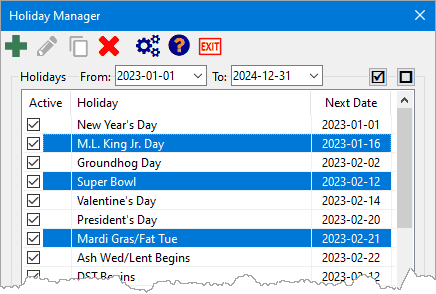
Selecting Multiple Holidays
Hold down the Ctrl or Shift key to highlight multiple holidays. Then click the Delete button to permanently remove the selected events. The program will ask for confirmation before deleting. The action of deleting holidays cannot be reversed, but can be restored (along with all other program data) from a system backup provided such a backup was taken prior to deleting.
In similar manner, multiple holidays can be temporarily disabled to selecting as described above, then clicking either the check  or no check
  button on the upper right of the Holiday Manager window.
Holiday Options
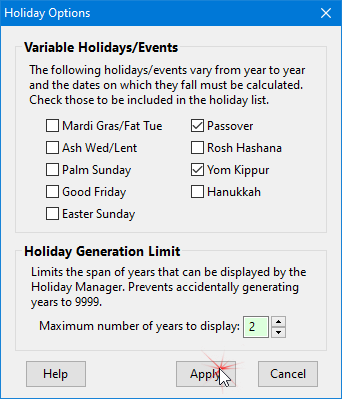
While most holidays fall on predictable days (Christmas, December 25th; Memorial Day, last Monday of May; etc.), some religious holidays vary from year to year. These holidays require the date of observance to be calculated each year, and can be selectively added to the holiday list via the Options button  on the Holiday Manager window tool bar.
Holiday Options
Select the desired Variable Holidays/Events by placing a check mark next to each, then click Apply to add them. Removing a check mark from items previously selected will cause all instances of those holidays to be removed from the holiday list.
Because these holidays are calculated, they are stored individually in the holiday database. This means deleting one of these holidays from the holiday list as described in Disable/Delete Holidays will remove only that instance of the holiday. For instance, deleting Easter Sunday for 2021 will not affect the entry for Easter Sunday 2022, 2023, 2024, etc.
Holiday Generation Limit
This option limits the number of years that can be generated by the Holiday Manager. Without this limitation, it would be possible to generate a holiday list spanning multiple thousands of years. Displaying such a list would require hours of wait time, during which the program would be unusable. By limiting the number of years to a reasonable number (maximum of 10), this issue is avoided.