Client information from third-party sources can be imported to COMPASS, allowing you to avoid manually keying in such data. COMPASS can accept data in field-quoted, comma separated value (CSV) files. The COMPASS Import Wizard assists in each step of the import process.
Open the wizard by choosing Clients > Import from the COMPASS main menu.
1. Select Source File
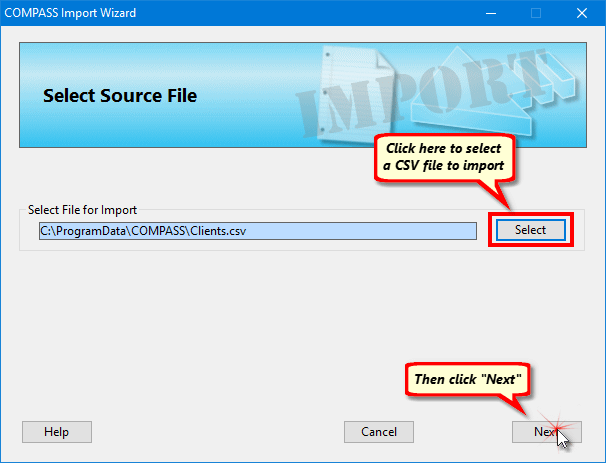
Import Wizard Step 1 -- Select a Source File
The initial Import Wizard window asks for the location and name of the CSV file containing the client information. Click Select to open a Windows file selection dialog. Navigate to the file location and select it. The source file information will be displayed in the Select File for Import section of the window. Click Next to proceed to the next step. Click Cancel at any time to abandon the import and close the Import Wizard.
 Pro Tip
If you plan to do more than one import and the information being imported is consistently formatted, creating a template can greatly speed up the import process. See Using Templates for details.
2. Select Import Template
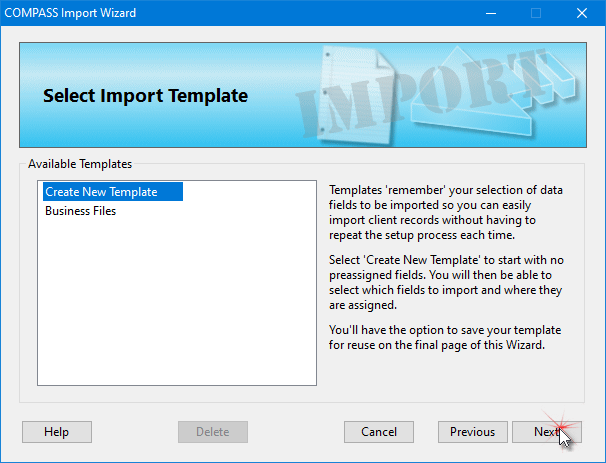
Import Wizard Step 2 -- Select Import Template
The Import Wizard uses a template based system to store frequently used import models. Using a template avoids recreating all the import steps from scratch each time client information is imported. On the initial use of the wizard, select Create New Template from the list, then click Next. If previously created templates are present, one of them may be selected instead.
3. Assign Import Fields
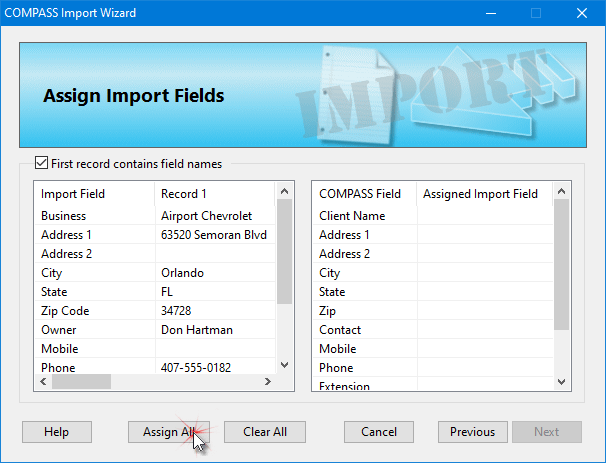
Import Wizard Step 3 -- Assign Import Fields
The CSV file being imported might or might not contain the same fields in the same order as COMPASS expects. For this reason, the import file fields must be mapped (assigned) to the correct COMPASS fields. Fortunately, the Import Wizard has been created to deal with most situations where things might not match up.
In the example above, the fields being imported are on the left, while the fields COMPASS uses are on the right. The first few records of the file being imported are displayed on the left, and the scroll bar at the bottom of the list can be used to view them.
An examination of the two lists shows that not only are the fields not in the same order, but the field COMPASS recognizes as "Client Name" has the name "Business" in the import file, along with the fields "Zip Code" and "Owner" that don't match with the field names or positions COMPASS expects.
Fortunately, the import file contains a header row, that is, the first row or record of the file contains the field names identifying the data that is to follow. COMPASS has recognized this row and placed a check in the box First record contains field names. Having the header row gives the Import Wizard's Assign All button some extra horsepower to "figure out" what goes where. This feature is an important reason to always include a header row in the import file, if possible.
Clicking Assign All renders the following results:
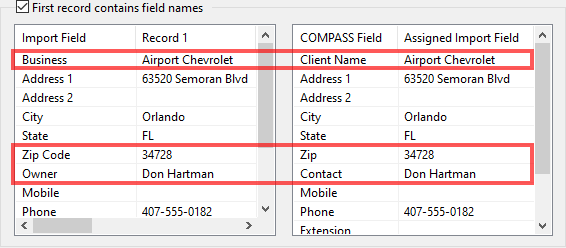
After Clicking "Assign All"
The Import Wizard correctly determined that "Business" means "Client Name", "Zip Code" is the same as "Zip", and "Owner" equates to "Contact".
But what if the wizard couldn't assign everything correctly? Even without the header row, clicking Assign All will assign fields in the order in which they appear. Assignments can then be made manually by left clicking and holding on a row in the Import Field on the left, then dragging and dropping on the desired row assignment on the right.
If a field is assigned to the right side list in error, use the left mouse button to double click the error to clear it.
Any fields on the right that have not been assigned an import field from the left list will be ignored. Once all desired rows have been assigned, click Next.
4. Completing the Import
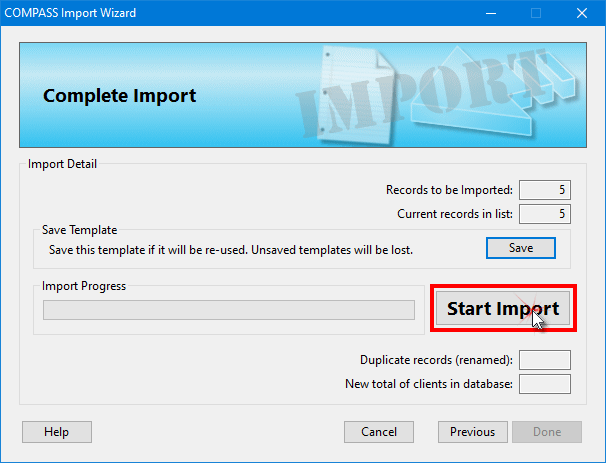
Import Wizard Step 4 -- Completing the Import
The final page of the Import Wizard displays the number of records to be imported and the number of client records currently in the database. When the import takes place, any duplicate client names will have a number appended as each client name must be unique. For example, if "Sunshine Ford" is imported and there is already a client with that name, the imported record will be saved as "Sunshine Ford1". Such duplicates can be edited or deleted once the import completes.
If the steps required to complete the import will be reused at some point, click the Save button to store those settings as a template. If not saved, the settings used will be discarded once the wizard window is closed. See the topic Using Templates for more information.
Click Start Import to commence the import process. The Import Progress bar indicates the import activity. The values of the boxes Duplicate records (renamed) and New total of clients in database are updated as the import progresses. After the import is complete, click Done to close the wizard window.