Each campaign created in COMPASS is tied to a client. The program supports unlimited clients and each client can have unlimited campaigns associated with it.
Client information can be entered directly on the Campaign Information window when the campaign is being created. Clients may also be entered into the database independently of a campaign by selecting Clients > Add/Edit from the COMPASS main menu or clicking the Add Client button on the main window tool bar when no client is selected in the Client List. A new client can also be added by placing the mouse cursor over the Clients section of the main window and right-clicking with the mouse while no client is highlighted.
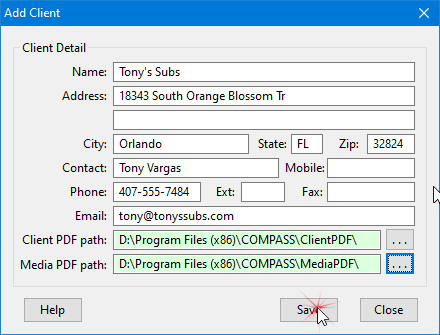
Add Client Window
The Name field is the only one that is required, and must be unique. The program will complain if the same client name entered twice. All other information is optional; however, a valid email address is required in order to be able to email a proposed schedule to a client. Multiple email addresses may be entered, separated by a semicolon.
The fields Client PDF Path and Media PDF Path allow alternate storage locations for schedules. These paths can be selected when the client is created or specified prior to printing.
Click Save to store the entered information in the database. If adding a new client, the Add Client window will remain open so additional clients can be added without having to re-open the window repeatedly. Click Close to exit the Add Client window.
Clients can also be added and edited from the Database Manager, available on the main menu by selecting Tools > Database Manager.
Editing an Existing Client
Any existing client can be edited by first highlighting it on the main window, then clicking Clients > Add Edit from the main menu, selecting the Edit Client button or right-clicking the highlighted name. The Edit Clients window will open with the selected client's information displayed for editing.
 Pro Tip
From the main menu, choose Tools > Database Manager for easy access to clients, agency reps, media, and media reps. Using the Database Manager, existing clients (as well as reps and media) can be edited and new ones added. Inactive elements (highlighted in pink) can also be deleted.
Deleting a Client
Once a client has been created, it cannot be deleted until all campaigns associated with that client have been deleted from COMPASS. Deleting a client with campaigns on file would render those campaigns orphans, meaning they would no longer be accessible.
If all campaigns associated with a client have been deleted, that client can be removed from the system via the Database Manager. See that topic for details.