If COMPASS has been configured to be part of a network, each user must log on in order to be connected. The default condition is to start in local mode, using the local database resident on the same computer where COMPASS is running. This can be verified by inspecting the lower right of the main program window where "Local" will be displayed in the status bar.

Local Database Indicator
To connect to the network database, from the main menu select Network > Database Selection... to display the following window:
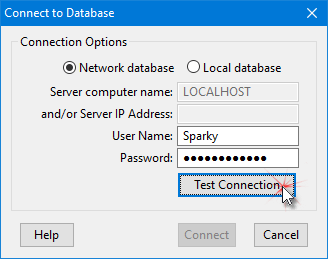
Selecting the Database
Select the option Network database and fill in the following fields:
•Server computer name – The assigned name of the computer in your local area network (LAN) hosting the server software. The name of each computer can be obtained by clicking on the Windows Start button, then right clicking Computer and selecting Properties. This entry is required to connect via your local (internal) network. If logging on via the server computer, the computer name will be "LOCALHOST".
•and/or Server IP Address – The Internet protocol (IP) address of the router for your network. The router connects each computer in the network to the Internet. Your public IP address can be obtained by visiting What is my IP address. This entry is required to connect via the Internet or from a WiFi connection. This is the preferred connection method, even when a LAN is present.
When logging on, COMPASS attempts to access the network through the Server computer name first, if it is present. If that field is blank or the connection fails, it then tries to connect via the Server IP Address, if present. At least one of the two fields must be entered in order for the Test Connection button to be enabled. After a successful log on, COMPASS stores these values and fills them in automatically for future sessions.
•User Name and Password – These are the credentials provided by the network administrator.
Once the necessary values have been entered, click Test Connection to determine if a connection with the server can be established. After the success message appears, click Connect to complete the connection. If the test fails, a message indicating the reason will be displayed.
Starting in Network Mode
COMPASS "remembers" each client computer's status from session to session. If you were logged on the server when you last terminated COMPASS, it will display a simplified log on window the next time you run the program. Enter your user name and password, then click Log In to complete reconnecting to the network.
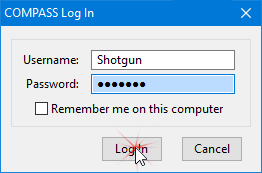
Restoring Network Connection
If, for some reason, you do not want to return to the network at the start of a session, click Cancel. COMPASS will ask if you want to switch to your local database. Answer Yes to do so, or No to exit the program. If the program is exited in this manner, it will again attempt to reconnect to the network at the start of the next session.
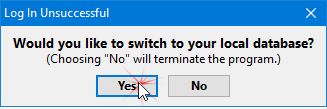
Switching to Local Mode
After returning to local mode, choose Network > Database Selection... as outlined above to again log on to the network.
If, when logging on from a remote PC, the server is not available, COMPASS will again ask if you want to switch to local mode. You can also switch to local mode while logged on the server by selecting Network > Database Selection... and choosing the option Local database then clicking Connect. The Test Connection button is not used when switching to local mode.
Always verify the program status by examining the main window status bar. It will display "Network" when in network mode, or "Local" when in local mode. Additionally, when in network mode, the name of the user logged in will be displayed in the status bar.