COMPASS requires one individual to oversee and supervise access to the network database. This individual is known as the network administrator. The following topics outline how to designate the network administrator and how access by other users is controlled.
Initially, only the server host PC will have access to the network. The network administrator typically controls the server host, or at least has unrestricted access to it. Until the network administrator creates log in credentials for other users, no one other than the administrator will be able to connect to the network database.
First Time Log In as Administrator
IMPORTANT! When accessing the network for the very first time, the local database on the network server PC is copied to the server folder. It is this database that will be accessed by all users when logged on to the network. When in Local mode, the database resident on each individual machine is accessed and the network database is ignored.
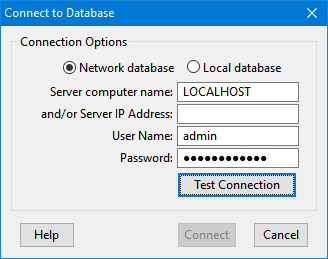
The administrator must log in using the server host PC in order to access the network administrative functions. From the main menu, select Network > Database Selection... This will open the Connect to Database window.
Testing Network Connection
Under Connection Options, choose Network database. The Server computer name defaults to the host computer's actual name, as COMPASS recognizes it is logging in via the server host.
For the initial log in fields for User Name and Password enter "admin" for both (omit quote marks). It is strongly recommended this default administrator user name and password be changed at the earliest opportunity once access has been achieved.
Click the Test Connection button to verify connection to the server. COMPASS attempts to establish a connection to the server process and displays either a "Success" message or an error message indicating a problem in making a connection.
It might require several moments for the "Success" message to appear. Once it does, click Connect to complete the log on to the server. The Connect to Database window will close and return you to the main COMPASS window. Network connection can be verified by inspecting the status bar at the bottom of the window where "Network" will be displayed, along with the name of the current user. On the initial log in the User field will show "Administrator".

Main Window Status Bar
Designating the Administrator
Each individual using COMPASS in network mode must be assigned a user name and password in order to log on to the network database. This is also true for the network administrator. Initially, the network administrator is assigned the display name of "Administrator" and the default user name and password are both "admin".
To assign the network administrator and other users, select Tools > Administration... from the COMPASS main menu. You will be prompted to enter your user name and password to gain access. Enter "admin" in both fields, then click Log In. Note that the Administration menu option is available only on the PC hosting the server.
Network Users List
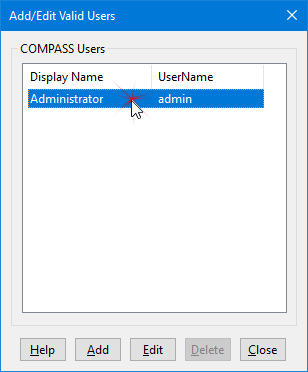
After logging in, the list of currently assigned users is displayed. Initially, the system only recognizes the Administrator, which is created by default. Select the entry by double clicking it, or left clicking it, then clicking Edit. This will switch to the Edit User view.
Naming the Administrator
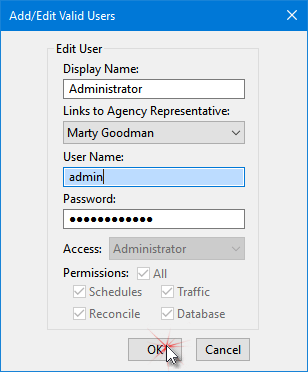
Enter the administrator's Display Name; this is the identification that will be displayed on COMPASS's main window when this individual is logged onto the server.
If the administrator has been entered into the system as an Agency Representative, select him/her from the Links to Agency Representative drop down list.
Change the User Name and Password as desired. For security purposes, it is strongly recommended to NOT use "admin" for either of these fields.
The Access drop down and Permissions section is disabled in this instance, as the system administrator by default is assumed to have full access to the system.
Once all settings are correct, click OK to apply them. The administrator must now use the new User Name and Password when logging on to the network. Only one person can be designated as the network administrator. Note also that the network administrator cannot be deleted from the list.
Resetting Administrator Access
If, due to a change in personnel, the previous network administrator has not provided the necessary log in credentials to management, no one will be able to access the administrative tools to add or delete users and passwords. In addition, the previous administrator could possibly access the network database remotely using his or her log in credentials resulting in security issues.
Should such a case arise, the network administrator credentials can be "reset" to their default values by contacting On Top Systems, LLC at sysmail@ontopsystems.com or contacting us via the chat window at www.compassmediasystem.com for a special reset code. This code is valid for a single use only and will only be released to an authorized individual confirmed by management.
In order to reset the network administrator, perform the following steps:
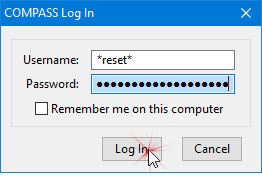
1.On the PC hosting the server, select Campaigns > Log In As... from the main menu. If no one has log in credentials, select Tools > Database Selection... from the main menu and choose Remote database (network via server).
2.In the Username field, enter "*reset*" (lower case, omitting the quote marks but not the asterisks).
3.In the Password field, enter the special, one-time use code provided by On Top Systems, LLC.
4.Click Log In.
Reset Network Administrator
Following a successful reset, the administrative user name and password are both set to "admin".
Choose Tools > Administration... from the main menu to display the Add/Edit Users window. Follow the instructions in Designating the Administrator to set up a new administrator user name and password. Again, it is important to NOT keep the default user name and password in order to maintain system security.
Set Up Other Users
Each individual using the COMPASS networked database must be authorized via a network user name and password. These are created by the network administrator via the Add/Edit Valid Users window. This allows the administrator to control access to the database, "locking out" prior employees who otherwise would be able to continue use of the database via a WiFi connection.
To add or edit users, select Tools > Administration from the main menu. Enter your administrator's user name and password, then click Log In to open the Add/Edit Valid Users window. To establish additional users, click the Add button. This will switch to the Add User dialog.
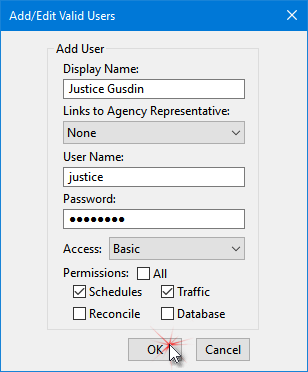
Adding a User
Enter the Display Name, User Name, and Password desired for the individual. User names and passwords are case sensitive. Display and User names must be unique. In the example above, there can be only one "Justice Gusdin" in the system and no other user can have "justice" as a User Name.
The Access drop down determines what campaigns the user is allowed to access. The default is Basic which means the user will only be able to view/access those campaigns with which they are associated as the Agency Representative. The next level is Advanced, which allows the user to view/access all campaigns in the system.
Check the sections of the program the user will have permission to access. Click All to enable all permissions. Note that it is possible to have a user with no Permissions checked. This individual will still be able to access COMPASS in a very limited way, being able to view/print schedules, traffic, etc., but not edit.
Once all values have been specified, click OK to complete the assignment. The Add/Edit Valid Users window will reappear with the list of valid users updated.
Additional authorizations can be created or edited as desired. Click Close when all changes are complete.