With each new major release of Microsoft's Windows® operating system, things tend to be more secure for users and – unfortunately – sometimes more complicated for programmers. Some program features that worked well in earlier versions of the operating system don't fare as well in later versions. For COMPASS, problem areas can be the ability to obtain program updates and, with some installations, getting PDF printing to operate correctly.
Here's how to fix those issues.
Program Updates
As outlined in Program Options, COMPASS can periodically check for new versions of itself. This is a good thing, as keeping COMPASS up to date fixes issues that otherwise might cause problems. In some cases, particularly under Windows 10, notification of an update will be displayed but the operating system might prevent the download of that update from completing.
If you experience this situation, right click the COMPASS icon on the Windows desktop and choose Properties from the pop-up menu to display the COMPASS Properties window. On that window, click the Advanced button.
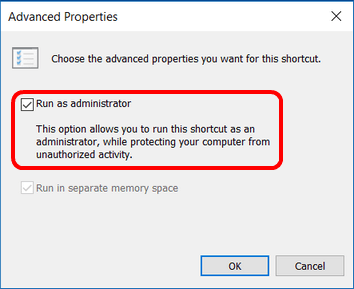
Advanced Properties Window
On the Advanced Properties window, check the box Run as administrator and click OK, then click OK again (closing both windows).
When this setting is complete, restart COMPASS and updates — when available — will now be downloaded and installed correctly.
PDF Printing
Sometimes Windows can become "confused" over how to handle the display and printing of PDF documents. Since COMPASS uses the default PDF viewer to provide printing and emailing services, an error in this setting cause serious loss of functionality.
If COMPASS fails to display a schedule or reports that it has disabled printing because it cannot find a PDF viewer to use, take the following steps.
Windows 7
1.In the Windows search bar (Start menu), type default programs and press Enter.
2.In the window that opens, click the option Associate a file type or protocol with a program.
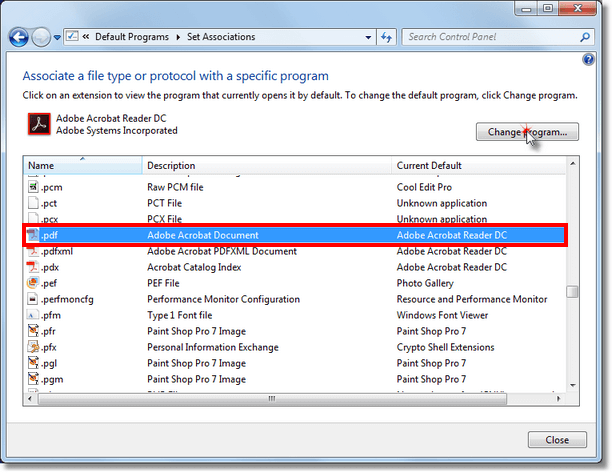
Scroll to Entry for .pdf and Select It
3.Scroll down the list of file types to ".pdf" and select it. Then click the Change Program button.
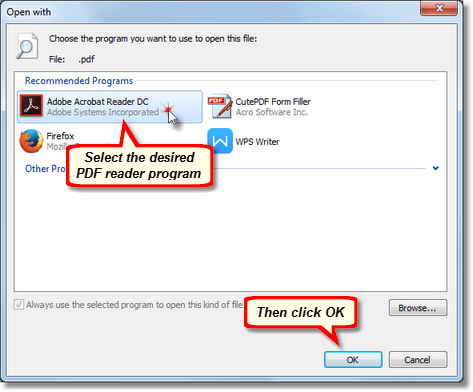
Select PDF Reader, Then Click 'OK'
4.In the Open with window, select the desired PDF reader program (Adobe Acrobat Reader or equivalent recommended). Then click OK to complete the default assignment.
5.Restart COMPASS and PDF generation should now be enabled.
Windows 10
1.In the Windows search bar, type default programs and press Enter.
2.In the Default Programs window, select Associate a file type or protocol with a specific program.
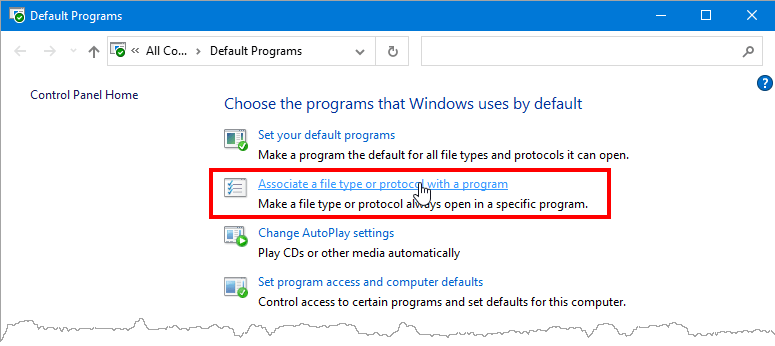
Choose 'Associate a file type or protocol for a program'
3.In the Settings window, scroll down to find Choose default apps by file type and click it.
4.When the second Settings window appears, scroll down the (somewhat long) list of file types to .pdf. There will be an application displayed that is associated with the PDF document type, or possibly the notation Choose a default. Regardless of what is displayed, click the section next to the .pdf entry.
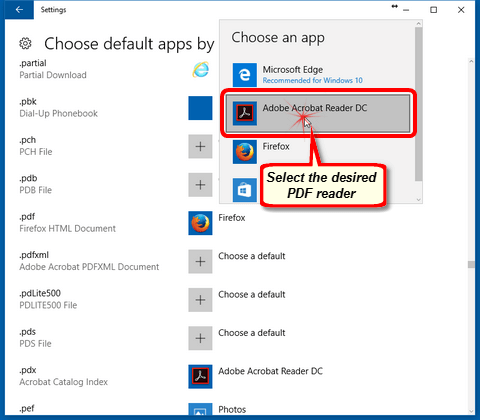
Select PDF Reader
5.A pop-up list of available applications will be displayed. Click the desired PDF reader program (Adobe Acrobat Reader or equivalent recommended). Close the Settings window (there is no OK button to click in Windows 10).
6.Restart COMPASS and PDF generation should now be enabled.
Should these methods fail to resolve the associated issues, please contact On Top Systems, LLC, for assistance.
Issues with Adobe Acrobat®
When using Adobe's Acrobat Reader® to view PDFs, the reader can sometimes not terminate correctly. This problem can occur after print/previewing a document and then trying to print/preview the same document or another document and Adobe indicates it is already running. A reboot of your computer might be required to regain control of Acrobat. This issue is a problem with Acrobat and not COMPASS.
To resolve this problem, open Acrobat Reader and select Edit > Preferences... from the Reader main menu. On the left side of the Preferences window, select Security (Enhanced). Then, remove the check mark from the box Enable Protected Mode at startup. Then click OK to save your changes. Following this change, Acrobat Reader should function normally.