Templates are perhaps the most powerful feature of COMPASS Mail. The template feature allows the creation of text that can be recalled and inserted into an email as needed. Also included is the option to substitute text in the template with actual names and titles specific to the client, campaign, and media.
The Email Template Editor handles templates for both orders and traffic and keeps them discreet. Because of this, for example, it's possible to have a template named "Basic" for both orders and traffic.
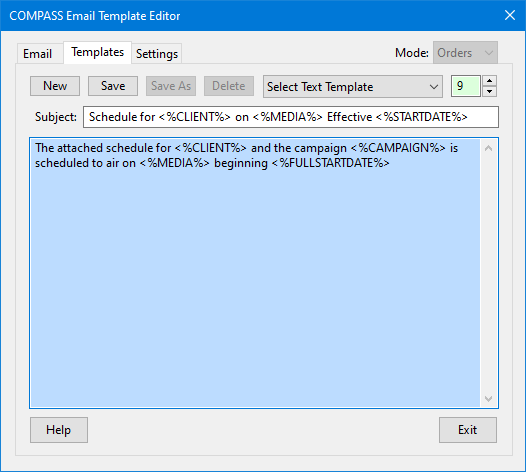
COMPASS Mail Template Editor
Select the template mode, Orders or Traffic, from the drop down list at the top right of the window. When a new template mode is selected, all of the templates assigned to that mode will be available for selection in the Select Text Template drop down.
To create a new template: Click the New button or click Select Text Template from the drop down list. This will clear any text in the Subject line and any message text in the large text box.
Enter any desired text in Subject or the message text area. To insert a Text Substitution placeholder in either one, position the text cursor where the substitution text is desired, then right click with the mouse. A pop up window will give the following choices:
•Client Name: Inserts the placeholder <%CLIENT%>. The name of the client will be substituted when the template is loaded into the Email window.
•Media Name: Inserts <%MEDIA%> placeholder, which will be replaced by the actual media name.
•Campaign Title: Inserts <%CAMPAIGN%>, which will be replaced by the name of the campaign.
•Start Date: Placeholder <%STARTDATE%> will be replaced by the start date of the schedule/traffic in the date format selected for that media (e.g., "04/26/2022").
•Full Start Date: Placeholder <%FULLSTARTDATE%> will be replaced by the start date of the schedule/traffic in the format "MONDAY, APRIL 26, 2021".
Whenever the New button is clicked or Select Text Template is chosen, any existing text entered will be deleted. A warning will be displayed prior to deletion to allow you to cancel the action, retaining any existing text. If you proceed, any existing template text that has not been saved will be lost.
Action of the template editor buttons are:
•New — Creates the opportunity for a new template, removing any existing text. If any existing text has not yet been saved, COMPASS Mail will ask if you want to save it before switching.
•Save — Saves the current text as a named template. If a template name has not been previously specified, you will be prompted to create one.
•Save As — Saves the current template under a different name. Template names must be unique within the template mode (Orders or Traffic).
•Delete — Deletes the currently selected template from the database. You will be asked to confirm the deletion. Note that deleting the template also removes all text from the template fields.
When a template is opened in the Email tab of COMPASS Mail, all the substitution text is replaced with the actual text values. The Subject and email text can then be edited as desired without affecting the template. Only changes made and saved on the Template tab of the window will have any impact on the template text.