COMPASS provides a backup feature to guard against loss of program data...but it only works if it is used on a regular basis. That's why we've provided the ability to set a backup reminder to assist in practicing good backup safety procedure.
The backup tool takes a snapshot of the database in time. It is always a good idea to take a backup before making a large number of changes to the data, such as adding or modifying a significant number of campaigns or schedules. The process of taking a backup requires only seconds, and it provides protection in the event of data loss.
Select Tools > Backup Database from the main window menu to display the Backup Database dialog. When connected to the network. only the computer acting as the network server can perform an actual backup. Remote computers on the network can issue a backup request that the server will act on within 60 seconds. In the case of remote PCs, the backup will be stored in the directory where the most recent backup was taken.
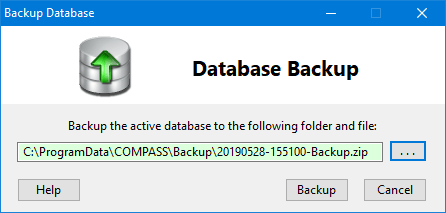
Backup Database Window
The backup program creates a backup of the entire database. It is recommended to enable the Automatically generate unique backup file names option in the Backup Options section of Program Options. This feature helps to prevent accidentally overwriting (replacing) a previous backup by using a file of the same name.
The backup dialog provides either a new file name or the name of the last backup file used, depending on the options selected. The drive and directory used will be the last drive and directory for which a backup was taken. Regardless of the file name provided, a different drive/directory/name can be selected by clicking on the browse  button button.
It is wise to consider saving or copying the backup data to a separate storage medium; either an external backup disk or removable media (such as a memory stick or even a floppy disk, should such a device be present on the system), or to cloud storage. The backup program cannot write directly to CD or DVD, but the generated backup file may be burned to such media using a third-party solution.
Once selections are satisfactory, click the Backup button to take the backup. The process takes only moments and a separate window will appear to indicate the success or failure of the procedure. To abandon the process, click Cancel to close the dialog and return to the main window.
Restoring a Backup
In the event of data loss or corruption, the COMPASS database may be restored from a previous backup file. Choose Tools > Restore Database from the main menu to display the Restore Database window. When operating in network mode, this option creates a backup request that is handled by the computer hosting the network server.
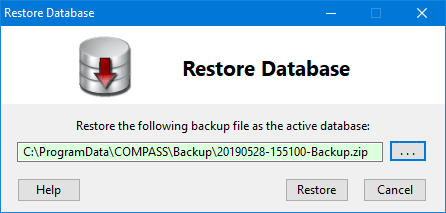
Restore Database Window
The restore function defaults to restoring data from the last backup taken on that computer. To select a different backup file, click the Browse button button and navigate to the drive/directory/file containing the backup desired.
Once the correct backup file has been selected, click the Restore button to replace the existing database with data from the backup. Note that any changes made to campaigns, schedules, or other information held in the database since the last backup was taken will be lost.
As a safeguard, COMPASS makes a temporary copy of the current database file before attempting to restore from the backup. If the restoration process fails for any reason, this temporary copy restores the current files so no data should be lost. After the restoration succeeds, this temporary backup is automatically deleted by the program.
In Networked mode, all users except the system administrator must be logged off COMPASS in order to restore a backup. An alert will appear if one or more users remain logged in and restore operations cannot continue until they have exited the program.
A message indicating the restoration's success or failure will be displayed once the process is complete. To close the window without restoring a backup, click Cancel.