From time to time, the need might arise to change computers. When that happens, we've made it easy to move COMPASS from your old PC to the new one.
Note: This option is disabled if the PC is a) logged on to the network database, or b) is in trial mode.
The subscription key and local database for COMPASS can be transferred from one computer to another using the following steps:
1.On COMPASS's main menu, select Tools > Move COMPASS to Another PC > Export Database. This will create a special zipped file (DBTransfer.zip) that appears on your computer's desktop. This file contains COMPASS's local database and, if the Include my preference settings with this transfer box is checked, all the program settings you have specified, including your subscription key. This will make registration on your new computer much easier. If the box is not checked, the subscription key will require manual installation on the new PC.
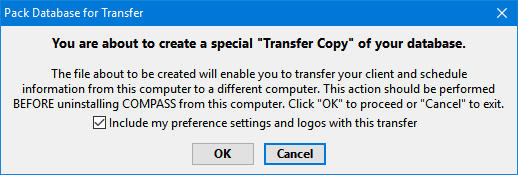
Creating the DB Transfer file
After creation, the DBTransfer.zip file is checked to ensure it is valid. If the contents of the file are not correct, you will see a warning and be asked to repeat the process. This ensures that the transfer file contains all the database information required for completing the move.
2.Once the DBTransfer.zip file has been created, you will be given the option to uninstall COMPASS as the next step. This is optional. IMPORTANT: uninstalling the program will free up your subscription key for use on the new PC. If COMPASS is not uninstalled, your existing subscription key will remain assigned to the old PC which means the new PC will require a new (different) subscription.
If you choose to uninstall, ensure the computer has internet access during this step, otherwise the subscription key will not be freed.
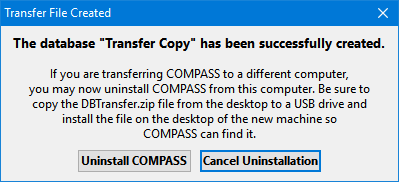
Option to Uninstall COMPASS
3.Copy the DBTransfer.zip file created in step 1 from your desktop to a transportable media, such as a USB drive.
4.Move to the new computer and copy the DBTransfer.zip file from your portable media to the new computer's desktop.
5.Install COMPASS on the new computer.
6.Once COMPASS is started on the new computer, it will be in 60 day trial mode. Go to the main menu and select Tools > Move COMPASS to Another PC > Import Database. Follow the on screen prompts to place the old computer's COMPASS local database on your new machine.
That's it! COMPASS's subscription key will automatically be registered on the new PC, provided all the above steps are followed in order.