The Client Detail section of the Campaign Information window is where the client information for a campaign is entered. Once entered, this information is retained and can be edited and also recalled when creating future campaigns for the same client.
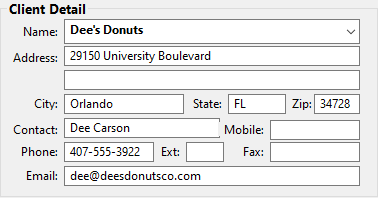
Client Detail
Adding a New Client
To create a new client, simply enter the client's name in the Name field. If the name does not exist, COMPASS will ask if you want to create a new client. See the topic Clients for details on how to create a new client prior to creating a campaign in COMPASS.
Selecting an Existing Client
If the campaign being created is for a client that is already on file in the database, click on the drop-down in the Name field. A list in alphabetical order of existing clients allows the desired client to be selected. Or, enter the first few letters of the client's name in the field to display the drop down list. Select the client to immediately display all the stored information for that client. While displayed, any of the information can be edited. To edit the client name, right-click it with the mouse.
 Pro Tip
An existing client's name can be edited by right-clicking the client name. This will open a small window where edits can be made.
Network Mode
When operating COMPASS in network mode, the client information is not directly editable. This is necessary to prevent editing conflicts (two users editing the same client information at the same time). When in network mode, the client information fields appear with a green background.
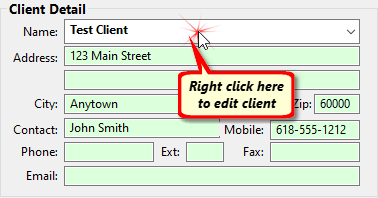
Client Detail in Network Mode
To edit client information, right-click the client name field. This will open a separate Client Information window where editing can take place without conflicting with other users.