The Campaign Information window is where all the details of a campaign are entered and edited. The window consists of the following sections. Click on any of the circled numbers to get details on that section.
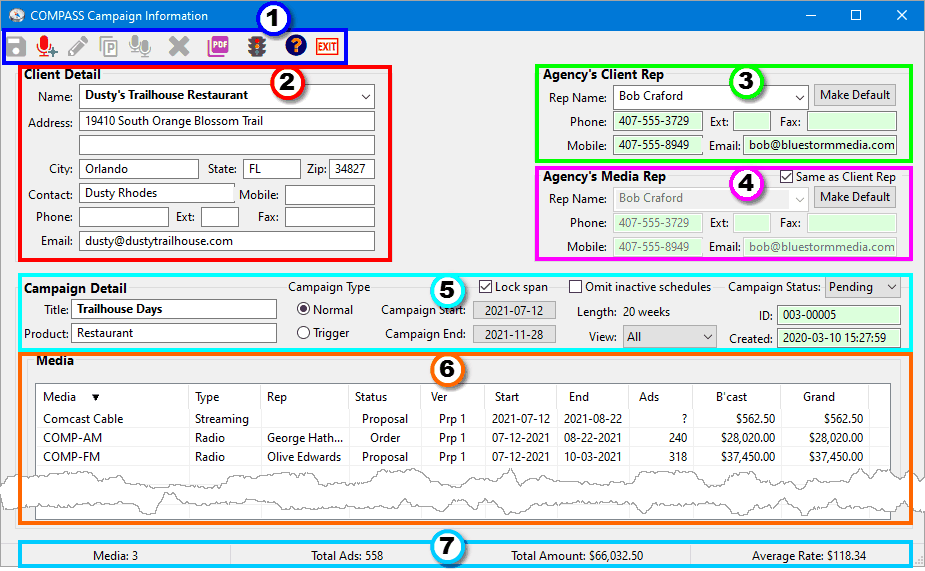
Campaign Information Tool Bar
The Campaign Information tool bar provides access to the various functions required for creating and modifying campaigns. The tool bar buttons are:
|
Save — Stores the most recent changes to the database. Same as pressing Ctrl + S at the keyboard. |
|
Add/Change Media — Opens the Select Media window where media can be added or removed from the campaign. |
|
Edit Schedule — Activated when a media has been selected in the Media List. Opens the Schedule Detail window where the schedule for that media can be edited. Double-clicking a media in the list performs the same action. |
|
Copy Proposal — Copies the selected proposal to the same media, assigning it a unique proposal number. |
|
Delete Schedule — Removes the selected proposal from the current campaign. If the selected line is the media's last proposal in the campaign, the media itself will also be removed from the campaign. The action must be confirmed before the media is actually removed. |
|
Generate PDF — Opens the Email/Print Schedules window where any of the media on the campaign may be previewed/printed to a PDF file or the schedule can be emailed to the client or to media. |
|
Traffic Summary — Opens the Traffic Summary window where traffic instructions for all media on the campaign can be viewed, printed, or emailed. |
|
Help — Open the help file to information about the Campaign Information window. |
|
Exit — Close the Campaign Information window and return to the main program. Same as pressing Ctrl + Q at the keyboard. |


