If you have a schedule covering many weeks and some weeks are different in overall content, editing can become tedious. The Copy Weeks feature is limited to replacing all of the content in selected weeks, which might not be the desired result.
COMPASS's Global Line Editor offers a simple solution to updating sections of a schedule globally across weeks. To invoke this feature, click the Global Edit  button on the tab's tool bar. The editor can also be called by pressing Ctrl - G on your keyboard.
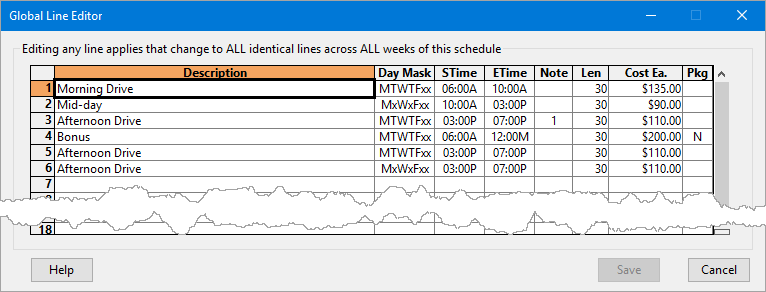
Editing Schedule Lines Globally
The editor displays a single instance of each line in the schedule. In the example above, the "Morning Drive" line represents all instances of that line throughout all weeks of the schedule. Each part of the line displayed may be edited as desired. If the Rate column for "Morning Drive" is changed from $135.00 to $145.00, that new rate will be applied to all lines in the schedule that match. So, in a few quick edits, all the morning drive ads can be adjusted without having to make the same adjustment individually week by week and line by line.
Because COMPASS takes a "snapshot" of each line prior to displaying the editor window, any part of the line can also be edited. In the example above, there are two lines with a description of "Afternoon Drive" because the Day Masks are different. If desired, either of these lines could be modified, and COMPASS would "know" to apply the changes to the correct line(s). But it can be easy to misidentify a line and edit it by mistake.

Use Caution When Editing
For this reason, it is critical to carefully examine the lines you choose to edit. The Global Line Editor is unable to display or indicate exactly which weeks of the schedule will be affected by any changes. Using unique descriptions in each line of a schedule helps you to better identify where specific lines appear and helps avoid making any costly errors.
Once all edits are complete, click the Save button to apply the changes and return to the Schedule Detail window. In the event of an error the Undo button on the tool bar will reverse all the edits as if they never happened.