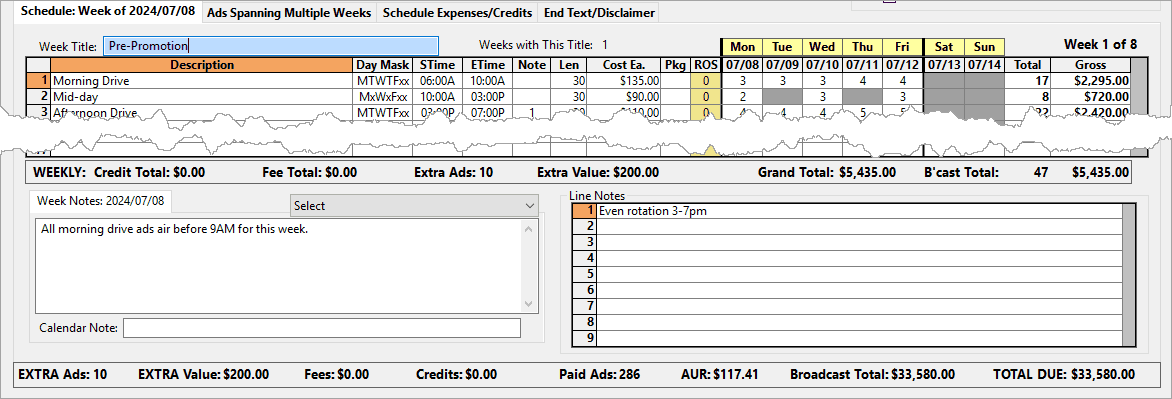
The Weekly Schedule area consists of the following sections. Click on any area in the image for details about that section:
Schedule Tab
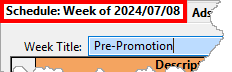
The Schedule Tab indicates the date of the week currently displayed in the Weekly Schedule grid.
Schedule Tab
Other active weeks in the schedule can be accessed by:
•Clicking on any of the navigation buttons (First, Previous, Next, Last) on the Schedule Detail Tool Bar
•Selecting a week date from the drop-down list in the Schedule Info box on the Schedule Detail window
•Right clicking the tab itself with the mouse, which displays the Select Week window
Week Title
The Week Title is an optional field; if omitted it will be ignored when the schedule is generated as a PDF. The Week Title field turns blue when it has the "focus" (i.e., the field is active and ready to receive input).

Week Title
The typical use for the week title is to differentiate phases of a campaign (e.g.: "Pre-Launch Teasers", "Initial Week", etc.). It is not necessary to include week dates in the week title, as that information is always printed as part of the schedule.
The week title (if any) is considered when the program evaluates identical week printing. If two otherwise identical weeks have differing week titles, they will be considered different weeks and will be printed separately. The number of weeks in the schedule with the identical week title is shown to the right of the Week Title field.
When a schedule is part of a Trigger Campaign, Week Title will appear as Trigger Title.
Creating a Valid Schedule Line
Each week of a schedule can have a virtually unlimited number of lines. In order to conserve space in the database, COMPASS requires all of the following fields to be present for a schedule line to be valid (that is, saved when the Save button is clicked or a different schedule week is selected):
•Description
•Day Mask (if Day Mask option is enabled)
•Start Time
•End Time
If any of these specific fields have not been entered for a schedule line, that line will be eliminated from the schedule. Beyond this minimum requirement, the program examines each schedule week prior to saving and prior to switching to another week in the schedule. Any missing information is flagged with a warning message. Such errors must be corrected prior to proceeding.
 Pro Tip
See Grid Tips for information on inserting, copying, pasting, deleting, and moving (re-ordering) schedule lines.
Description (Required)
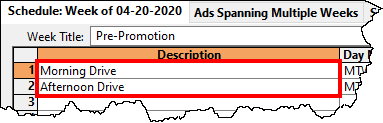
The Description is text that identifies the daypart, program, time slot, network, or other designation meaningful to the media (and the client).
Line Description
The column title of the line description column will vary depending on the media and specifications in the Manage Media Types window. For example, whether or not a second description column was chosen.
The Description column can accept any text up to 40 characters in length (25 characters if two description columns are used) and the text need not be unique (e.g., multiple rows with a description of "Morning Drive" are acceptable).
The Description field supports the Common Descriptions feature. See that topic for more information.
Left click on the Description text and then press Delete on your keyboard to delete the description text. When the first column of a line is deleted, that entire schedule line will be deleted. COMPASS will inform you of this and ask permission to complete the deletion.
Day Mask
The Day Mask is an optional field in the Weekly Schedule grid that provides a safeguard to prevent inadvertent errors when entering a schedule. By specifying a sequence of days where ads may be accepted, COMPASS will allow ads to be entered only on those days of the week. If not disabled in Program Options, the Day Mask is a required field.

Day Mask
Masks may be entered by typing the first letter of each day of the week where ads are allowed in day sequence (e.g., "MTW" for Monday, Tuesday, Wednesday). Any omitted days are automatically excluded from the mask. Excluded days are marked with a lower case "x". Masks may be entered without regard to case.
To speed things along, the Day Mask field recognizes the period and dash characters as meaning "to". So entering "m.f" translates as "Monday to Friday" or "MTWTFxx".
Desired Days |
Enter |
To Get |
|---|---|---|
All |
a |
MTWTFSS |
Tues Wed |
tw |
xTWxxxx |
Thu, Fri, Sat |
xxt.sx |
xxxTFSx |
Sat, Sun |
ss |
xxxxxSS |
Sat |
sx |
xxxxxSx |
Sun |
xs or xxs |
xxxxxxS |
Mon, Tue, Wed |
mtw or m.w |
MTWxxxx |
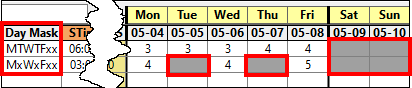
If all else fails, the mask characters can be entered manually. However, the program is fairly intelligent in figuring out most mask combinations. Because Tuesday and Thursday are both abbreviated "T" in the mask, adding an "x" where Tuesday would appear in the mask will cause Thursday to be selected. For example: "mxw.f" will render "MxWTFxx".
Masked Days are "Grayed Out"
When a mask is created, excluded days appear in the grid as "grayed out" and those cells will be skipped as the grid is navigated. Masks can be modified at any time, and any days removed from the mask will have any previously assigned ads also removed. If removed days are later restored, the removed ads will not automatically be restored, but will have to be reentered.
The Day Mask option can be disabled in the Schedule Options section of Program Options.
Start/End Time
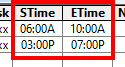
The Start and End Time columns describe the time range between which the ads for each line of the schedule will be aired (inclusive).
Start/End Time
Time values can be entered in either civilian (12 hour) or military (24 hour) format, regardless of the selected display format (set individually by media). COMPASS will convert the time entered to whatever display format is specified for each media in Media Information. On entry, hour and minute values can be separated by a colon or a period. For whole hour numbers, it is not necessary to enter minutes. Entries in civilian time do not need an "A" suffix to designate AM times (AM is assumed), but do require a "P" (or "p" -- case is irrelevant) to designate PM times.
Entry examples:
Enter These Characters |
Civilian Formatting Result |
Military Formatting Result |
|---|---|---|
9 |
09:00A |
09:00 |
1.3p |
01:30P |
13:30 |
17:2 |
05:20P |
17:20 |
11.03a |
11:03A |
11:03 |
7p |
07:00p |
19:00 |
12m |
12:00M |
24:00 |
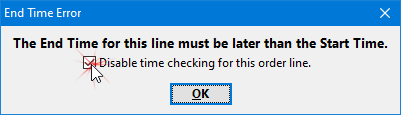
COMPASS will complain at the time the schedule is entered if a schedule line has an End Time less (i.e., earlier) than the corresponding Start Time (or the reverse). However some media, particularly television, often modify their broadcast day so that the "start" of the day is other than midnight. Should a schedule require what appears to be an End Time earlier than the Start Time, check the box Disable time checking for this order line. Then click OK. This action must be performed for each line of the schedule that has this condition.
Overiding End Time Restriction
If the Start Time and End Time are equal (e.g., 4:00AM - 4:00AM), no time conflict will be triggered. But if a line has a Start Time of 4:00AM and an End Time of 3:59AM, the End Time Error notification will be displayed.
Clicking OK without checking the box Disable time checking for this order line will return you to the schedule line where the error occurred. The time value will be cleared so a new time can be entered.
If time checking is enabled, it can be reset by clicking on the Start Time line cell and pressing the Delete key on your keyboard, then doing the same thing for the End Time line cell.
Line Notes
The Line Note is an optional field that allows a footnote with special instructions that apply to that line and that week. Up to 20 different Line Notes numbered 1 - 20 can be created and the same note number can be assigned to multiple grid lines. It is not necessary to number notes sequentially (i.e., notes can start with note #2, or #7, etc.). Each week's Line Note list is discreet from all other weeks in a schedule. In other words, the text for note #1 in week #1 can be different from note #1 in week #2.

Note Example
Each note number is required to have a corresponding note text in the Line Notes Detail section. COMPASS cross checks for missing notes/numbers when the display is switched to a different week or when the schedule is saved, and will alert if it finds any problems that must be corrected.
Ad Length
The Ad Length indicates the duration of the ad in seconds. The minimum length allowed is 0, and the maximum is 3600 (one hour). Entries outside the allowable range will be adjusted to a legal value by the program.
Bookends
To designate a pair of "bookend" ads (one ad running at the beginning of a commercial break and a second ad at the end of the same break), enter the length as "NN/NN" where "NN" is the ad length of the first ad and last ad separated by a forward slash (e.g., "15/10", or "15/15"). Alternately, if the two ad lengths are identical, they can be entered in the format "2x15" which will be converted to "15/15". When this bookend designation is indicated, the two ads that make up the bookend are counted as a single unit. This setting can be changed individually by media in the Media Information window.
Cost
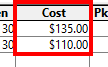
The Cost field determines the value applied to each ad on the corresponding line. It is not necessary to enter currency symbols in this field, as the amount entered is formatted in the currency selected for that media. See Media Information for details about currency formatting by media.
Cost Examples
COMPASS uses the Cost value to determine the total cost for each line, which is displayed in the Gross column. This value is used differently when certain Package options, Bookends, or a Streaming Schedule is utilized.
Package
The Package field of the weekly schedule grid allows the optional creation of five different types of package pricing. This field should remain blank if no package pricing is desired.
Package "P" — "Bulk" Package price: This option is created by entering the letter "P" (upper or lower case) in the Package field. The "P" option takes whatever value is entered in the Cost field and applies it as the total cost for the schedule line, regardless of how many ads are indicated for that line.

"Bulk" Package Example
In the example above with the "P" option specified the Cost field value of $200 is applied as the Gross total for the line, even though 14 ads have been entered. Removing the package designation immediately recalculates the line, applying the $200 rate to each ad. As a result, caution should be used when editing package lines to prevent inadvertent client sticker shock.
On printed schedules, bulk package pricing lines will show "PACKAGE" in the Cost column.
Some packages may require detailing by daypart. One way to handle such instances is to use the Description field to identify the package name. The price of the package is specified on the initial package line, with subsequent lines for the same package entered as zero dollars.
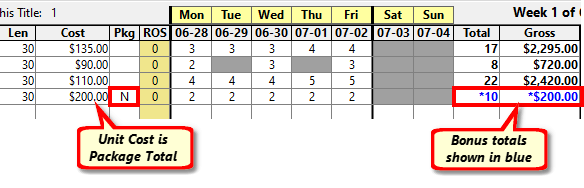
Package "N" — "No Charge" Package: Entering "N" in the Package field operates identically to the "P" option except the Gross total for the line is not charged to the client. It is indicated in the schedule grid with a negative amount and in blue text to identify it as something that will not be billed to the client.
No Charge Package
When printed, a "No Charge" line appears in a separate "No Charge" section of the page. On the client's version of the printed schedule, the Gross amount of the line is indicated as a "No Charge Bonus Value". On the media's version, the Gross amount is indicated as zero. This is designed to prevent inadvertent billing of the client for a no charge portion of the schedule.
Package "B" — "Bonus No Charge": Some media offer no charge "bonus" ads as added value for the client. COMPASS allows the cost of these ads to be shown to the client as "added value" while not altering the total cash investment from the client.
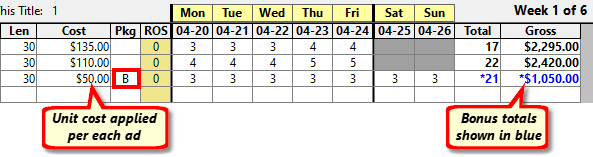
Bonus "No Charge" Pricing
Technically, this is not a true "package", as the Gross amount of the line is calculated normally (number of ads multiplied by the Cost value). However, this line is otherwise treated as a "No Charge" line with the text in blue. As with the "No Charge Package" the value of the schedule when printed is shown to the client but the media's version shows zero Gross.

Weekly Total Showing Bonus Ads Separately
A Fee line in the weekly schedule allows the addition of non-broadcast charges to a client, while a Credit reduces the total amount owed by the client for the schedule. Typical examples of a Fee would be charges for talent, promotional charges, live broadcast fees, or other charges not relating directly to the ad schedule. Credits could include promotional consideration provided to the station by the client or a rebate from an error on a previous schedule. A Fee/Credit line accounts for these charges for a specific week. To add fees or credits relating to the overall schedule or campaign and not associated with any particular week, see Schedule Expenses/Credits.
A Fee line is designated by entering the letter "F" (upper or lower case) in the Package field, while a Credit is designated by the letter "C".

Fee and Credit Lines are Not Included in Schedule Total But ARE in Grand Total
Once designated as a fee or credit, the line changes color to a pale blue, indicating it is not a part of the broadcast charges for the week. The value entered in the Cost column for that line is applied only when one or more "ads" are indicated for the line. However, unlike the "bulk" pricing, the Cost value is applied for each instance of an "ad". If, in the example above, the value for Friday was changed from "1" to "2" on the "Talent Charge" line, the fee total would change to $700 ($350 x 2). If no "ad" designations are made for the line, the fee amount in Cost will not be applied. The ROS column may be used as an alternative for designating fees as long as at least one day in the line has an "X" designation to activate the fee amount.
Fees and credits are not included in the week's Broadcast Total since they are not considered a broadcast charge and are not included when calculating the average unit rate for the schedule. Instead, they are shown in the Credit Total/Fee Total areas, directly below the schedule grid. Fees and credits appear as a separate block for the week on the printed schedule.
ROS (Run of Station)
ROS or Run Of Station ads are scheduled to air over a span of days in a specific week. The number of ads each day is not specified; instead an ad quantity is entered and the days on which ads may be scheduled are selected. It remains to the media to schedule the ads on those days where time is available.
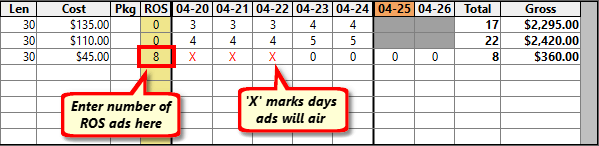
Example ROS Schedule Line
When a number other than zero is entered in the ROS column, the behavior of the Ads Per Day cells (Monday - Sunday) is altered. Instead of the number of ads per day, the cells will only display a red "X" or a zero. The red "X" marks days as eligible for airing one or more of the ROS ads.
To mark a day with an "X", enter any number or the actual letter "x" (upper or lower case). Entering a zero, space, or any other non-numeric character equates to entering zero. As days are selected or removed, the totals remain unchanged due to the nature of ROS ads.
When the schedule is printed, all unselected ROS days appear as "grayed out", just as if they had been masked using the Day Mask feature.

ROS Schedule Example
The day span for ROS ads is represented by the number of ads in the center of a series of "less than/greater than" symbols (as shown outlined in red in the example above). Days selected for ROS ads do not have to be contiguous.
Ads per Day
The Ads Per Day section of the grid is where the number of ads to be aired for each day of the week for a "normal" (non-ROS) schedule are entered.
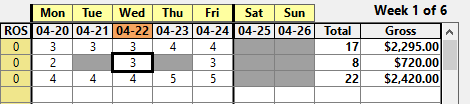
Scheduling Ads per Day
The seven days of the week are visually separated from the rest of the grid, with an additional vertical divider separating the weekend from weekdays. Yellow boxes at the top of the grid identify the days of the week. The actual date for each day is also displayed directly beneath the yellow boxes.
Enter the number of ads for each day, then press Enter or Tab to move to the next day. Days that are masked out will be skipped. Pressing Enter/Tab on the last active day advances to the first column of the next row.
Only numeric values are accepted (with the exception of ROS lines, in which case the letter "X" or a space is allowed). Entering a non-numeric character is equivalent to entering "0" ads.
As ads are entered, the Total and Gross columns are updated, as are the week total values at the bottom of the grid and the grand totals at the bottom of the Schedule Detail window.
Ads assigned to any day can be edited in any order. Place the focus rectangle on the desired day and row, and enter any numeric value at the keyboard to replace the existing ad assignment.
Trigger Ads Per Day
When a schedule is part of a Trigger Campaign, the Ads per Day section is different.

Trigger Ads per Day
While the number of ads per day is entered normally, the display shows each day as a trigger code instead of a month-day date. In the example above, "T1/1" stands for "Trigger 1/Day 1", "T1/2" represents "Trigger 1/Day 2", etc. A second trigger in the schedule is designated "T2/1", "T2/2", etc. This designation is used as the actual date the schedule is triggered (if it is ever triggered) is not known in advance.
In similar fashion, each day shows a proposed number of ads followed by a question mark. Again, this is because until the schedule is triggered, it is unknown on what days or even if the schedule will ever air.
Total and Gross
The Weekly and Grand totals are calculated by the program and are not directly user editable. They serve as a check on schedule entry and to aid in spotting errors by line and week.
Week Notes
The optional Week Notes section on the lower left of the Schedule Detail window is where special instructions pertaining to the specific week may be entered.
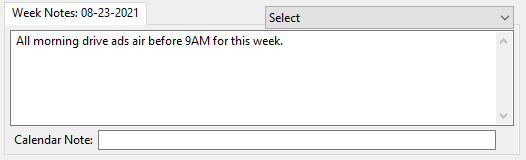
Week Notes Example
The Week Notes box turns blue when it has the keyboard focus. Because this section allows multiple lines, pressing Enter starts a new line of text and does not move forward to the next section. Use Tab or the mouse to select another area on the Schedule Detail window.
This field supports Text Substitution and Spell Check.
Text entered here appears directly below the week schedule when printed. Each week may have different comments that apply only to that week.

Week Note on Printed Schedule
Week Notes are evaluated when the program determines "identical weeks" for printing. If the option to compress identical weeks is selected, weeks with differing week comments will be printed separately (not compressed).
Use the Select drop down to choose predefined text content via the Text Library.
The Multiple Week Span Comments operate in a similar manner.
The Calendar Note box is currently not used but will be in a future update.
Trigger Specifications
When a media schedule is part of a Trigger Campaign, the Week Notes area is replaced with the Trigger Specifications tab. This allows the description of what conditions apply when the schedule is triggered.
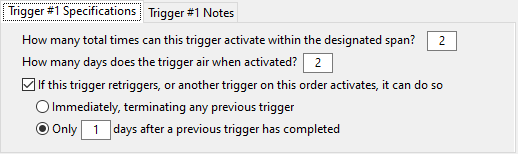
Trigger Specifications
Depending on the particular circumstances, the trigger can be specified to activate once or multiple times. The specifications also indicate how many days the triggered schedule will air, and whether or not the trigger can be "re-triggered" and how much time must pass following the completion of the previous trigger.
Click the Notes tab to optionally add any additional instructions regarding the trigger. Note that in the case of multiple triggers within a schedule, each numbered trigger can have its own unique specifications and notes.
Line Notes Detail
COMPASS's Line Notes section is a way to apply a footnote relating to one or more specific lines of the schedule. This section compliments and is linked to the Line Note section referenced earlier in this topic.
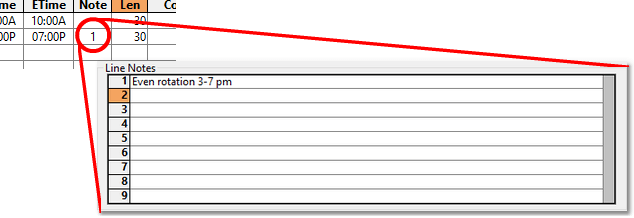
Line Note Example
Up to 20 notes can be created for each active week. In the example above, the number "1" has been placed in one row of the schedule in the Note column. This number corresponds to the text entered in row 1 of the Line Notes section. When the schedule is printed, the assigned notes (if any) will be printed beneath the schedule and before any Comments. These notes can also be optionally included on the broadcast calendar for the schedule, although space for lengthy notes is limited.
To enter or edit a note, use the left mouse button to double click on the desired line in the Line Notes box. Line Notes can be selected and entered under any number desired and it is not necessary to begin with note #1 (although the client or station could become confused if numbers are skipped). Notes are limited to 90 characters in length.
When entry or editing is complete, press Enter or Tab to store the text. Failure to do so may result in the note not being recognized by the program.
Entering a note number in the Note column on the schedule grid without a corresponding note in the Line Notes section will produce an error condition when switching to another week or the schedule is saved. An error message will be displayed indicating the location of the error. Such errors must be corrected (a note added or the number removed from the schedule grid) before the schedule can be saved or exiting from the Schedule Detail window is allowed.
Any line note can be deleted by left clicking it with the mouse and pressing Delete on the keyboard. Select multiple lines by clicking on a line, holding down Shift, click another line to select it and all the lines in between. Pressing Delete will then remove all the text in the selection.
The Multi-Week Span Notes operate in a similar manner.