When a campaign consists of two or more media, the traffic instructions from one media may be copied to other selected media. The source media and media receiving the copy must be designated as orders in order for this feature to be enabled.
With the media containing the traffic to be copied open in the Traffic Instructions window, click the Copy Traffic  button on the tool bar. This opens the Copy Traffic to Another Media window.
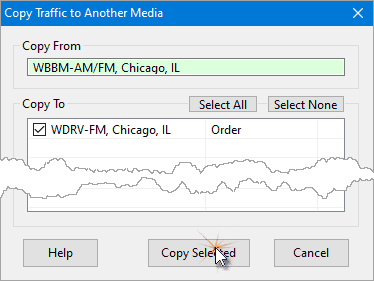
Copy Traffic to Other Media
The copy dialog displays the media being copied from and lists the other media orders on the campaign, regardless of media type. Check those media in the Copy To list that will receive a copy of the traffic. Care must be exercised when copying to dissimilar media. Dates and times might need to be edited after the copy is complete.
Click Copy Selected to complete the copy. Note that any existing traffic for the media RECEIVING the copy will be replaced. Click Cancel to close the dialog when copying is complete. Also note that the act of copying traffic to another media cannot be reversed by the Undo button.
To copy traffic from one campaign to another, see Import Traffic.