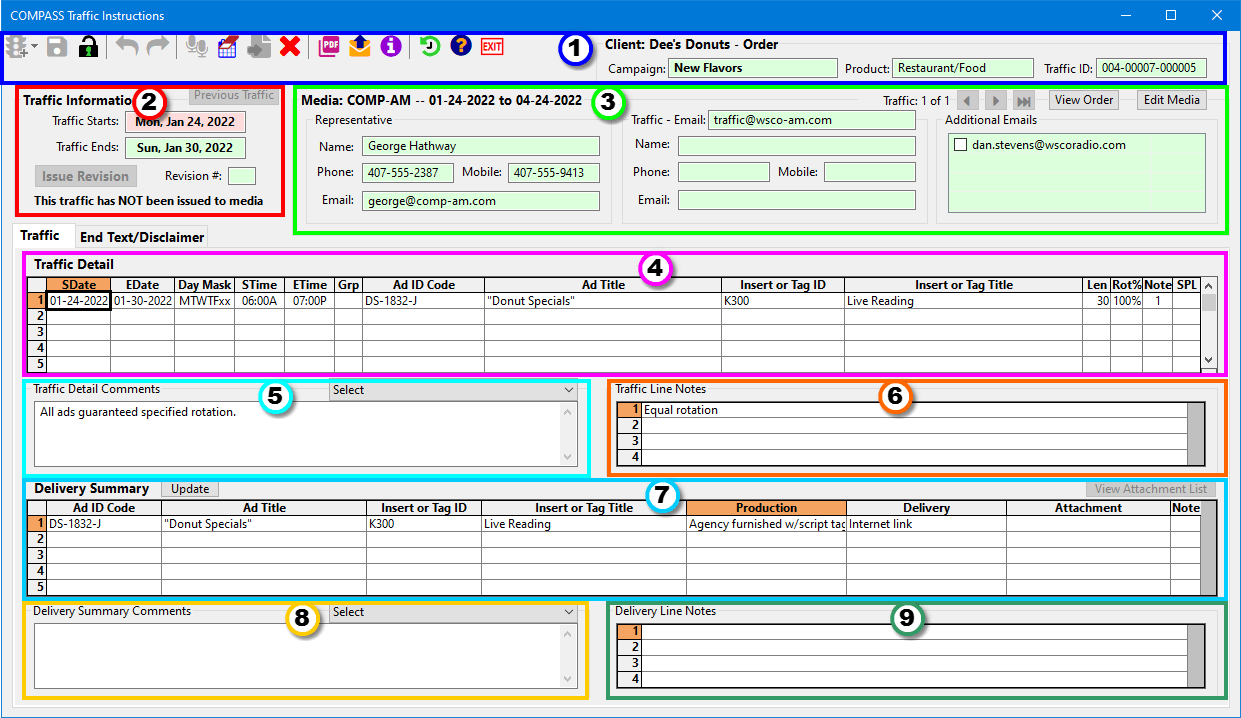
The Traffic Instructions window consists of the following sections (click on any section number for the help topic for that section):
Creating New Traffic
On your first use of the Traffic Information window for a media order, the default condition is new traffic as there is no previous traffic for the order.
Once traffic has been issued to media, any changes or the creation of a new schedule will require the issuing of a new traffic instruction that supersedes the previous instructions. This condition will be indicated by the availability of the New Traffic  button on the tool bar and the Issue Revision button will be disabled.
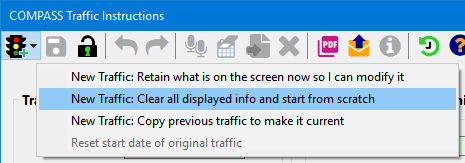
When creating new traffic, several options might be available depending on the current traffic status. Clicking the New Traffic button displays the following:
New Traffic Options
Only those options actually available will be enabled. Choose one of the following:
•New Traffic: Retain what is on the screen now so I can modify it — This option works best when there is a minor change to the current traffic (new end date, change in rotation, etc.). It keeps all the current information so minor changes can be created without the need to reenter all the details.
•New Traffic: Clear all displayed info and start from scratch — All current information is removed and everything about the new traffic must be created "from scratch".
•New Traffic: Copy previous traffic to make it current — See Copy Previous Traffic.
•Reset start date of original traffic — This option is available in instances where the original traffic has been issued to media, but due to unforeseen circumstances the broadcast date has been delayed (missing scripts/copy, technical difficulties, etc.). Selecting this option allows adjustment of the start dates of the traffic on the original traffic instructions. This option is disabled if the current traffic is a revision (not initial traffic instructions).
 Pro Tip
Check out the help section on Keyboard Shortcuts for all the powerful tools available to you in COMPASS.
Copy Previous Traffic
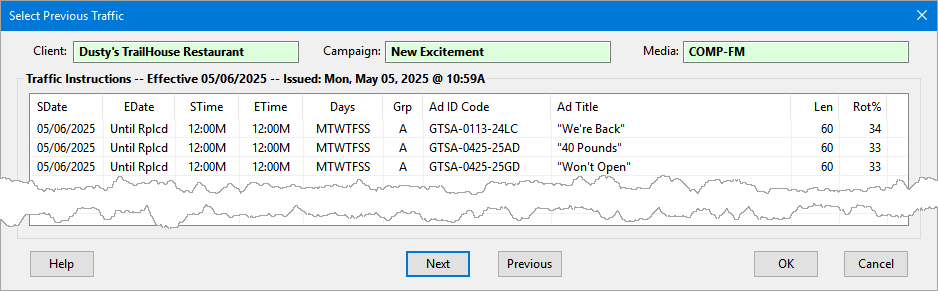
Should the need arise to return to the use of a previous set of traffic instructions (prior to the current traffic), select the New Traffic: Copy previous traffic to make it current option of the New Traffic button. This will display the Select Previous Traffic window where sets of previously issued traffic instructions can be viewed and one selected.
Selecting Previous Traffic
The original set of traffic instructions is displayed initially. Use the Next and Previous buttons to display other available traffic. Once the desired traffic is displayed, click the OK button to make a copy of that traffic appear on the Traffic Information window. It may now be modified as desired and, once saved, becomes the current traffic. Note that the traffic selected from the Select Previous Traffic window remains intact and is not removed from the traffic history for the schedule. Alternately, click Cancel on the Select Previous Traffic window to close it without activating any selection.
When previous traffic is selected, it does not become the current traffic until saved. If previous traffic is loaded in error, simply exit from the Traffic Information window without saving and the current traffic will not be affected.