Traffic Instructions can be imported from any campaign/media via the Import Traffic  button on the Traffic Instructions window tool bar. This button will be disabled if the current traffic (if any) has been issued to the media. It will also be disabled if the order has been canceled.
Note: If it is necessary to issue a traffic revision, click the Issue Revision button BEFORE proceeding with traffic import. Otherwise, the revision number will be ignored. See Issue Revision for additional information.
When importing, the following actions will be taken:
•If there is currently no traffic the imported traffic becomes the initial/current traffic (dates will be adjusted to match the active campaign)
•If there is traffic and it has NOT been issued to media the imported traffic will replace the current traffic.
•If there is traffic and it HAS been issued to media, click the New Traffic  button on the tool bar to enable the Import Traffic button. The imported traffic will replace the existing traffic and be considered New Traffic.
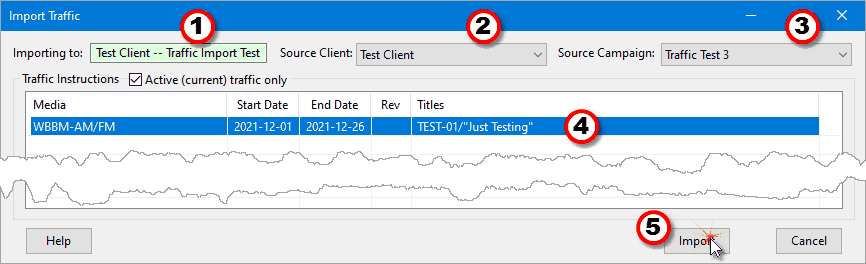
Importing Traffic
1.Importing to: The name of the campaign receiving the import. This matches the currently selected media, which is also visible on the underlying Traffic Instructions window.
2.Source Client: Select from the drop down list the client that contains the desired traffic. This can be any client in the system, including the Importing to client.
3.Source Campaign: This drop down lists all the campaigns associated with the Source Client. If the Source Client is changed, this list will be updated to reflect the newly selected client. Select any campaign from the list to fill the Traffic Instructions list with the campaigns associated with the selected Source Client.
4.Traffic Instructions: Lists all the media included in the selected Source Campaign. By default, only "Active" (most recent) traffic instructions are included. Remove the check from the Active (current) traffic only box to list all media with traffic for the Source Campaign. Left click to select (highlight) any of the displayed traffic instructions.
5.Click the Import button: to proceed with importing the selected traffic. You will be asked to confirm that you want to complete the import.
The selected traffic will be imported and will replace all of the existing traffic (if any). If the traffic being imported contains a revision number, you will be asked if you wish to retain that revision number or reset the revision to zero.
If there is previous traffic, that previous traffic may be restored after importing by clicking the Previous Traffic button. Doing so will remove the imported traffic as the import never occurred. Once the imported traffic (and following any optional modifications) has been issued to media, the Previous Traffic button will no longer be available.