When an order or traffic instructions have been issued to media, it is important that COMPASS be informed that such action has been taken. Without this notification, COMPASS will not recognize that an order or traffic revision can be made.
When an order or traffic instructions have been created, but not issued, COMPASS allows further modifications to those schedules as needed. This might involve changing the number of ads on a particular day or changing the ad copy specified in traffic instructions. However, once the information has been transmitted to media, the order or traffic is considered finalized. Any additional changes will require an order revision or new traffic.
Until an issue notification is registered within the program, no order revisions or new traffic instructions can be created.
COMPASS is alerted that instructions have been issued when the Issued to Media  button is clicked. There are separate buttons on the Schedule Detail window for orders, and on the Traffic Instructions window for traffic. Each operates independent of the other, which means the order can be marked as issued to media without affecting the issue status of traffic, and vice-versa.
When COMPASS Mail is used to issue orders or traffic instructions to media, the program will ask if the Issue to Media button should be set. If methods other than COMPASS Mail are used to disseminate orders or traffic, the burden to set the Issue to Media status is on the user. When the issuance relates to traffic instructions, the date and time is recorded in the database for future reference.
Reversing a Notification
In the event the Issued to Media button is clicked by accident when the instructions have NOT actually been issued, a problem arises. With an order, for example, a schedule change will now require an order revision to be created. However, the current order has not been issued. This will result in the media receiving an order marked "Revision #1" when there was no "original" order. An identical situation can occur with traffic. Either will cause much confusion with the media.
If either button (order or traffic) has been clicked in error, the condition can be reversed. Navigate to the respective window (Schedule Detail or Traffic Instructions) where the Issued to Media button will show as disabled. With that window displayed, press Ctrl + U on your keyboard. A warning message will be displayed that you are about to reverse the issue notification to the media.
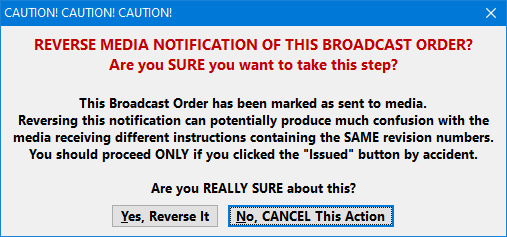
Reversing Issue to Media Notification
As explained in the image above, this step should be used with caution. If instructions have actually been issued, reversing the notification then editing the instructions and re-issuing to media can result in the media receiving different instructions with identical titles (e.g., two different orders both titled as "Revision #1"). The danger here should be obvious.