Whenever a new media is added to the COMPASS database, that media is assigned a media type that identifies the nature of that media. There are four media types initially predefined (cable, radio, satellite, and television). Additional media types can be added as technology advances via the Manage Media Types window.
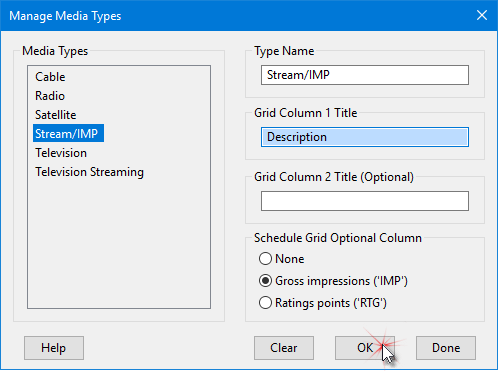
Managing Media Types
To create a new media type, enter a descriptive name in the Type Name field. The name must be unique; it cannot match any of the existing media type names. While there is ample room in the above field for a lengthy name, the name specified can be truncated in some of the other COMPASS windows, so brevity when naming new media is best.
The two column title fields control what text appears as the default column titles on the Schedule Grid when a media with this media type is added to a schedule. These defaults can be overridden in the Media Information dialog at any time, even after schedule creation.
If no value is entered for the Grid Column 1 Title, the column title will appear as "Description". Entering a value for Grid Column 2 Title (Optional) while leaving Grid Column 1 Title blank will disable the OK button until the text is removed or a value for Grid Column 1 Title is entered.
If no value is entered for the optional Grid Column 2 Title no second title column will appear on the schedule window.
Schedule Grid Optional Column
For most media types, the COMPASS Schedule Detail window grid provides columns to accept all the required schedule information. However, some new media might require additional information. To that end, we've provided one optional column that can be specified for new media types (but not for predefined types). The options are:
•None: No additional column will be displayed in the Schedule Detail grid. This is the default, or;
•Gross impressions: An additional column titled "Imp/M-Cap" is added to the grid, or;
•Ratings points: An additional column titled "RTG" is added to the grid.
These are mutually exclusive; only one option can be selected.
Editing
User-defined media types can be edited by double-clicking the desired item in the Media Types list. This will place the media type name in the edit window where it can be altered and the other fields adjusted as desired. Click OK when editing is complete. To cancel editing of an existing media type, click the Clear button, or press Esc. Note that any change to the optional column setting will affect all existing schedules for that user-defined media retroactively.
Deleting
An existing media type can be deleted by left-clicking it in the Media Types list to highlight it, and then pressing the Delete key on the keyboard. Media types that are in use in a campaign cannot be deleted. COMPASS will ask for the action to be confirmed before the media type is deleted.
This window remains open to facilitate the adding of multiple types. Click Done to close this window when work is complete.