Once a proposed schedule is converted to an order and is emailed to the media, it is sent to a specific individual, the Media Rep. Each media in COMPASS's database can have a default media rep assigned. If a default is selected, that individual is automatically selected when the media is added to a campaign, otherwise, the media rep selection will be blank.
To assign a rep, or change from the existing rep, left click the Media Rep drop down and select the appropriate individual. Once the schedule is saved, the selected media rep will stay assigned to the media for the selected schedule only. For future schedules, the default media rep (if any) will again be selected.
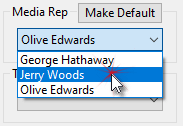
Changing Media Reps
 Pro Tip
To add a new rep or edit an existing rep's information, right click the Media Selection drop down. This will display the currently selected media's information including the rep information, all of which can be edited.
Client Default Rep
A particular media rep can be optionally assigned to always be selected when a media is selected for a specific client's campaign, regardless of the Media Default Rep setting. Once the desired media rep has been selected as outlined above, click the Make Default button just above the media rep drop down list. Now, whenever a campaign is created for this client, and this media is included in the buy, the media rep selected as the client default will be automatically chosen.
The specific steps the program takes for choosing the default rep when a media is selected for a campaign are as follows:
The Client Default Rep is selected, if one has been set for that client for that media, otherwise;
The Media Default Rep is selected, if one has been set for that media, otherwise;
The Media Representative for the chosen media remains blank on the Schedule Detail window until a name has been manually selected.
If a default rep is present, the Make Default button changes to Undo Default. Clicking it will display a dialog asking if you really want to remove the default setting from the media rep. Alternately, a different media rep (if present) can be selected from the drop down list. Then, that newly selected media rep can be made the default.
See Media Information for details on setting the Media Default Rep for an individual media.
Traffic
If a default traffic contact has been selected in Media Information for a particular media, that individual will be selected each time that media is added to a campaign. If no default is specified, the Traffic Contact drop down will be blank. This means that traffic information will be sent to whatever email is specified in the Main Traffic Email field of Media Information.
The hierarchy of how traffic instructions are addressed is as follows:
•If both a Main Traffic Email and default traffic contact are specified, both addresses will appear in the email To field.
•If a Main Traffic Email has been specified, but there is no default traffic contact, only the address in the Main Traffic Email will appear in the email To field.
•If only the default traffic contact has been specified and Main Traffic Email is blank, the default address will be the email recipient.
•If neither Main Traffic Email or default traffic contact are specified, the To address of the email will be blank and the address will have to be entered manually.
If a Traffic Contact has been selected in Schedule Detail, that person can be removed from that schedule by right clicking the Traffic Contact drop down and answering Yes to the query about removing that individual from the schedule. Such a removal does not affect any settings in Media Information for that media.