The Schedule Info section of the Schedule Detail window provides information about the number of active/inactive weeks in the schedule, and the total number of days and weeks comprising the schedule. A specific week can be selected for display, and also specific weeks can be omitted as inactive (skipped). Here, the status of the schedule can be switched from "Proposal" to "Order" and the optional week color may also be selected.
Click on any of the controls shown in the image below for more information.
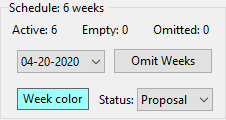
•Schedule: The total count of weeks and days that make up the schedule based on the schedule start and stop dates.
•Active: The number of weeks of the schedule (including partial weeks) that are active (not omitted).
•Empty: The number of weeks of the schedule (including partial weeks) that as yet have no schedule information entered.
•Omitted: The number of weeks of the schedule (including partial weeks) that are suspended (marked inactive).
Trigger Info
When the schedule is part of a Trigger Campaign, the nature of the Schedule Info section is different.
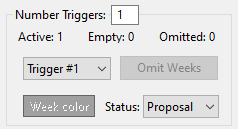
Trigger Info
Because the start of the schedule hinges on an uncertain event (amount of snowfall, extreme temperature, etc.) each trigger schedule consists of one week, regardless of the number of weeks that make up the campaign.
A trigger schedule can have multiple triggers, with each trigger having a different schedule. When the value for Number Triggers is increased beyond 1, additional trigger weeks can be accessed. Selecting other trigger numbers via the drop down list or navigation keys changes the schedule to show that trigger number.
Because a trigger schedule is not an actual schedule until it is triggered, the Week Color option is disabled. Once triggered and turned into an actual order, week colors may be assigned.