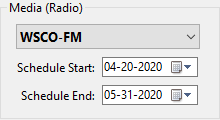
The Media section of the Schedule Detail window displays the name of the media assigned to the schedule, as well as the start and end date of this individual media's schedule.
 Pro Tip
Right click the media drop down list to open the Media Information window where the media name, sales representatives, and all other attributes of the currently selected media may be edited.
Switching Media
If a campaign includes more than one media. COMPASS makes it easy to switch between them. Left click on the media button to display a drop-down list of all media in the campaign.
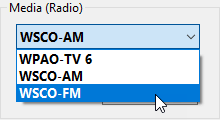
Switching Media
Clicking on a different media switches to the schedule for that media, which then may be edited.
The media selection button is disabled when changes are made to the current schedule or settings. Clicking the Save button  on the tool bar saves the changes and once again enables the drop down, which permits switching to another media.
Adjusting Schedule Dates
When a media is added to a campaign, it inherits the campaign start and end dates. In some cases, a media might not be used for the full length of a campaign. Each individual media's start and end date can be modified in the Schedule Detail window.
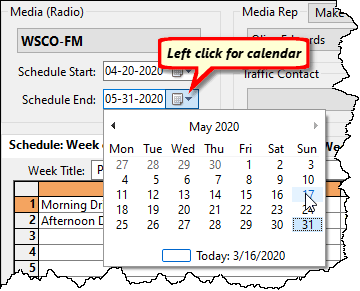
Drop Down Calendar
Dates can be adjusted by entering the month, day, or year directly into the appropriate date field, or by clicking the small calendar button (downward pointing triangle) next to the date to display a monthly calendar. The monthly calendar can be used to navigate to any month or year within the campaign dates.
If a schedule start or end date must be modified to fall outside the campaign dates, the campaign itself must be altered to allow this. See Changing Campaign Dates and Date Modification Limitations.
Note: Once a schedule has been converted to an order and that order is issued to the media, the Start and End Date fields are disabled. A revision must be issued in order to be able to adjust dates.
Pro Tip
Right click either date to open the Interactive Date Selection tool, which is a better way to adjust a media's schedule dates. See that topic for details.
If the schedule start date is changed, all of the week schedules for that media "slide" to the new dates. In other words, if the start date changes from January 1 to January 14, the weeks of January 1st and 7th are not lost. Instead, the entire schedule "slides" forward to the new dates. The schedule originally slated for January 1st now starts on the 14th. The same thing happens in reverse if the start date of a schedule is moved to an earlier date.
To insert new weeks or delete existing weeks in a schedule by specific week date, see the topic Adjust/Insert Weeks.
The only way a portion of the schedule could be truncated is if the start date is changed so that some weeks of the schedule fall beyond the end date of the campaign or beyond the end date for the media schedule. In that case, the out of range portion of the schedule is not lost, but only hidden. Moving the start date earlier so that the end of the schedule again falls within the campaign end or the end date of the media schedule, or expanding the campaign and schedule end date will restore the hidden ads.