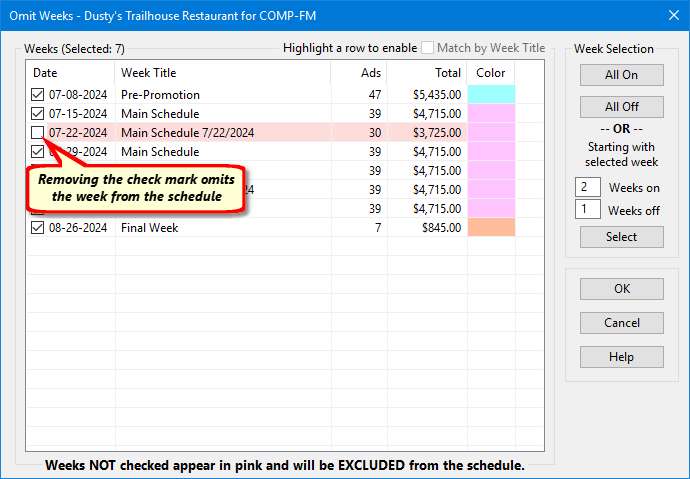
Certain weeks in a schedule can be omitted so they are disabled and not printed or counted as part of the media's schedule. Click the Omit Weeks button to display COMPASS's Omit Weeks dialog.
Omitting One or More Weeks from a Schedule
This display shows all the weeks of the schedule with active weeks checked. Omitted (inactive) weeks are not only unchecked, they are also shown with a pink background. Remove the check mark from an active week to mark it as omitted (inactive). Restoring the check mark returns a week to the active list.
Several shortcuts are available to speed week selection:
•Use the "All On"/"All Off" buttons to check or uncheck all weeks, respectively.
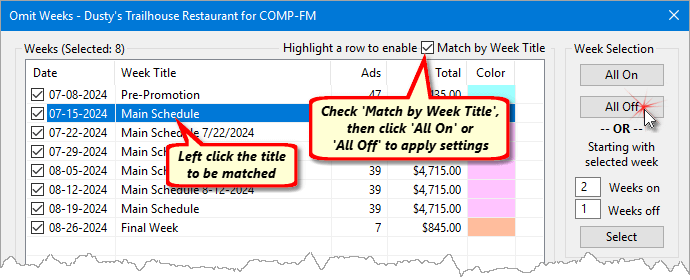
•Highlight one week for matching. Left click with the mouse on any line (other than the check box) to highlight that week. When this happens, the Match by Week Title check box becomes available. When that box is checked, clicking either the All On or All Off button performs that action on all weeks with the same title as the highlighted week. Again, note the first and last weeks of the schedule will remain selected.
Match by Week Title
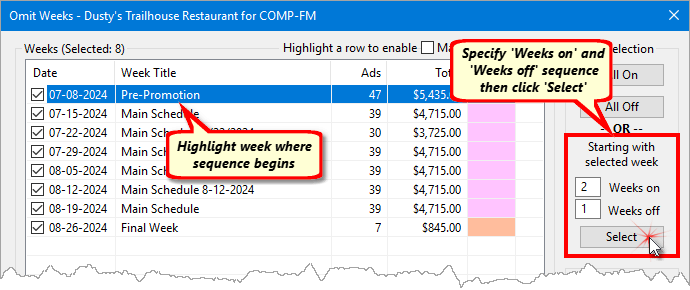
•Highlight one week for a pattern starting point. With a single week highlighted, enter a week sequence in the Weeks on and Weeks off boxes on the right of the window. This sets up a pattern of weeks as described below.
Alternative Week Selection
In the example above, we've selected the week of 9-18 as our starting week. Next, we've specified a sequence of two weeks on followed by one week off. Finally, clicking the Select button applies the sequence we've specified. Beginning with the first highlighted week, two weeks will be turned "on", one week is turned "off" and the sequence repeats for the balance of the schedule. If the first selected week is week #2 or greater, all earlier weeks in the schedule are not affected. Note that the first and last weeks of the schedule remain "on" are not affected.
Click OK to apply the omitted weeks and return to the Schedule Detail window. Click Cancel to close the window and abandon changes.
A Note About Omitted Weeks
When a week is omitted ("turned off"), the scheduled ads for that week (if any) are not lost. The week is flagged as inactive and any ads/totals for that week are ignored when the schedule is calculated. If excluded weeks are later turned "on", those inactive ads are restored to the schedule and will again be counted. For this reason it is always prudent to review any week restored after being previously excluded from the schedule. If changes were made to the schedule and those changes copied to other weeks, the inactive weeks would NOT have received those changes.