Each week of a media's schedule can be assigned a color code to identify it based on whatever criteria is desired. Colors can be used to differentiate between light, medium, and heavy weeks, different phases of the campaign, etc.
Color assignments are optional and completely arbitrary, but are only available when the Color weeks option is checked in the Schedule Options section of the Schedule Detail window. If this option is not selected, the Week Color box is "grayed out" and no colors will be printed with the schedule. The starting or "default" color for a new schedule is always white (no color).
 Week Color Enabled |
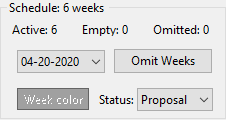 Week Color Disabled |
Assigning a Week Color
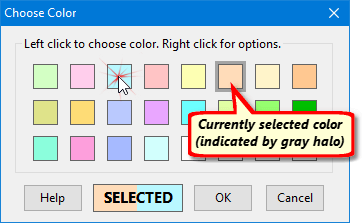
Left click the enabled Week color box to select a color assignment for the currently displayed week. This will display the Choose Color window.
Choosing a Week Color
Several pastel colors have been predefined by the program. Select one of the existing colors by left clicking it. The color chosen will appear in the Selected box, providing an example of how the color will appear with overprinted black text. If the color selection is satisfactory, click OK to assign it.
The behavior of the Choose Color window can be modified in the Schedule Options section of Program Options.
When a week's existing color selection is modified, the currently selected color is indicated by a gray "halo" around the color block. If the color blocks have been modified so that the current week color is no longer present, the selection halo is not displayed.
Color Selection Options
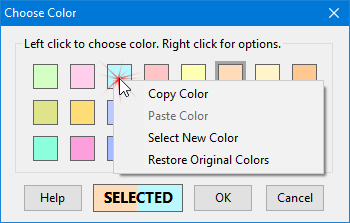
Right click any color block for a pop-up menu offering several options.
Right Click a Color for Options
Copy Color
Right click any color block and choose Copy Color to store a copy of the selected color. That color can then be assigned to any other color block on the Choose Color window. This can be handy if you desire to modify the shade of an existing color without losing the original hue.
Paste Color
Once a color has been copied, it can be pasted into any color block by right clicking and choosing Paste Color. The pasted color will replace the previous color value. Pasting a color does not affect any existing schedules' week color selections.
Select New Color
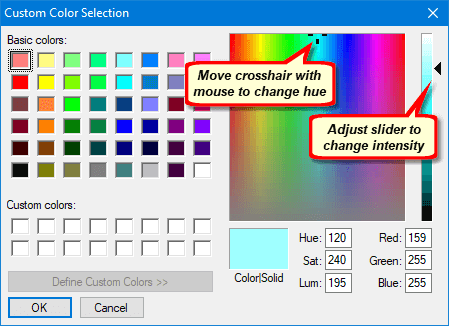
The Choose Color window has 23 available color boxes (the 24th color is locked to white and cannot be altered). Right click any box and choose Select New Color to choose a new color assignment for that box or modify the existing shade. This will display the Custom Color Selection window.
Custom Color Selection
Use any of the available methods to modify the color:
•Basic colors: Select any basic color by left clicking it. Note that most basic colors are very dark and might obscure any black text printed over them.
•Move crosshairs: Click and hold the left mouse button over the color cursor to move through the various hues in the color spectrum.
•Adjust intensity: Left click and hold the slider on the right side of the window to adjust the intensity of the color selected, keeping in mind that pastel colors work best.
Colors can also be selected by entering the RGB (red, green, blue) values in the appropriate text boxes.
Once satisfied with the color, click OK to apply it. The new color will now appear in the box that was selected in the Choose Color window. Click Cancel to return to the previous window without changing the color.
Restoring Original Colors
COMPASS originally starts out with a palette of pastel colors in the Choose Color window. These shades have been selected because of compatibility with overprinting black text. Should you ever need to restore the original color selections, right click any color box on the Choose Color window and select Restore Original Colors. You will be asked to confirm your decision to return to the original palette.
Restoring the original colors does not affect any previously selected week colors. The color values for the Choose Color window are stored as a part of the database. If you should decide to reverse your decision to restore the original colors, your previous custom colors can be recovered by restoring from a current backup. However, be careful! Restoring a backup also removes any schedule or client changes you have made since the backup was taken.