Once COMPASS Mail has been set up, sending email is similar to sending email through standard email applications, but with some additional features.
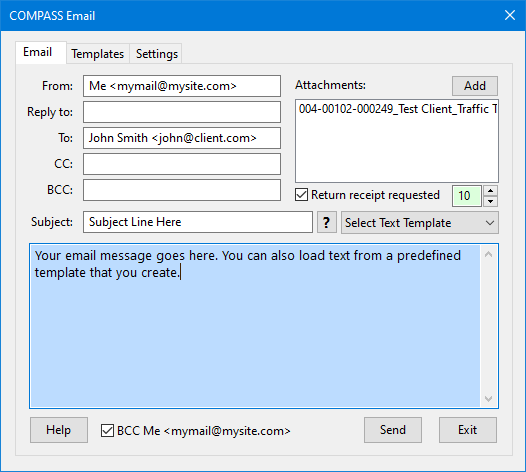
Sending COMPASS Mail
Among the email address fields, only From and To are required. All other fields are optional.
COMPASS Mail will format any text entered in the email address fields. If an email address is present, it will be formatted to be enclosed in angle brackets (e.g., <mymail@mysite.com>). Angle brackets are required to complete a successful send. If an individual's name is present, it will be included in the transmitted information.
Note that the From email address can be any valid email address, even an address for your web-based (GMail, Yahoo, Hotmail, etc.) email account.
Multiple emails can be included on any address field separated by semi-colons.
The only other required information is the Subject line and the actual email text. If any of the required fields are not present, the Send button will be disabled.
The font size of the displayed message text can be adjusted (larger or smaller) by clicking the up/down arrows next to the box indicating the text size. Sizes range between 9 and 14 points. The point size settings do not affect the text size of the message being sent.
Attachments
Most files in COMPASS to be included in an email are automatically added to the Attachments list. Additional files can be manually added by clicking the Add button. Files can be removed from the Attachments list by highlighting a file name with the mouse and pressing Delete on your keyboard. Double click any file to open it. Right click the attachments list to display a listing of all attached files, complete with full path.
Additional Features
Because COMPASS Mail communicates directly with your email server (or web-based email program), a copy of email sent through COMPASS Mail will not normally appear in your email client's inbox. Check the BCC <youremail> box at the bottom of the COMPASS Mail window to have a copy of the full message sent to the BCC address you've specified in the Traffic Options section of Program Options.
Check the box Return receipt requested to include a request in your email to acknowledge receipt of the email. Receiving such a receipt is not a guarantee the recipient has actually read the email, only that they have received it and that they have acknowledged your request.
An additional option when sending COMPASS Mail is to flag the email as "Important!". Check the small button marked ? next to the end of the Subject field to mark the email as important. Doing so will change the ? to !, meaning the "Important!" flag will be applied. A second click removes the flag, changing the button from ! to ?. When the button is showing ?, the email is being sent at normal priority.
Using Templates
Any email message can use a pre-defined Template to fill in the Subject and message text. Select the desired template from the template drop down list.
When a selection is taken, COMPASS Mail will ask which parts of the existing email are to be replaced with data from the template.
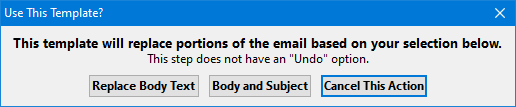
Email Template Replacement Options
Choices include:
Replace Body Text: Only any existing email body text will be replaced. Text in the Subject line will be unaffected.
Body and Subject: Both the existing email body text and the Subject line text will be replaced.
Cancel This Action: No changes will be made. The template selection drop down will revert to its previous setting.