COMPASS offers a pair of optional reminders regarding both unissued traffic and expiring traffic. If enabled, each will perform a check for their respective issues each day the first time the program is started.
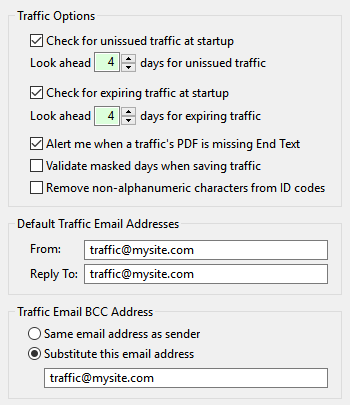
Traffic Options
•Check for unissued traffic at startup: Examines all current traffic instructions on file for any that have not been issued to media. Use the up/down buttons to set the number of days to look ahead for unused traffic. Uncheck this box to disable this feature.
•Check for expiring traffic at startup: Examines all current traffic instructions on file for any that will be expiring and whose expiration date is less than the schedule's end date. Use the up/down buttons to set the number of days to look ahead for expiring traffic. Uncheck this box to disable this feature.
•Alert me when a traffic's PDF is missing End Text: Check this box to receive notice if the traffic PDF about to be generated is missing End Text. The notice will permit you to continue with the PDF's generation, or cancel the operation.
•Validate masked days when saving traffic: When this option is enabled, COMPASS will alert you when saving traffic if a day appears in a traffic line's Day Mask that is outside the Start and End dates. This validation operates only on traffic that spans less than seven days. This option remains available even if Disable week Day Mask option is checked in Schedule Options. Alerts will appear only if traffic is found that matches the criteria. Remove the check mark from the box of any option to disable it.
•Remove non-alphanumeric characters from ID codes: When this option is enabled, any characters outside of numbers, the letters A-z, and the hyphen ("dash" or - character) will be removed from both the Ad ID Code and Insert or Tag ID fields. The Ad Title and Insert or Tag Title fields are not affected.
•Default Traffic Email Addresses: Used when sending traffic instructions via COMPASS Mail. These defaults can be altered as needed in the email window prior to sending.
•Traffic Email BCC Addresses: When COMPASS Mail is used to issue traffic instructions, this option allows a different BCC address to be specified. The options are:
▪Same email address as sender — The BCC address will be the same as the sender's email address.
▪Substitute this email address — Allows a valid alternate email address to be specified where a copy of the full email will be received. Multiple semicolon-separated email address may be entered, if desired.
If the second option is selected, a blank or invalid email address will generate an error message. This option is only available when sending traffic instructions. All other email modes ignore this option.