COMPASS includes a spell check engine that is available for any text object in the program. To invoke it, click anywhere on the text to be checked. When the background turns blue, press the F7 function key on your keyboard to check your spelling. Spell check is unfortunately not available on schedule or traffic grids.
How to Invoke Spell Check
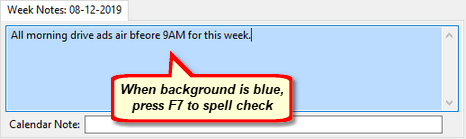
1. Left click anywhere in text, background turns blue
Press the F7 function key to initiate spell checking.
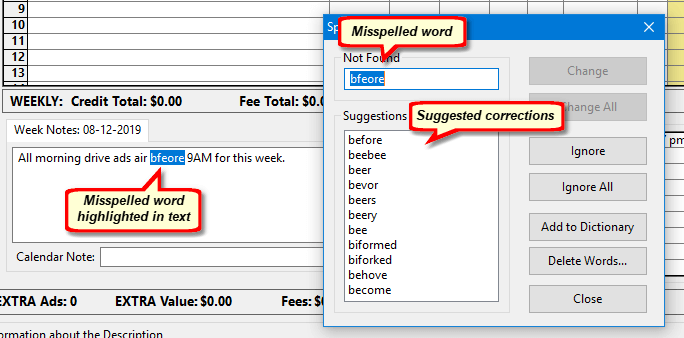
2. Press F7 -- spelling errors are indicated
When a spelling error is detected, a list of suggested corrections is displayed.
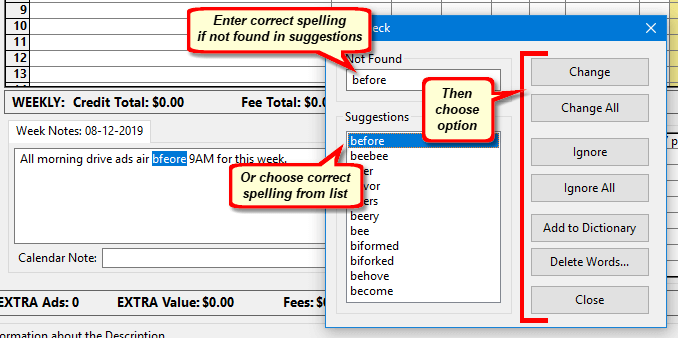
3. Choose from list or enter manually
If the correct spelling of the highlighted word is in the Suggestions list, click it to select, then indicate the action desired.
You can then choose to change the currently selected word in the text, change all instances in the current text, ignore just this instance, or ignore all instances in the current text.
If the word in the Not Found box is not in the dictionary, make any additional changes to the word (if needed), then click Add to Dictionary to add it.
Existing words in the dictionary can be removed by clicking Delete Words... This opens a separate window to the Spell Check Editor.
The supplied English language dictionary includes over 124-thousand words and new words can be easily added. If you prefer to use a dictionary other than English, create your dictionary, name the file as custom.dic, and place it in the same folder as COMPASS. If such a file is found, it will be used in place of the default English dictionary.
Making Your Own Dictionary
If English is not your choice of language, you can substitute (or create) your own dictionary to be used with COMPASS's Spell Check.
A dictionary is composed of individual words, each followed by a new line (carriage return and line feed). In order to operate correctly, words must be alphabetized with all capitals first, caps and lower case next, finally followed by all lower case. The existing English language dictionary, en_US.dic, can be opened in any plain text editor and examined to assist in visualizing the dictionary structure.
Once created, save the resulting dictionary file under the name custom.dic and place it in the COMPASS directory. When COMPASS starts, it looks for the custom.dic file first. If it is not found, the English language dictionary is used.