When the start date of a schedule is changed, all weeks of the schedule "slide" forward or back to reflect the new date. The number of weeks that make up the schedule is not changed unless the schedule end date is adjusted. However, there are occasions where one or more weeks must be inserted or deleted in a schedule while leaving other weeks intact. Such modifications can be accomplished with the Adjust/Insert Weeks  option on the Schedule Detail window's tool bar.
The Adjust/Insert Weeks window is divided into the following sections:
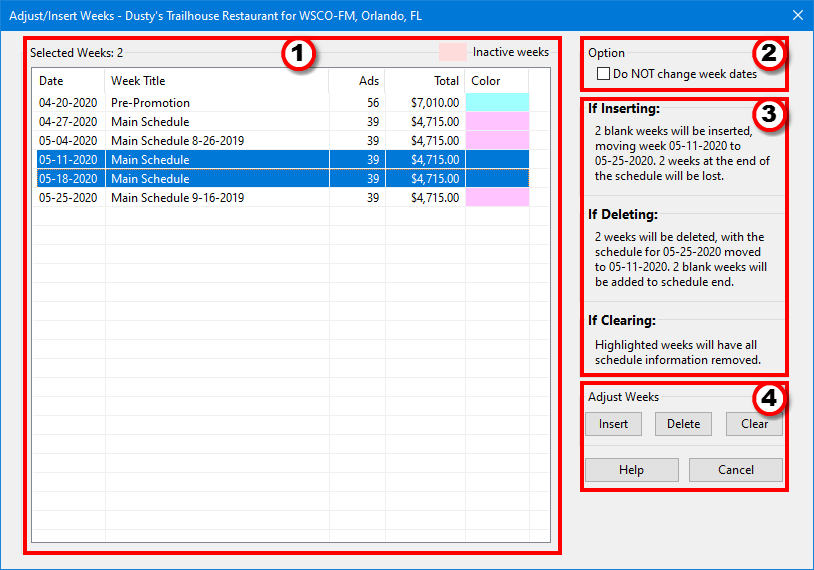
Adjust/Insert Weeks
1.Week List: Displays all weeks in the schedule, including any inactive (omitted) weeks. Omitted weeks have the entire line highlighted in light pink (not to be confused with the Color column). One or more weeks must be selected in the list in order to add/insert weeks.
2.Option: Checking the box Do NOT change week dates modifies the behavior of the Insert and Delete buttons, as outlined below.
3.Projected Results: This section indicates the potential changes that will occur based on the action selected. Depending on the status of the Do NOT change week dates check box, some actions can be unavailable. This condition will be reflected by no result text appearing in those areas.
4.Adjust Weeks: Clicking on the Insert, Delete, or Clear button performs the action described in the Projected Results section.
Selecting Weeks
Hold down the Shift or Ctrl key on the keyboard and use the mouse to select one or more weeks where insertion, deletion, or clearing is desired. Weeks selected must be in a contiguous block for inserting or deleting. If the selection has any skipped weeks, the Insert and Delete buttons are disabled. Non-contiguous weeks can be inserted or deleted by selecting each individually.
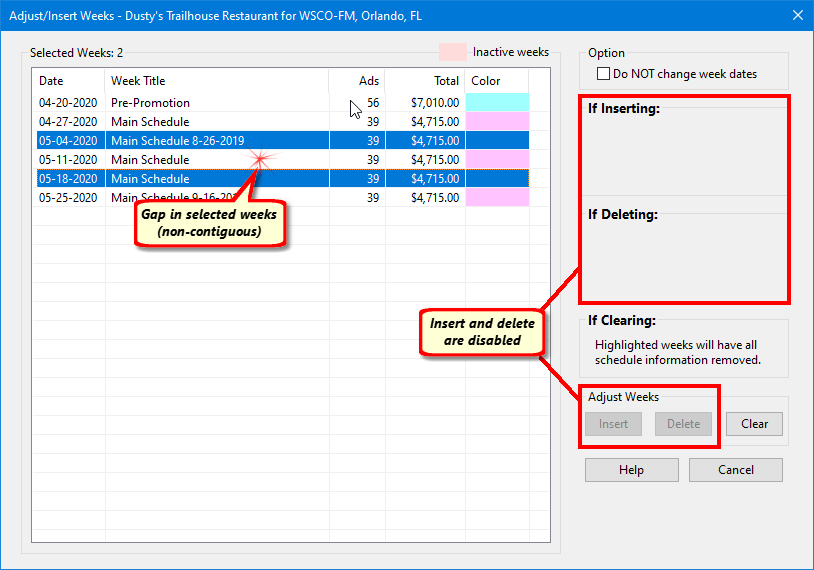
Insert/Delete Disabled When Weeks Not Contiguous
Changing Week Dates
When weeks are inserted or deleted, the dates of the selected weeks are adjusted accordingly.
For example, if three weeks beginning with the week of 5-4 are selected, clicking Insert will insert three new, blank weeks for the date of 5-4, 5-11, and 5-18. What was previously the week of 5-4 is moved to the week of 5-25 with all following weeks adjusted accordingly. The number of weeks in the schedule is maintained, causing the last weeks of the original schedule to be eliminated.
However, COMPASS actually keeps track of these "eliminated" weeks. Returning to the Schedule Detail window and adjusting the end date of the schedule to add three weeks will restore these "eliminated" weeks to the schedule with the original ad assignment for those weeks maintained intact.
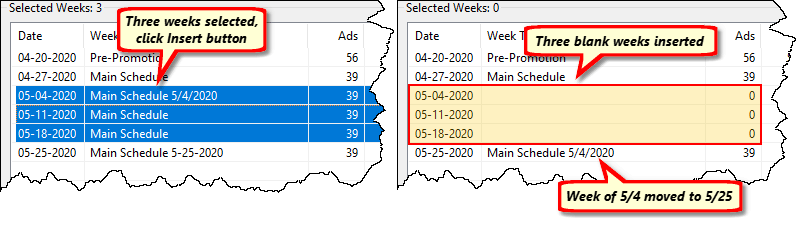
Insert Weeks Example
Clicking Delete would remove the schedules for the weeks of 5-4, 5-11, and 5-18. The schedule that was assigned to the week of 5-25 will be moved up to occupy the week of 5/4 and all following weeks in the schedule will also be advanced. Three blank weeks would be assigned to the end of the schedule in order to keep the original schedule span of weeks. The end date of the schedule would need to be adjusted to eliminate those weeks, if desired.
Clicking Clear removes any schedule information from the selected weeks, but does not alter the week date assignments. This is equivalent to the Erase Weeks option on the Schedule Detail tool bar.
All adjustments made can be reversed via the Undo button  after returning to the Schedule Detail window.
NOT Changing Week Dates
When using the Adjust/Insert Weeks feature, the dates of each week in a schedule will always be adjusted, except when adding or deleting one or more weeks at the beginning of a schedule. In that case the option Do NOT change week dates allows weeks to be added to or removed from the front of a schedule while maintaining the existing week dates.
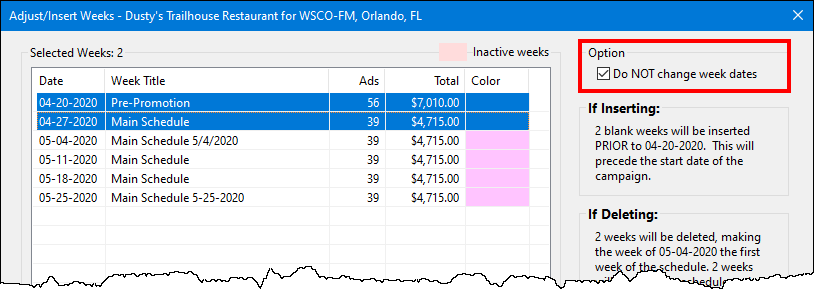
Keeping Week Dates Unchanged
Inserting: In the example above, the If Inserting: section reads: "2 blank weeks will be inserted PRIOR to 04-20-2020. This will precede the start date of the campaign." If the Insert button is selected, the length of the schedule will be expanded by two weeks. As in this example, if the added week(s) will precede the campaign start date, COMPASS will ask for confirmation of the action. If confirmation is given, the campaign start date will be adjusted as needed to allow for the expanded schedule length.
Deleting: The If Deleting section reads: "2 weeks will be deleted, making the week of 05-04-2020 the first week of the schedule.". If the Delete button is clicked, the length of the schedule will be reduced by two weeks. The start date of the schedule would then be adjusted to 05-04 with a new total of 4 weeks instead of the original 6.
If a block of weeks is selected that does not contain the first week of the schedule, checking the Do NOT change week dates box allows only for clearing the selected weeks. The Insert and Delete buttons will be disabled.
Expanding a Schedule
The Adjust/Insert Weeks feature can have many applications. Expanding a schedule is one of them. Because this particular operation is somewhat more likely to occur, we've added this step-by-step section to assist you in what might otherwise be a complex operation.
Scenario: A 13-week schedule has been created with a start date of June 1. All weeks of the schedule have a particularly heavy sequence of ads with many alterations from week to week. The client now wants to expand the schedule to 15 weeks, adding two "light" weeks to the front of the existing schedule while keeping the June 1 schedule start date.
Normally, making such a change would require adding two blank weeks to the end of the schedule, then laboriously copying each unique week until all 13 weeks have been "moved back" to make room for the two new weeks at the beginning. To avoid all this extra work, use Adjust/Insert Weeks instead.
1.On the Schedule Detail window, click the Schedule End calendar and add two weeks to the end of the schedule. (Note: if the schedule ends with the end of the Campaign, the Campaign End Date will first need to be expanded by two weeks to accomplish this step.)
2.Click the Adjust/Insert Weeks button on the tool bar.
3.Following the Selecting Weeks instructions at the top of this topic, highlight the first two weeks of the schedule. Leave the Do NOT change week dates box unchecked.
4.Click the Insert button. Then, click Done to close the Adjust/Insert Weeks window.
The result of these steps will be the original schedule's first week is now the third week of the schedule, with two blank weeks beginning June 1.