Once a campaign has been created, it remains in the client's campaign list until it is removed. This removal is a two-step process. A campaign is first canceled and, once canceled, can then be permanently deleted.
To cancel a campaign, highlight it by left clicking with the mouse, then right click to display a pop-up list of options.
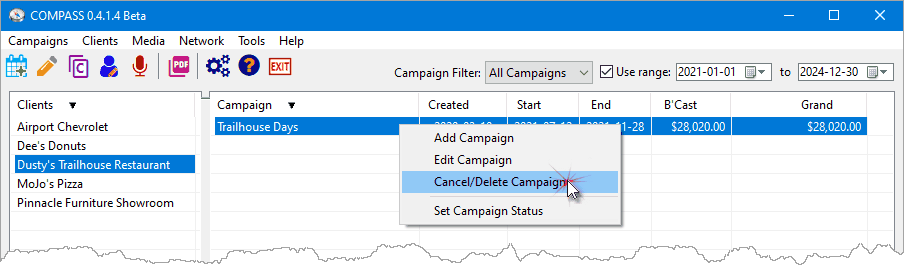
Canceling a Campaign
Click Cancel/Delete Campaign to select the cancel option. The program will ask for confirmation of the cancellation.
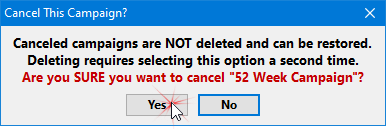
A canceled campaign is NOT deleted; it is in limbo. It remains displayed in the campaign list but with a red background to designate its status.

Canceled Campaigns Appear with Red Background
To completely remove the campaign (delete it permanently), select it a second time and again right click.
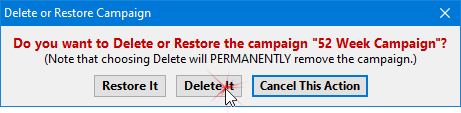
Deleting a Campaign
The confirmation message allows the campaign to be restored (make it fully active again) or to completely delete it, which removes it permanently from the database. Deleted campaigns cannot be recovered without a current backup.
A canceled campaign can also be "canceled" by double clicking it, which opens it in the Campaign Information window. There the campaign status can be changed from Canceled to Pending or Approved.
 Pro Tip
Canceled campaigns can be removed from view by utilizing the Campaign Filter set to show only active campaigns, proposals or orders.