An existing campaign in COMPASS can be duplicated to the same client or to a different client already existing in the system. Optionally, individual schedules from a campaign can be selectively copied to a different campaign with the copied schedules being added to any existing schedules.
From the main COMPASS window, highlight the client and then the campaign to be copied, and finally click the Copy Campaign button  on the tool bar. Alternately, you can choose Campaign > Copy Campaign from the main window menu. An additional copy option is to left click and hold down the mouse on the campaign you want to copy, then drag the campaign over the client receiving the copy and release.
To copy traffic from one campaign to another, see Import Traffic.
 Pro Tip
To copy selected schedules to a new campaign for the same or another client, first create an "empty" campaign for the client. That is, a new campaign with a different name that has no media or schedules. Before saving the new campaign, adjust the campaign start and end dates to the desired dates for the new campaign! Then, copy the original campaign and select the "empty" campaign as the Copy to Campaign selection. This will allow you to selectively copy schedules from the original campaign to the new one. This step also ensures the campaign dates will be correctly set. This action is especially important when copying a campaign from one year to another.
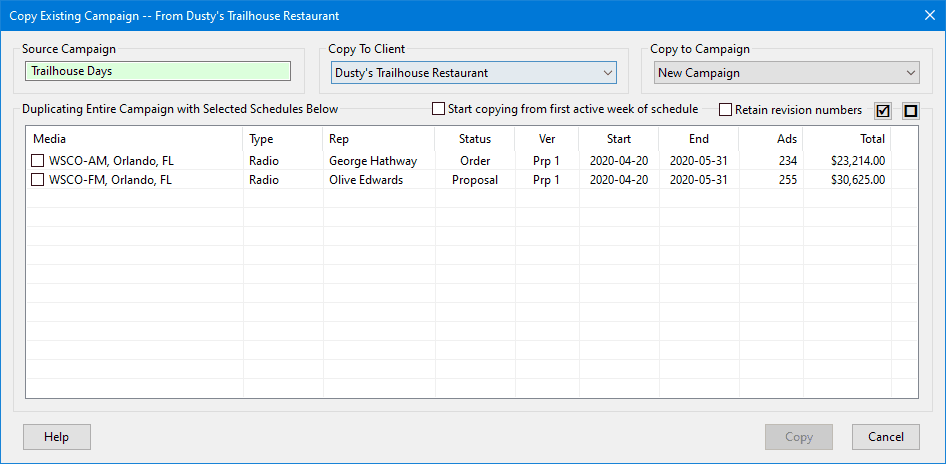
Copy a Campaign
The window consists of the following parts:
Source Campaign: This is the campaign which is being copied. The client is indicated in the window's title bar. This field cannot be modified.

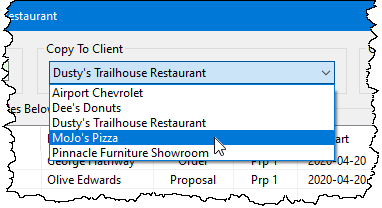
Copy to Client: The client that is to receive the campaign. This defaults to the source client but can be changed by selecting any of the program's existing clients from the Copy To Client drop down list.
Copy to Campaign: The campaign receiving the source campaign's schedules. This defaults to "New Campaign", which will create a campaign with that name. The campaign name can then be edited in the Campaign Information window as needed. To copy to an existing campaign for the target client, select the desired campaign from the Copy to Campaign drop down list.

If New Campaign is selected, the entire source campaign will be copied. The notation at the top of the media list will display Duplicating Entire Campaign with Selected Schedules Below.
If an existing campaign is selected, the text above the media list changes to Copying Selected Schedules Below ONLY -- Campaign NOT Duplicated. In this case, the schedules only are transferred. If the dates from the source campaign do not correspond to the dates of the existing campaign, the schedules copied will be modified to fit within the dates of the campaign receiving the copy.
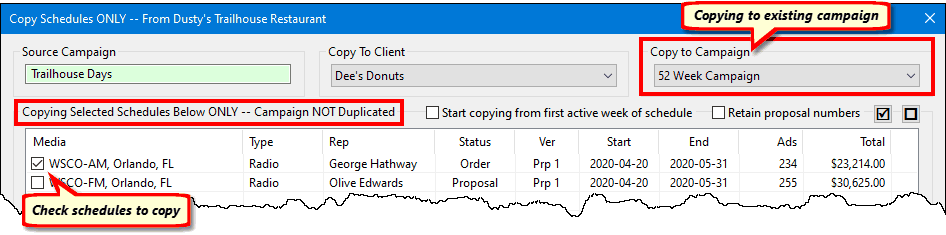
Selectively copy schedules to a different client and campaign
Start copying from first active week of schedule: Useful if the schedule being copied makes use of omitted weeks. See Copying Options below.
Retain proposal numbers: By default, all schedules selected for copying will be duplicated as proposals and will have their proposal number reset to 1. Check the box Retain proposal numbers to have the proposal number of the copied schedule be greater than 1. In other words, if the schedule being copied is proposal number 3, it will appear in the copied campaign as proposal number 4 if this box is checked.
Select schedules to copy: Check the box next to each media that is to be duplicated as part of the copy. At least one schedule must be checked for the Copy button to become active. The small buttons in the upper right of the window support checking all and clearing all checks, respectively.
Copy: Copies the selected schedules to the new client and campaign.
Copying Options
When copying a schedule, the normal method is to copy the entire schedule, as is. This means if weeks have been omitted from the source schedule, they will be copied without modification. However, sometimes it can be desirable to remove any initially omitted weeks and have the copied schedule begin with the first active week of the source schedule. An illustration:
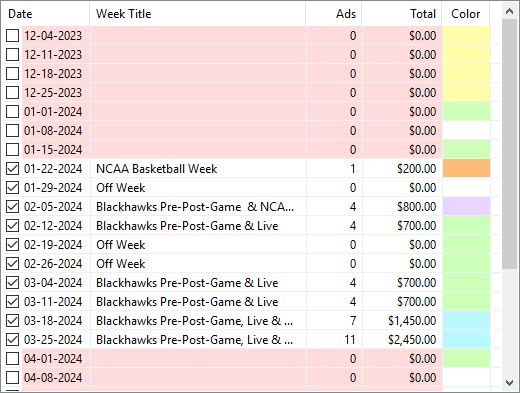
Copying Schedule with Omitted Weeks
When the original schedule was created, it was intended to start the week of 12/04/2023. However, the client later decided to delay advertising until the week of 1/22/2024. Rather than delete the earlier weeks (in case the client changed plans again), the early weeks were omitted (made inactive).
The start date of the new campaign being copied to starts on 1/22/2024. That means what was the week of 12/04 will now be 1/22 and all the other weeks will be advanced accordingly. As a result the first "active" week ("NCAA Basketball Week") will start the week of 3/11, not on the desired start date of 1/22.
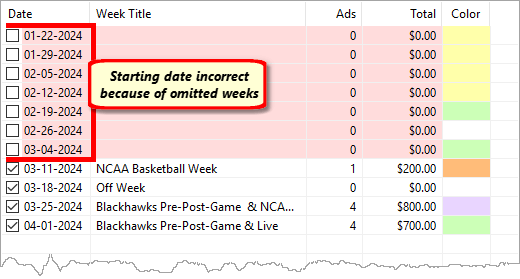
Starting Date 3/11 Instead of 1/22
This is where the Start copying from first active week of schedule check box comes in. When checked, the original (omitted) weeks of 1/22 through 3/04 will be ignored and the first active week (3/11) and all following weeks will be moved up to start with the week of 1/22.
Note that any omitted weeks following the first active week will remain as part of the schedule. Only omitted weeks prior to the first active week will be dropped.
Finishing Up
Once all selections are complete, click Copy to begin the duplication process. COMPASS will ask to take a backup of the existing database (not available to client computers in network mode). This will preserve the state of the existing campaigns and schedules before the copy occurs. It is highly recommended to take the backup, as it allows the database to be restored should any part of the copy prove unacceptable.
Depending on existing schedules in the target campaign, copied schedules will be appended as proposals. If an existing campaign has several proposals for the same media with the last proposal as number 3, a schedule copied for the same media will appear as proposal number 4. If the schedules are being duplicated to a "New Campaign", they can optionally be copied with order/revision numbers intact, including any revision or cancellation information.
Date ranges must be taken into consideration when copying schedules from one campaign to another. The copied schedules cannot exceed the date span of an existing campaign. If a schedule being copied airs from January 1 to December 31 and the campaign receiving the copy runs from March 1 to May 30, the campaign being copied will be shifted to begin on March 1 and will end on May 30. Ads beyond May 30 in the copied schedule will be truncated. However, the schedule extending beyond May 30 is not deleted. Should the campaign date be extended beyond May 30, the truncated portion of the schedule will be restored up to the new campaign end date.