The COMPASS Main Window is the starting point for adding clients, campaigns, media, and all functions of the program.
The main window is divided into several sections, each covered by one of the sections below. Click on any circled number for more detail.
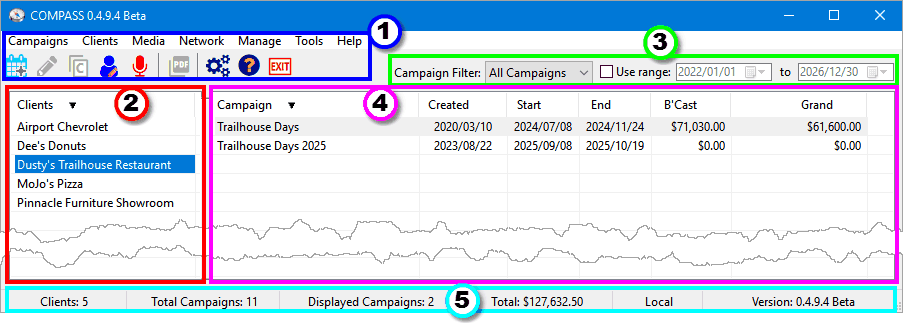
1. Main Menu and Tool Bar
The Main Menu provides access to all of the program's features, while the Tool Bar icons provide quick access to some of the most frequently used actions. Click on any main menu item to display a drop down list of command choices.
The tool bar icons include:
|
New Campaign — Opens the Campaign Information window with no client selected. Allows the creation of a new campaign for a new client. |
|
|
Edit Campaign — Available when an existing campaign has been selected on the main window. An existing campaign can also be opened by double clicking it in the Campaign List list on the main window. |
|
|
Copy Campaign — Duplicates the selected campaign. This copies the campaign and opens the Campaign Information window where the copy can be edited, including changing the name and/or client. |
|
|
Client Manager — Create new or edit existing clients. If no existing client is selected on the main window, opens in new client mode. If a client is selected, that client's information is loaded for editing. Existing clients may also be edited on the Campaign Information window. |
|
|
Media Manager — Opens the Media Manager window where new media can be added, or existing media can be edited or deleted. |
|
|
Create PDF — Opens the Email/Print Schedule window where media proposals/schedules can be previewed/printed or emailed as a PDF document. |
|
|
Program Options — Opens the Program Options window for program configuration, including agency information, program preferences, default settings, and more. |
|
|
Help — Open this help file. |
|
|
Exit — Close COMPASS. |


2. Client List
Clients entered into the program are listed in this section of the main window. Left clicking with the mouse on any client will display a list of campaigns for that client depending on the filter settings (Window Area 3). Double click any client to create a new campaign for that client.
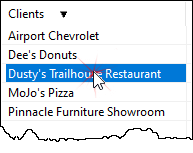
Client List
A client can be selected for deletion from the list by right clicking the client's name with the mouse. The program will not allow a client with campaigns on file to be deleted.
Clients initially appear listed in ascending alphabetical order. Left clicking with the mouse on the column title toggles the display to descending alphabetical order. A second click restores the original order.
Right click this list with no client highlighted to add a new client. Right clicking with a client selected displays a menu option to edit the client or delete it. Clients with campaigns on file cannot be deleted.
Additional options display only clients with schedules that have been converted to orders, or hides inactive clients (those with no campaigns on file). When inactive clients are hidden, the title at the top of the client list will display "Clients (Active Only)". Clicking the "Orders Only" option will deselect and disable "Hide Inactive" if it was previously selected.
3. Campaign Filter
The Campaign Filter on the COMPASS main window restricts the type and date range of campaigns being displayed. This filter uses the Campaign Status field from the Campaign Information window to determine what campaigns are displayed. Filtered campaigns are only removed from the display; they are not deleted.

Campaign Filter
A drop down list of options includes:
•All Campaigns - Lists all campaigns on file for the selected client regardless of dates or status. This view displays everything in the system for the selected client.
•Current Only - Displays only proposed and approved campaigns for the selected client that fall within the current date.
•Pending Only - Displays only proposed campaigns for the selected client.
•Approved Only - Only campaigns that have been marked as approved are displayed.
Utilizing Date Range
Each of the filter settings can optionally display campaigns by a range of dates. Use the left mouse button to place a check in the Use range box, then set the start and end dates preferred. Only campaigns with start and end dates that fall within the dates specified will be displayed. Remove the check in the Use range box to turn off the date filter.
COMPASS remembers the filter settings and restores them the next time the program is executed.
4. Campaign List
When a client is selected in the Client List section, the campaigns for that client will be displayed in this list (depending on the Campaign Filter settings.
The Campaign List can be sorted by clicking on any title listing at the top of the list. The initial sort is descending alphabetical order. Clicking a column title reverses the listing to ascending alphabetical based on that column.
Campaigns are color coded:
•White background - Campaigns that are current or future based on the current date.
•Light Gray background - Expired campaigns (end date earlier than the current date).
•Red background - Campaigns that have been canceled but not yet deleted. See Canceling/Deleting a Campaign.
The campaign list includes two columns, B'Cast (Broadcast) and Grand. Broadcast displays the total of broadcast revenue for orders, while Grand includes both the broadcast revenue and any additional charges (talent fees, miscellaneous, etc.). Campaigns with the status Proposal show zero totals for both of these columns.
The columns of the Campaign List can be re-ordered as desired. Use the left mouse button to click on a column title. Continue holding down the mouse button and drag the column left or right to the location desired, then release the mouse button. Column widths can also be changed by positioning the mouse pointer between two columns until the cursor changes to a double-headed arrow. Then, left click and drag the column to the width desired. The column order and widths specified will be restored the next time the program is executed.
Right Click Options
When no campaign is selected, right click in the Campaign List to create a new campaign.
Highlight a campaign by left clicking to select it, then right click to display a list of options:
•Add new campaign
•Edit selected campaign
•Cancel/Delete the campaign (mark as canceled)
•Set Campaign Status
 Pro Tip
Select any campaign in the list, then click the PDF button  on the tool bar to display the Email/Print Schedules window. Any schedule in the campaign can then be printed or emailed without going to the Campaign Information window or Schedule Detail window.
5. Status Bar
The Status Bar at the bottom of the main window provides information about the client and campaigns selected on the main window, as well as information about COMPASS.
From left to right, the Status Bar displays:
•The number of clients on file;
•The total number of campaigns for all clients;
•The number of campaigns for the selected client;
•The dollar total of orders for all campaigns for the selected client;
•The location of the active database (Local or Network);
•The program's version number
Pro Tip
Check out the help section on Keyboard Shortcuts for all the powerful tools available to you in COMPASS.