For many agencies, one individual serves as the liaison for the campaign's client while a different person deals with the media. COMPASS allows different individuals to be specified for each of these tasks.
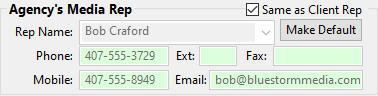
Agency Media Rep
Representative selection works identically to the Client Rep section. Enter a new name in the Rep Name field to add a new representative to the list; right-click the name to edit the name or add a signature file. Beyond the representative name, the remaining fields are optional.
Click the Make Default button to assign the selected representative as the default for the selected client.
Traffic Email Options
When using COMPASS Mail, the Agency Media Rep has additional options for the "From" and "Reply To" email fields.
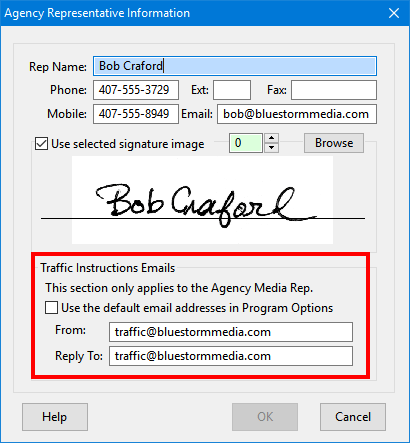
Media Rep Traffic Email Options
The section outline in red in the above image applies only to the Agency Media Rep. When sending traffic instructions to media, a different "From" and "Reply To" email address can be specified.
When a traffic email is initiated, the following will occur:
1.If the "From" and "Reply To" fields in the Agency Representative Information are populated with valid email addresses, they will be inserted in the email form.
2.If either the "From" or "Reply To" fields are blank, or the box Use the default email addresses in Program Options is checked, the default email addresses in Program Options will be used.
3.If the "From" and "Reply To" fields are blank here and in Program Options, those fields will be blank in the COMPASS Email form.
The above Traffic Instructions Emails area is displayed when editing the Agency Client Rep, but has no effect as the traffic email address are only used by the Agency Media Rep.
Linking Agency Media and Agency Client Rep
If the agency media representative and agency client representative are the same individual, place a check mark in the Same as Client Rep box to "link" the two representative fields together. When the representatives are linked, any changes made to the client representative are automatically reflected in the media representative. The two sections can also be linked by selecting the same representative in the Agency's Media Rep section as that in the Agency's Client Rep section.
To unlink the two representative sections, remove the check mark in the Same as Client Rep box. This will set the Agency Media Rep to "None" after which a new representative can be selected.