Some media outlets offer clients paid or no-charge ("bonus") ads that are similar to ROS (Run Of Station) ads except that they span more than one week. These ads don't have a "home" week and therefore cannot be scheduled using the Weekly Schedules grid. COMPASS provides the Ads Spanning Multiple Weeks tab to address this situation.

Schedule Spanning Multiple Weeks
The scheduling grid, comments, and notes for the Multiple Week Span operate in a similar fashion as described in the Weekly Schedules section. New sections and differences are described below.
Start/End Dates
Because ads scheduled to span multiple weeks can start (and end) on any date of the schedule, the Multiple Week Span grid requires start and end dates be specified.
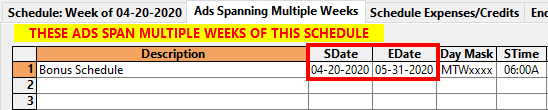
Multiple Week Start and End Dates
To specify dates, enter at minimum the month and day separated by a slash, dash, or period. Regardless of the selected date formatting, the program will understand and convert the entry into a valid date. If the year is omitted, the current year as set in the operating system will be supplied. Year values may be entered as all four digits or just the last two digits.
Manually entered dates must match the date format chosen for the current media. For example, if the media's selected format is YYYYMMDD (year/month/day), manually entered dates must take the format 2020-12-31 (2020/12/31 is also acceptable). If the format does not match (entering 12-31-2020, for example), the program will complain the date is not legal.
If the date entered is illegal (invalid month or day), is outside the range of the schedule dates, or the dates are out of sequence (start later than end or the reverse), an error message is displayed and the previous date value (if any) is restored.
Pop-up Calendar
Right click with the mouse on either the start or end date cell to display a pop-up calendar. The calendar is limited to the range of the media schedule's start and end dates. Navigate and click on a date to place that date in the cell, or click Cancel to close the calendar without changing the date. If the selected date cell is blank, the date initially selected in the calendar is the start or end date of the campaign, depending on the column.
Start Date Shortcut: When right-clicking the start date cell to display the pop-up calendar, hold down the Ctrl key to pre-select the first day after the previous schedule line's end date. This only works on lines after line one.
Packages
The Package field of the Multiple Week Span grid allows the optional creation of four different types of package pricing, identical to the Weekly Schedule grid. The only exception is for schedules for Streaming Media, which are limited to B "Bonus" No Charge packages.
Non-streaming package options are:
Package "P" — "Bulk" Package price: This option is created by entering the letter "P" (upper or lower case) in the Package field. The "P" option takes whatever value is entered in the Cost field and applies it as the total cost for the schedule line, regardless of how many ads are indicated for that line.
Package "N" — "No Charge" Package: Entering "N" in the Package field operates identically to the "P" option except the Gross total for the line is not charged to the client. It is indicated in the schedule grid with a negative amount and in blue text to identify it as something that will not be billed to the client.
Package "B" — "Bonus No Charge": Some media offer no charge "bonus" ads as added value for the client. COMPASS allows the cost of these ads to be shown to the client as "added value" while not altering the total cash investment from the client.
Technically, this is not a true "package", as the Gross amount of the line is calculated normally (number of ads multiplied by the Cost value). However, this line is otherwise treated as a "No Charge" line with the text in blue. As with the "No Charge Package" the value of the schedule when printed is shown to the client but the media's version shows zero Gross.
Fees and Credits — A Fee line in the weekly schedule allows the addition of non-broadcast charges to a client, while a Credit reduces the total amount owed by the client for the schedule. Typical examples of a Fee would be charges for talent, promotional charges, live broadcast fees, or other charges not relating directly to the ad schedule. Credits could include promotional consideration provided to the station by the client or a rebate from an error on a previous schedule. A Fee/Credit line accounts for these charges for a specific week. To add fees or credits relating to the overall schedule or campaign and not associated with any particular week, see Schedule Expenses/Credits.
A Fee line is designated by entering the letter "F" (upper or lower case) in the Package field, while a Credit is designated by the letter "C".
Once designated as a fee or credit, the line changes color to a pale blue, indicating it is not a part of the broadcast charges. The value entered in the Cost column for that line is applied only when one or more "ads" are indicated for the line. However, unlike the "bulk" pricing, the Cost value is applied for each instance of an "ad".
Fees and credits are not included in the schedule's Broadcast Total since they are not considered a broadcast charge and are not included when calculating the average unit rate for the schedule. Instead, they are shown in the Credit Total/Fee Total areas, directly below the grid. Fees and credits appear as a separate block on the printed schedule.
Ads per Span
The total number of ads for the line is entered in the Ads column. These ads can air on any of the selected days that fall within the line's start and end dates.

Assigning Multi-Week Ads
Day Assignments
The Day Assignment section of the Multiple Week grid allows the selection of the individual days of the span where ads may air.

Day Assignment for Multiple Week Schedule
Each day of the week is indicated by the first letter of the day name in the column title. Days that are masked out are "grayed" in the grid and are unavailable. Place an "X" in the column of each day where ads may air. Entering a space or "0" removes the "X", entering any other character places an "X". The Total and Gross columns are unaffected by the number of days selected.