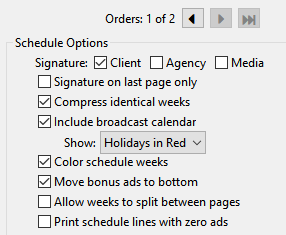
The Schedule Options section of the Schedule Detail window allows the appearance and features that will be included in the generated schedule to be customized. Some of these apply exclusively to schedules generated for the client, while others apply to the media.
Schedule Options
If one or more previous schedules have been issued to this media, those schedules can be viewed and printed, but not edited, using the Orders: 1 of n buttons. Click the left button to move back in history to previous schedules (proposals or orders), the right button to move forward. The final button returns immediately to the current schedule. When viewing a previous schedule, any attempt to edit what is on screen is ignored. When a previous schedule is displayed a bright red box with READ ONLY is displayed as a reminder.
If any schedule in a campaign is being viewed/edited by another user in network mode, the option to view previous schedules for that client and campaign by other users on the network is disabled.
Schedule Options
When a new schedule is created, these options are based on choices taken in the Schedule Options tab of Program Options. Those settings can be changed here, with the changes applying only to this schedule.
•Signature: Checking the appropriate box places a signature block for the client on proposals, for the agency and/or media at the end of the order.
▪Client: Places a client signature block on printed/emailed proposals beneath the words "Approved for (Client Name) by:". "Authorized Signature" is printed below the signature line along with provisions for the printed name and date.
▪Agency: Places an agency signature block on printed/emailed orders to media beneath the words "Submitted by:". The agency media rep's name and the agency's name is printed below the signature line. If specified, the selected signature file for the agency rep is also printed.
▪Media: Places an agency signature block on printed/emailed orders beneath the words "Accepted by:". The media name and a line for the date is printed below the signature line.
•Signature on last page only: Normally, signatures are printed at the end of the schedule, immediately following the order total and again after any end text. Check this box to have signatures appear only after the end text (if any).
•Compress identical weeks: Combines weeks with identical schedules so each unique week is printed only once. If the schedule week printed consists of multiple weeks, the week heading will indicate each individual week or range of weeks that the schedule is to air (e.g., "Weeks of 04/03 - 04/16/2017, 04/24/2017"). If this option is not checked, each week of a schedule is printed individually.
•Include broadcast calendar: Prints a 53-week broadcast calendar as an addendum to the schedule, indicating which weeks the client is active. When this option is selected, one of four additional sub-options is selected:
▪Holidays in Red: Includes holiday notations on the calendar and prints holiday dates in red. See Add/Edit Holidays for information on creating additional holidays/events not included by default.
▪Calendar Notes: Prints any Calendar Notes for the weeks of the schedule in place of holidays.
▪Schedule Only: Prints the schedule only, without holidays or calendar notes.
▪Blank Calendar: Prints a calendar for the current year with no client, media, or schedule information.
•Color schedule weeks: When checked, assigned week colors are applied to the printed schedule (and repeated on the broadcast calendar if that option is enabled) to aid in identifying different weeks the client is active. Checking this box enables the Week color box as covered in the topic Week Colors.
•Move bonus ads to bottom: Bonus (package) ad lines are relocated to the bottom of the week's schedule when this option is checked. If this box is not checked, bonus lines remain in the schedule in which they are initially entered.
•Allow weeks to split between pages: When printing a schedule, COMPASS tries to keep all lines of a week's schedule on the same page. This can often leave large blank areas on some pages. Check this box to allow the program to split a week's schedule line over more than one page. While this eliminates large blank areas, it can confuse some media by distributing a portion of the week to a second page.
•Print schedule lines with zero ads: When printing, schedule lines with no ads assigned are normally omitted. Check this box to include such lines, which allows clients to see what available time periods/programs included in the schedule that are not being utilized.