Schedules may be previewed/printed or emailed from various places within COMPASS, essentially wherever the PDF button  button is active on the current window's tool bar.
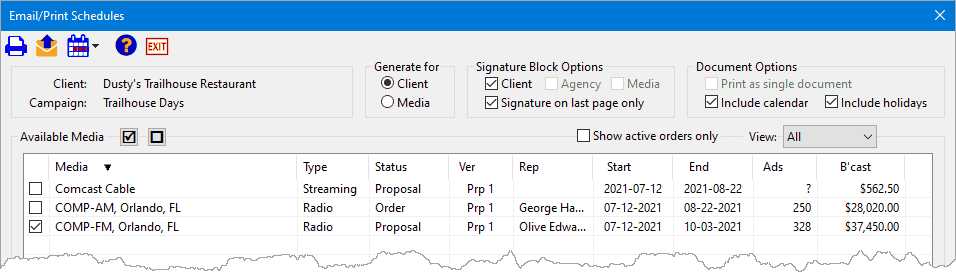
Email/Print Schedules
The Email/Print Schedules tool bar includes the following buttons:
|
Preview/Print — Generates the selected schedule(s) and displays them in the system's default PDF viewer. There they may be printed to any attached Windows printer. |
|
Email — Generates the selected schedule(s), then opens the system's default email client (or COMPASS Mail, if enabled) and attaches the schedule PDF file(s) to the message addressed to either the client or media. If the selected recipient does not have an email address on file in the database, this button is disabled. |
|
Broadcast Calendar — Generates a broadcast calendar without the accompanying schedule. There is a choice of calendar contents: •Print Schedule Broadcast Calendar: Generates a calendar with information and totals from the selected media schedule. •Print Schedule Calendar - No Budget: Generates a calendar showing the weeks the schedule(s) are broadcast, but omits the weekly budget totals. •Print Blank Broadcast Calendar: Generates a calendar for a selected year with NO schedule information. An additional dialog is displayed where the year to be printed is selected along with options to include the client name. |
|
Help — Opens this help file. |
|
Exit — Closes the Email/Print Schedules window and returns to the previous window. |


Clicking the Preview/Print and Email button displays a window indicating in what location the generated PDF will be stored. This directory can be changed to any drive and path desired by clicking the Change button. Each client can have its own discreet directory path for proposals, orders, and traffic. The most recent selection will remain in place until changed by the user. Otherwise, holding down the Shift key before clicking sends the generated PDF to the default directory C:\Program Data\COMPASS\PDF\.
Client Information
The client name and campaign name are displayed at the top of the window. Options determine the recipient of the schedule and what additional elements will be included.
Generate For
Determines whether the schedule will be produced for the client or the media. Each has different elements; for example a schedule with bonus ads will show the cash value of the ads when generated for the client, while the value will be marked as "NO CHARGE" for the media.
Options
As the recipient selection changes, available options to the right of the window also change.
•Signature Block Options: Checking any of the available signature check boxes will insert a corresponding space for a signature for that entity. Boxes that are disabled are not available for inclusion. The status of these check boxes are initially inherited from the settings in the Schedule Detail window when this window is opened from that location.
•Document Options:
▪Print as single document: This option is available depending on the following circumstances:
oIf the recipient is the client and more than one media is checked in the Available Media list
oIf the recipient is a media and more than one schedule for that same media is checked
The selected schedules will be combined into a single PDF document that can be printed or emailed to the recipient. If not checked, each schedule will be generated as a separate PDF document/attachment.
▪Include calendar: Adds a broadcast calendar to the end of the generated schedule. This check box reflects the setting from the Schedule Detail window.
▪Include holidays: Available only when Include calendar is enabled. This option adds holiday designations that appear in days designated as a holiday/special date in Holiday Manager.
Show Active Orders Only
When checked the Available Media list displays only media with current orders. All proposals and previous orders (revisions) are hidden. Remove the check from the box to show all schedules for all media on the campaign.
View
Filters the media displayed in the Available Media list to match the media type selected. This can be useful when a campaign involves a number of diverse media types with a large number of media in each.
Selecting Media to Print/Email
Only those media that are checked are available for printing. If a media has been included in the campaign but does not have a schedule (at least one ad), and the Print lines with zero ads option has not been enabled, that media will not have a box to check (since there is nothing to print). If the Email/Print Schedules window is opened from the Schedule Detail window, the media that is being edited will be pre-checked. Also, if the window is opened for a campaign that has only one media assigned, that media will be pre-checked.
If the schedule being printed is a proposal and that proposal is the only proposal for that media, a Proposal Option dialog will be displayed. This dialog allows the schedule to be generated with a proposal number or as a proposal with no number. This option will also appear if the proposal is being generated as a stand-along broadcast calendar.
COMPASS makes some assumptions based on from where the Email/Print Schedules window is opened. If opened from the main COMPASS window or the Campaign Information window, the program assumes the schedule is being generated for the client; otherwise, it sets the Generate for button to Media.
Regardless from where the Email/Print Schedules window was opened, double-clicking any media in the Available Media list will open the Schedule Detail window for that media so the schedule can be viewed or edited. Close the Schedule Detail window to return to Edit/Print Schedules.
If the Email/Print Schedules window is opened from the main COMPASS window or the Campaign Information window, double-clicking a schedule with the left mouse button will open that schedule in the Schedule Detail window where the schedule can be edited normally. When in this situation, the Email/Print button on the Schedule Detail tool bar is disabled. Closing the Schedule Detail window returns to the Email/Print Schedules window where printing can take place.
 Pro Tip
Highlighting a media in the Available Media list by first left clicking it, then right clicking will open the Media Information window, where the media name, address, sales representatives, email addresses, etc. can be edited. Close the window to return to the Edit/Print Schedules window.