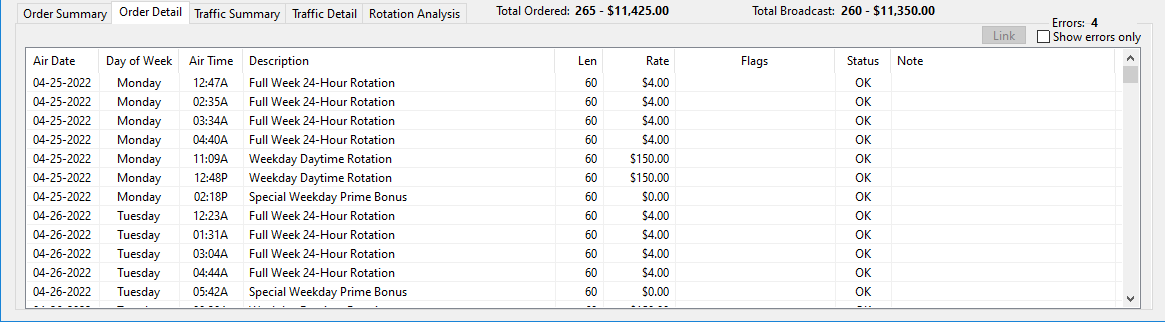
The Order Detail tab of Reconcile Explorer lists every ad that aired in the reconciliation period in chronological order.
Reconcile Order Detail
In addition, the Status of the order — "OK" or "NOT OK" — is displayed along with any Flags that indicate what type of discrepancy was detected. The reconciliation process attaches a "flag" to any ad it cannot resolve. This can happen when the length or rate for the ad does not match what was ordered, or the ad was broadcast outside the specified time period.
The order of the list can be sorted by clicking on the column header. For example, clicking on the "Rate" column sorts the list by rate. However, some limitations apply depending on the column selected. All sorts are alphabetical, not by value. So sorting on the "Rate" column will list rates of "$300.00" before rates of "$40.00".
The upper right corner of the tab indicates the number of errors detected. Rather than scroll down through perhaps hundreds of ads to find the errors, just check the box Show errors only to display the discrepancies.

Showing Detail Errors Only
The error information list shows the rate for the fourth ad in the list is $75.00 and it was scheduled to air Saturday. The flag is "Time", which means COMPASS detected this particular aid aired outside the specified time range.
If you viewed the Order Summary tab shown in this help file, you saw the "Saturday Afternoon Rotation" line specified ads should air between 1:00pm and 5:00pm. However the error line shows the ad aired at 5:04pm, outside the desired daypart.
Order Record Linking
Sometimes, COMPASS is unable to recognize an ad contained in the reconcile file. This could be due to an error by media when the ad ID code was entered, or other issue. In any case, if COMPASS cannot determine the origin of the ad it will mark it as "Unknown".
IMPORTANT! If the error is made by media -- such as entering an incorrect ad ID code -- contact the media to obtain a corrected file. COMPASS displays a warning message in this regard when an ad is selected for linking. Failing to get the media to correct their mistakes only encourages additional errors on their part. See Reconcile Options for more information.
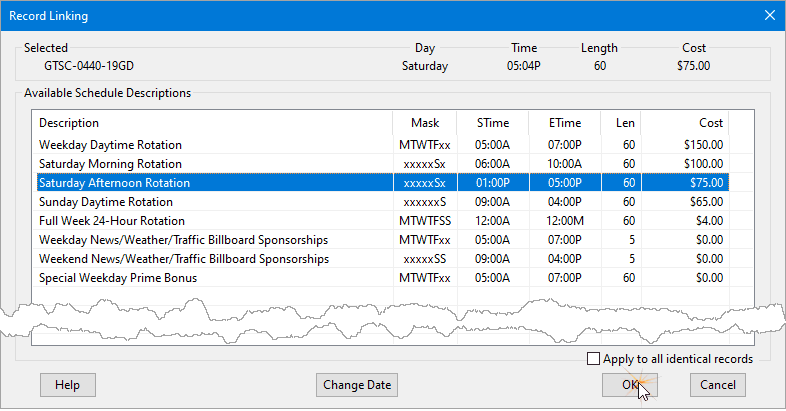
In order to be reconciled, an "Unknown" ad must first be linked to its proper parent in the schedule. Left click the "Unknown" ad with the mouse to select it. This will enable the Link button. Click the Link button to open the Record Linking window. The same action can also be achieved for an unlinked ("Unknown") ad by double clicking it with the left mouse button.
Record Linking
At the top of the window, information on the selected order item is displayed. This includes the day of the week and time the ad aired, along with the length and the cost. The Available Schedule Descriptions section lists the ad lines that are part of the schedule that was sent to the media for the corresponding week.
Use the mouse to select the schedule description with a matching Cost, Mask, Length, and a time range, if possible. Keep in mind the ad might have actually aired outside the specified time period. If the rate selected does not match the rate on the error, a warning message will be displayed asking if you want to proceed with the linking. Use caution, as an improper link might be difficult to reverse.
If there are multiple errors that are identical in nature, click the box Apply to all identical records. This will eliminate the need to repeat the linking process individually for each identical error line.
Order Record Unlinking
In the event an ad is incorrectly linked to a parent record, the linking process can be reversed. Left click the ad to select it. The Link button changes to Unlink. Click that button to display a dialog confirming the removal of the link. This will return the ad to "Unknown" status and again makes the ad an error which can then be linked to the correct parent. Because of the danger of unlinking correctly linked ads, this operation must be performed individually on each ad to be unlinked.
The confirmation dialog will appear each time the Unlink button is clicked. Check the box Don't ask me about this for the rest of this session to allow links to be removed without confirmation.
See also: Adjusting an Incorrect Link
Ads Aired in "Off" Weeks
There can be occasions where no ads are scheduled to air in a week, yet the media chooses to air "make goods" from previous weeks. This presents a problem, as the unscheduled "make good" ads cannot be linked to any parent. Rather than leave such ads unreconciled, click the Change Date button to select a previous week where the ads were originally scheduled. The orphan "make good" ad can then be linked to the proper parent, although not in the correct week of the schedule.
To avoid such conditions, see Avoid Reconciliation Problems.
Reconciling the Error
Once the error has been linked to a record in the reconciliation file, the error list is updated and we see the problem COMPASS found.

Error Reconciliation
The time the ad was broadcast was outside the specified time frame of 1:00PM to 5:00PM. If we return to the Order Summary window after completing the link, we see the number of ads for Saturday has been updated to reflect this change and the yellow highlight has been removed.

Updated Order Summary
Reconcile Editor
While the ad is now counted in its proper place and the order totals have been adjusted, the time discrepancy remains unresolved and the Status remains as "NOT OK". To address this, again use the mouse to double click the pink highlighted error line on the Order Detail tab. This opens the Reconcile Editor. The editor can also be accessed for unlinked ads by holding down the Shift key when double-clicking the item.
Reconcile Editor
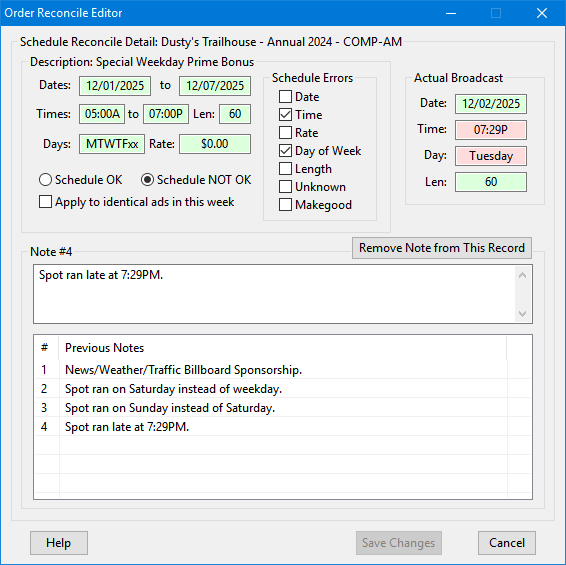
On the left side of the window, the original order specifications are displayed. In this example, this ad was scheduled to air between 4:45 PM and 5:00 PM. On the right, the Actual Broadcast section indicates the time of broadcast was 2:38 PM, outside the specified range. Any such discrepancies are highlighted with a pink background.
At this point, it is up to you to determine if this is an acceptable discrepancy or something the media will have to "make good" with one or more additional ads.
If the discrepancy is minor or otherwise acceptable, use the mouse to click the Schedule OK button. If there are multiple ads that match this criteria, the Apply to identical ads in this week box will be available. Check that box if you desire to apply this decision to all matching ads for the week in one step.
It is NOT recommended to remove the check marks from the Schedule Errors list. Doing so will lose the information as to what caused the discrepancy. There can be occasions where you want to return and review the cause of the problem. However, if COMPASS's reconciliation code made an assignment error and you have manually adjusted the record showing the ad was aired correctly in all respects, then DO remove the appropriate check marks from the Schedule Errors list. This changes the record to indicate no errors ever occurred.
You can optionally enter a note of up to 500 characters addressing the discrepancy and what decision you took to resolve it. A list of any previously entered notes is also available. Double-clicking on one of these will enter that text into the Note field. The replacement note will ONLY be applied to the currently selected record unless the Apply to all identical records in this week box is checked.
Deleting a Note
When a note is added to a record, the program checks to see if an identical note exists. If so, the existing note is tagged to this record. In some cases, it might be necessary to remove a note added in error. Click the Remove Note from This Record to remove the note from this record ONLY. All other records linked to that note are unaffected by this action. To remove all instances of a particular note, use the Reconciliation Note Manager.
Click Save Changes to apply your edits and return to the Order Detail window.
If you choose to NOT accept the discrepancy, click Cancel. This leaves the discrepancy in place, unchanged.
It should be noted that you can also alter the status of any order line that is marked "OK". Just double click the line to open it in the Reconcile Editor. At this point, if there is an issue with any of the Schedule Errors of which you are aware, you can apply check marks to any of the error conditions, then click the Schedule NOT OK button, then click Save Changes. This turns a line that COMPASS considered "OK" into a "NOT OK" line.
Adjusting an Incorrect Link
COMPASS's reconciliation routine does the best it can given the limited amount of information in the reconcile file provided by the media. Sometimes, ads with identical rates and start/end times that overlap will cause the wrong link to be created. This can easily be corrected by holding down the Shift key when double clicking the entry in Order Detail tab of Reconcile Explorer.
With Shift held down, the existing record link is ignored and the full list of available order lines is displayed. Select the desired record from the list to complete the correction.