The Schedule Options section of Program Options allows choices on how new schedules will be generated and what features will be included. These settings serve as the defaults for each newly created schedule. Most of these settings can be altered individually at the campaign/schedule level.
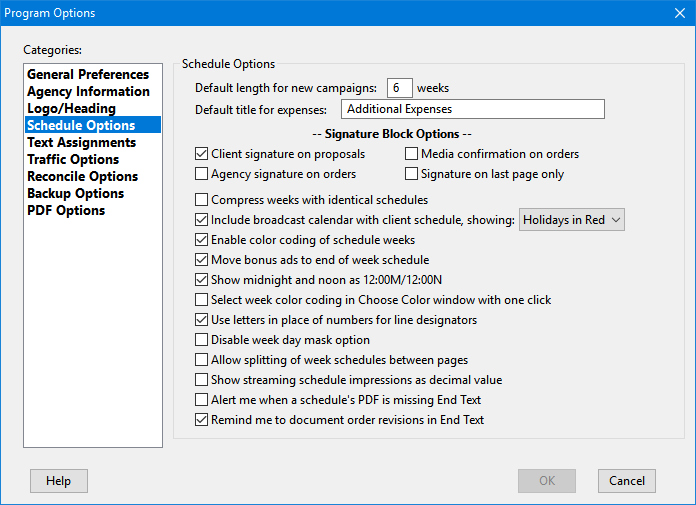
Schedule Options
•Default length for new campaigns: Tells the program how many weeks to use as the initial setting for new campaigns. Values can be from one to 53 weeks.
•Default title for expenses: This text will be printed as the section title on schedules with additional expenses (production costs, talent, etc.). This text can be edited as desired at the schedule level.
•Client signature on proposals: When checked, proposals printed for the client will include an "Approved by:/Authorized signature" block for the client to indicate his approval of the schedule(s).
•Media confirmation on orders: When checked, adds a signature space for media to acknowledge receipt of the order.
•Agency signature on orders: When checked adds a signature block for the agency representative to sign on the order (for the media).
•Signature on last page only: Normally, a signature block is included following the schedule total and following any end text (typically terms and conditions). Check this box to place the signature block only on the last page of the printed schedule.
•Compress weeks with identical schedules: Combines weeks with identical schedules so each unique week is printed only once. If a multi-week schedule is combined, the week heading will indicate each individual week or range of weeks that the schedule is to air (e.g., "Weeks of 01/07 - 01/20/2025, 02/04/2025"). If this option is not checked, each week of a schedule is printed individually. Note that this option can also be set at the media level so that each individual media can have its own preference if applying this option globally is not preferred.
•Include broadcast calendar with client schedule: Prints a 53-week broadcast calendar indicating the active weeks of the schedule. This calendar also indicates the date of a revision or cancellation, if either are present.
•Enable color coding of schedule weeks: When checked, colors can be applied to the printed schedule (and repeated on the broadcast calendar) to aid in identifying different weeks the client is active.
•Print holidays in red on broadcast calendar: Available only when Include broadcast calendar with client schedule is checked. Holidays/events that occur will have the day number of the month printed in red with a description of the event appearing on the right side of the calendar.
•Move bonus ads to end of week schedule: Bonus (package) ads are relocated to the bottom of the week's schedule after saving or changing the display to a different week when this option is checked.
•Show midnight and noon as 12:00M and 12:00N: Check this box to allow midnight to appear as 12:00M instead of 12:00A and noon to appear as 12:00N instead of 12:00P.
•Select week color coding in Choose Color window with one click: Client calendars can be color coded to indicate activity levels by week. Each color is selected by first clicking a desired hue, then clicking OK. When this option is enabled, the OK button is removed and clicking the desired color completes the selection in a single action. An advantage in not selecting this option is that the SELECTED color box on the Choose Color window is split in half. When selecting a new color, both the current color and the new selection are displayed side-by-side, providing a contrast between the two to aid in selection.
•Use letters in place of numbers for line designators: Printed schedules include unique numbered lines to aid in identifying specific sections of a schedule. Numbers start with 1 and continue across however many lines and weeks that comprise the schedule. Checking this box uses alphabetic characters starting with "A". Once the end of the alphabet has been reached, indicators continue with "AA", "AB", "AC", etc.
•Disable week Day Mask option: Eliminates the requirement to enter a week day mask for each schedule line. When this option is enabled, the "Mask" column of the Schedule Detail grid is disabled and all days of the week are available for entering ads without restriction. Disabling this option does not affect the Validate masked days when saving traffic in Traffic Options, as Day Masks are required for traffic instructions.
•Allow splitting of week schedules between pages: When this box is checked, schedules may be split so that part of a week is printed on one page and the balance of the week printed on the following page. If this option is not selected, the full week will be included on the same page with no splitting, if schedule length permits.
•Show streaming schedule impressions as decimal value: This setting affects streaming schedules only. When checked, impressions entered as a whole number are adjusted to a decimal value (e.g., "15500" is converted to "15.5"). If unchecked, entering "15.5" will be converted to "15,500".
•Alert me when a schedule's PDF is missing End Text: Check this box to receive notice if the schedule PDF about to be generated is missing End Text. The notice will permit you to continue with the PDF or cancel the operation.
•Remind me to document order revisions in End Text: When this option is enabled, any revision to an existing order will remind that explanatory text should be entered in the schedule's End Text before saving. This is enabled by default. Uncheck the box to allow issuing revisions without being required to tell the media the reason(s) for the revision.