Each individual advertisement that is to be aired as a part of the traffic instructions is entered in this section, with each ad occupying its own individual line. Ads can be entered in any order with respect to start and end dates and start and end times. COMPASS will sort the lines to group ads together based on dates and the rotation percentages you enter for each.
Cells in the Traffic Detail and editable cells in the Delivery Summary grids can be copied using Ctrl + Enter or Ctrl + Down Arrow. See Grid Tips for details.
Start/End Dates (Required)
The dates for each line must fall within the campaign dates. Dates may be entered manually, or a date may be selected from a pop-up calendar by right clicking either the SDate or EDate cell of the Traffic Detail grid.
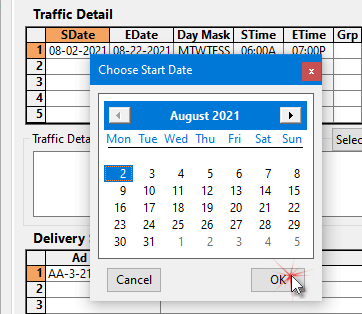
Traffic Pop-up Calendar
When entering a date manually, it is necessary to only enter the month and day separated by either a dash or slash and press Enter. COMPASS will provide the year.
When using the pop-up calendar, dates outside the campaign dates are not available. Also, it is not possible to choose an end date earlier than the start date of the current line.
Special Dates
End Date: Enter the character "u" (case insensitive) to convert the end date of the line to "Until Replaced" (abbreviated on screen as "Until Rplcd").
Start Date Shortcut: When right-clicking the start date cell to display the pop-up calendar, hold down the Ctrl key to pre-select the first day after the previous traffic line's end date. This only works on lines after line one.
Day Mask (Required)
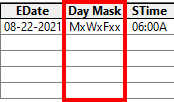
Day Mask
The day mask indicates the days of the week this line of the traffic is to air. It supports the same shorthand notation as the Day Mask in Weekly Schedules.
Days Masks are required for traffic instructions and will be necessary even if the Day Mask option is disabled in Program Options.
Start/End Time (Required)
The Start Time and End Time designations for traffic operate identically to Weekly Schedules in that times may be entered in either civilian (AM/PM) or military (24 hour) format. COMPASS will convert them to the format specified for the selected media in Media Information.
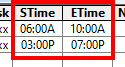
Start/End Time
COMPASS Mail will complain if a start time is later than an end time or the reverse. However some media, particularly television, often modify their broadcast day so that the "start" of the day is other than midnight. Should traffic require what appears to be an End Time greater than the Start Time, check the box Disable time checking for this order line. Then click OK. This action must be performed for each line of the schedule that has this condition.
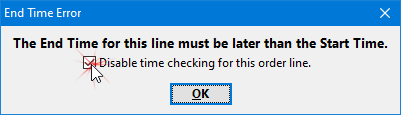
Overiding End Time Restriction
Group
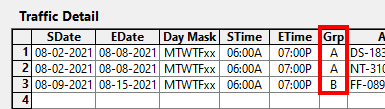
When there are two or more traffic lines with different date and time ranges, or multiple lines have identical date and time ranges and each line has a rotation percentage of 100, COMPASS will break the traffic into separate groups. This typically occurs when one group will air for a period of days or weeks and then later switch to a different group airing for a different period.
All traffic lines in the same group must total a Rotation of 100 percent.
Traffic Groups
In the image above, the first two lines of the Traffic Detail are for the weeks of 8/2 through 8/8/2021 and for 6AM to 7PM. The third line is for the following week. COMPASS has split the lines in two groups, "A" and "B". This will allow the lines to appear as two separate sections grouped by date on the printed traffic instructions. If all lines have the same start/end dates and same start/end time, only one group will be created.
When entering lines, group designations may be entered manually or left blank. COMPASS will make automatic adjustments based on an analysis of the data entered when the traffic is saved or the Update button is selected.
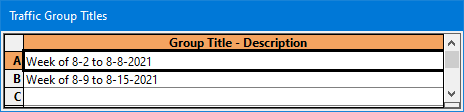
If groups are required, a separate, "floating" window will appear where a Group Title - Description must be entered. This text identifies the groups to avoid media confusion.
Group Title - Description
This separate window can be positioned anywhere on the display, including outside the boundaries of the Traffic Information window. If the Traffic Detail is modified so that separate groupings are not required, the Traffic Group Titles window will be removed.
Ad ID Code/Ad Title (Required)
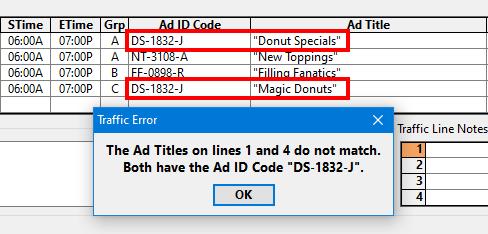
Each line of Traffic Detail requires a unique Ad ID Code and Ad Title that identifies the ad to be aired. When traffic is saved or updated, any issues or conflicts, including missing information, will be flagged and must be corrected in order to proceed.
Traffic ID Error Example
In the image above, the Ad ID Code of "DS-1832-J" is assigned to two different Ad Titles. While the same ad can appear multiple times in the instructions, the Ad ID Code must always refer to the same Ad Title. In this case, the "Magic Donuts" title needs a different ID code, or the title "Magic Donuts" must be changed to "Donut Specials" to avoid confusion.
Insert or Tag ID and Title
These are optional fields and are used only if the ad has a script or tag (often a "live read"). If no insert or tag is required, these cells should remain blank. When no Insert or Tag ID and Insert or Tag Title is present, the word "none" will be printed on the traffic instructions for that line.
As with the Ad ID Code and Ad Title, if there is a discrepancy — identical Insert/Tag IDs with different Insert/Tag Titles, COMPASS will alert you to the error and request a correction.
Ad Length (Required)
The length of the advertisement in seconds. Valid values are from 1 to 3600 seconds (60 minutes). Values outside these limits will produce an error when the instructions are updated or saved.
Rotation (Required)
The rotation percentage occupied by this advertisement. All rotations within a group must total 100% to be considered valid. COMPASS will complain if any group's rotation is below or in excess of 100%.
For example, when dealing with three ads, each to get one third of the rotation, one of the ads will require a rotation of 34% (33 + 33 + 34 = 100). This same principle applies when dealing with multiple ads rotating within the same group where the individual rotation percentage — if assigned equally to each ad — will fail to total 100%.
In some cases, especially with streaming media where the actual number of ads aired is uncertain in advance, enter a question mark "?" in place of a number when the rotation is undetermined. Mixing a number value and "?" within the same group is not permitted.
As an alternative, COMPASS can calculate "equal rotation" for you. Leave the rotation percentage at zero, or enter a question mark in place of a percentage. Once all lines are entered, right click on the "Rot%" cell of any line of the traffic (not the column title). COMPASS will determine which group (if groups are present) has been selected and will ask if you desire to apply equal rotation to the lines in that group. Answering Yes will provide as close as is mathematically possible to equal rotation of that group. In many cases one or more lines will have one or more percent greater rotation value (is in the 34% vs. 33% example above).
Note that group assignments, if required, do not appear until after the traffic has been saved. Immediately after saving, COMPASS will alert that the traffic rotation is not at 100%. At this point, right click each group in turn as outlined above to apply equal rotation to the lines of that group.
Note
The Note column is an optional field that allows a footnote with special instructions that apply to that individual ad. Up to 20 different Line Notes numbered 1 - 20 can be created and the same note number can be assigned to multiple grid lines. It is not necessary to number notes sequentially (i.e., notes can start with note #2, or #7, etc.). However, to avoid possible confusion, it is recommended to use the note numbers sequentially.
Each note number is required to have a corresponding note text in the Traffic Line Notes section. COMPASS cross checks for missing notes/numbers when the traffic instructions are updated or saved and will alert if it finds any problems that must be corrected.
Special
The Special column of the Traffic Detail grid optionally provides for special handling for individual ads. This is signified through two-letter codes (case insensitive). The codes include:
Code |
Meaning |
|---|---|
FB |
First in break (airs as first ad in commercial set) |
LB |
Last in break (airs as last ad in commercial set) |
BE |
Bookends (airs at both beginning and end of commercial set)* |
* In the case of Bookends, a setting in Media Information for each media determines if a bookend counts as one or two units.
Only the character codes indicated above will be accepted, with any other entry being ignored. Leave this cell of the grid empty for no special handling.
Traffic Detail Comments
The optional Traffic Detail Comments is where special instructions for the traffic may be entered.

Traffic Detail Comments
The Traffic Detail Comments box turns blue when it has the keyboard focus. Because this section allows multiple lines, pressing Enter starts a new line of text and does not move forward to the next section. Use Tab or the mouse to select another area on the Traffic Information window.
This field supports Text Substitution and Spell Check.
Use the Select drop down to choose predefined text content via the Text Library.
Text entered here appears directly below the traffic instruction sections when printed.
Traffic Line Notes
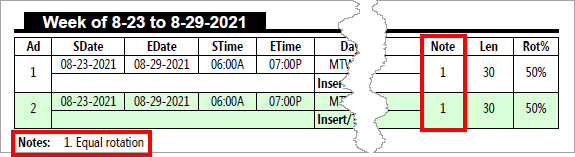
COMPASS's Traffic Line Notes section is a way to apply a footnote relating to one or more specific lines of the traffic instructions.
Up to 20 notes can be created. The text in each numbered row must correspond to the number entered in the Notes section of the Traffic Detail line. When the instructions are printed, the assigned notes (if any) will be printed beneath the group to which they apply.
Traffic Line Note Example
To enter or edit a note, use the left mouse button to double click on the desired line in the Traffic Line Notes box. Traffic Line Notes can be selected and entered under any number desired and it is not necessary to begin with note #1 (although the client or station could become confused if numbers are skipped). Notes are limited to 90 characters in length.
When entry or editing is complete, press Enter or Tab to store the text. Failure to do so may result in the note not being recognized by the program.
Entering a note number in the Note column on the Traffic Detail grid without a corresponding note in the Traffic Line Notes section will produce an error condition when updating or saving. An error message will be displayed indicating the location of the error. Such errors must be corrected (a note added or the number removed from the Traffic Detail grid) before the instructions can be saved or exiting from the Traffic Instructions window is allowed.