With commercial rotation entered into the Traffic Detail section of Traffic Instructions, the Delivery Summary is used to itemize each instance of the rotation and indicate how the ads will be produced, delivered, and optionally indicate any attachments that will accompany the emailed instructions.
The Delivery Summary is populated by clicking the Update button immediately above the Delivery Summary grid, or by clicking the Save  button on the tool bar (hot key combination Ctrl + S). Only one instance of each ad is placed in the Delivery Summary regardless of how many times it appears in the Traffic Detail grid. The first four columns of the summary are filled by COMPASS and are not directly editable. If changes are made in the Traffic Detail section, click the Update button to refresh the contents of the summary grid.

Columns in Red are Not Directly Editable
For each ad in the summary grid, the following information must be provided in order for the full Traffic Instructions to be saved and issued to media.
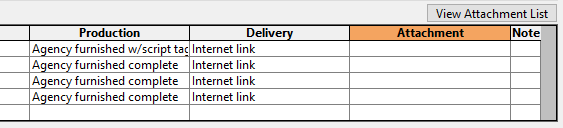
User Editable Fields
Production (Required)
This field informs the media how the ad will be produced. Examples would be "Agency furnished complete", or "Media script and produce". Any text preferred may be entered, but text must be present in order for the instructions to be saved and issued to media.
Right click a cell in the Production column to open a list of frequently used production descriptions.
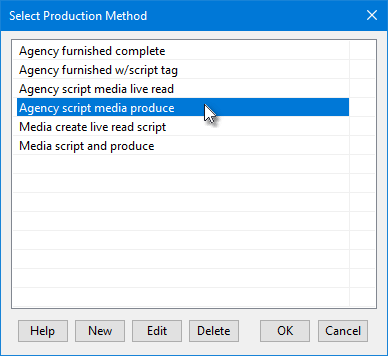
Pop Up List
The contents of the list can be modified by adding, editing, or deleting text as desired. Highlight the desired text by clicking with the mouse and then clicking OK, or simply double click the selection to close the window and add the text to the selected Production cell.
 Pro Tip
Hold down the Shift key when double clicking or clicking OK to have the selected text applied to the selected Production cell and all populated lines below it
Delivery (Required)
This field informs the media how the commercial will be delivered to them; via an Internet link, by attachment, etc. As with the Production column, right clicking a cell in the Delivery column will pop up a list of predefined delivery methods.
If the embedded word "attach" (as in "Attachments", "attached to"), COMPASS will force the use of a valid attachment in the Attachment column of the line.
The Delivery column can also be used to insert an Internet link which will become an active link (i.e., "clickable") on the generated PDF of the traffic instructions. The text indicating the link must begin with "www." in order to be recognized as such.
Attachment (Required only if "attach" is present in Delivery column)
Allows one or more files to be attached to the Traffic Instructions when they are emailed to media. Right click a cell in the grid to open the Select Attachments window. Only one file may be selected at a time; repeat the right click to add additional files.
Hold down the Control (Ctrl) key when right clicking to replace any existing attachment(s) with the selected file.
A file path and name can be entered manually, but this is not recommended. COMPASS will validate any attachments and an invalid file or path will prevent the Traffic Instructions from being saved.
Due to size limitations, it is not possible to show the full path and file name of attachments. However, you can click the View Attachment List button to see a full list of files that have been selected.
Note
Similar to the Note feature in Traffic Detail, the Note column is an optional field that allows a footnote with special instructions that apply to that individual ad regarding delivery. Up to 20 different Notes numbered 1 - 20 can be created and the same note number can be assigned to multiple grid lines. It is not necessary to number notes sequentially (i.e., notes can start with note #2, or #7, etc.). However, to avoid possible confusion, it is recommended to use the note numbers sequentially.
Each note number is required to have a corresponding note text in the Delivery Line Notes section. COMPASS cross checks for missing notes/numbers when the traffic instructions are updated or saved and will alert if it finds any problems that must be corrected.
Delivery Summary Comments
The optional Delivery Summary Comments section on the lower left of the summary section is where special instructions pertaining to the summary section may be entered.

Delivery Summary Comments
The Delivery Summary Comments box turns blue when it has the keyboard focus. Because this section allows multiple lines, pressing Enter starts a new line of text and does not move forward to the next section. Use Tab or the mouse to select another area on the Traffic Instructions window.
Text entered here appears directly below the delivery summary section when printed.
This field supports Text Substitution and Spell Check.
Use the Select drop down to choose predefined text content via the Text Library.
Delivery Line Notes
The Delivery Line Notes section is a way to apply an optional footnote relating to one or more specific lines of the Delivery Summary.
Up to 20 notes can be created. The text in each numbered row must correspond to the number entered in the Note section of the Delivery Summary line. When the instructions are printed, the assigned notes (if any) will be printed beneath the ad list.
This section operates identically to that in Traffic Detail.